How are e-tickets generated on Zeffy?
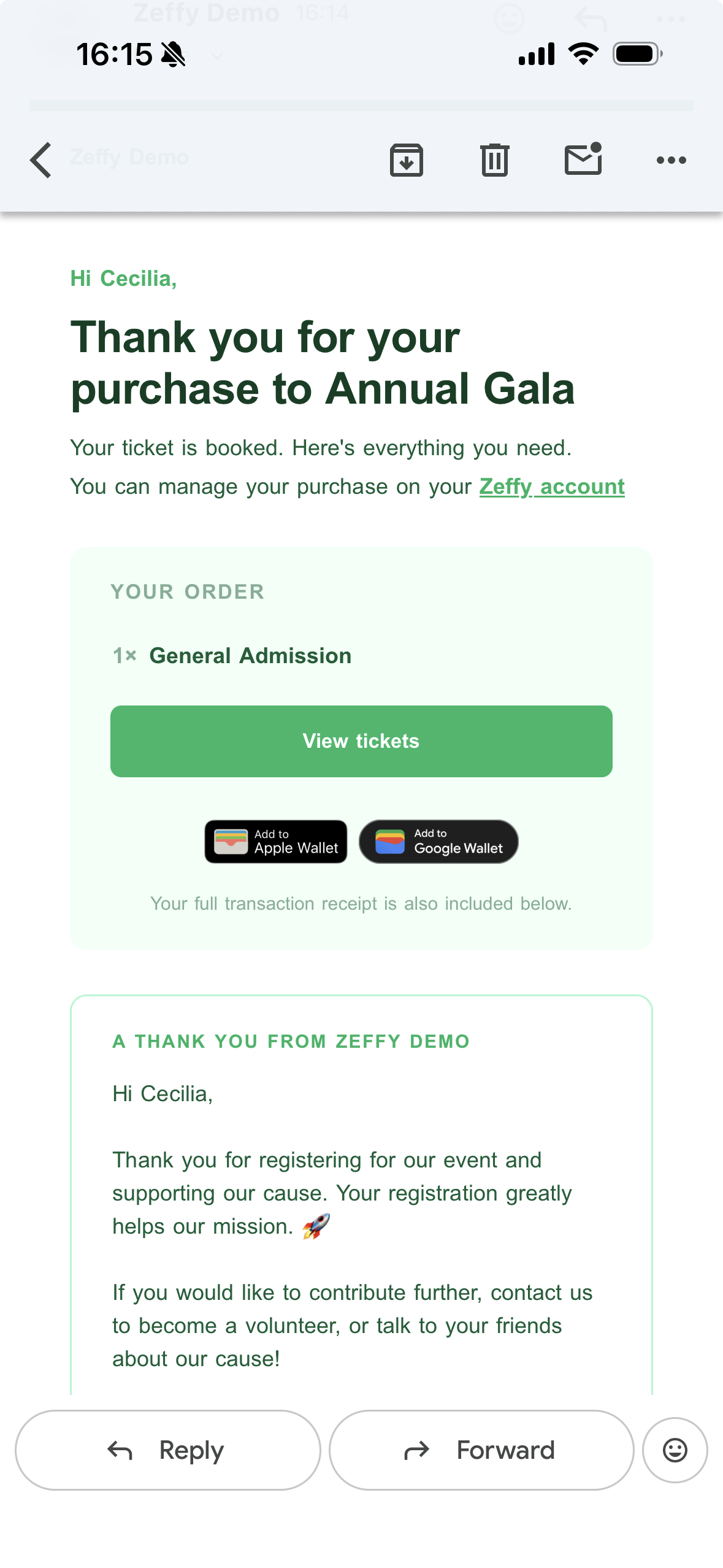
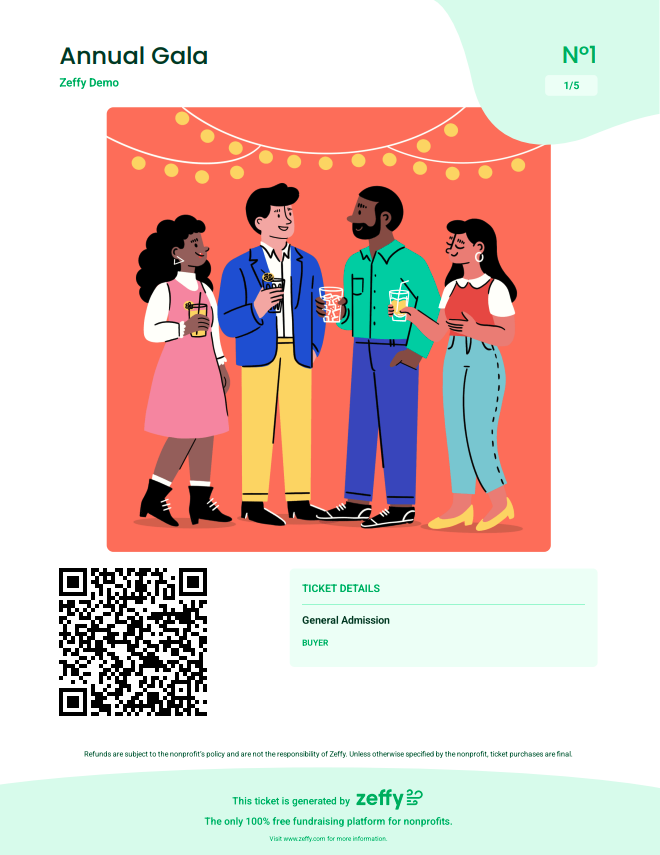
E-tickets on Zeffy are created automatically for each registered attendee when an event is organized through the platform. After registration, attendees receive a confirmation email containing their e-ticket as a PDF, which includes essential event details, a QR code, the ticket number, and any custom messaging set by the event organizer.
Each e-ticket displays its own ticket number on the ticket itself, alongside its QR code. For group tickets or multi-ticket purchases, a single PDF can contain several e-tickets, each individually and sequentially numbered.
This e-ticket can be scanned at the event for swift check-in and tracking. You can scan with a phone camera or with the lightning check-in manager in the Tap to Pay app, which checks the ticket in automatically and opens ticket details without following a link. Click here to learn more about scanning e-tickets.
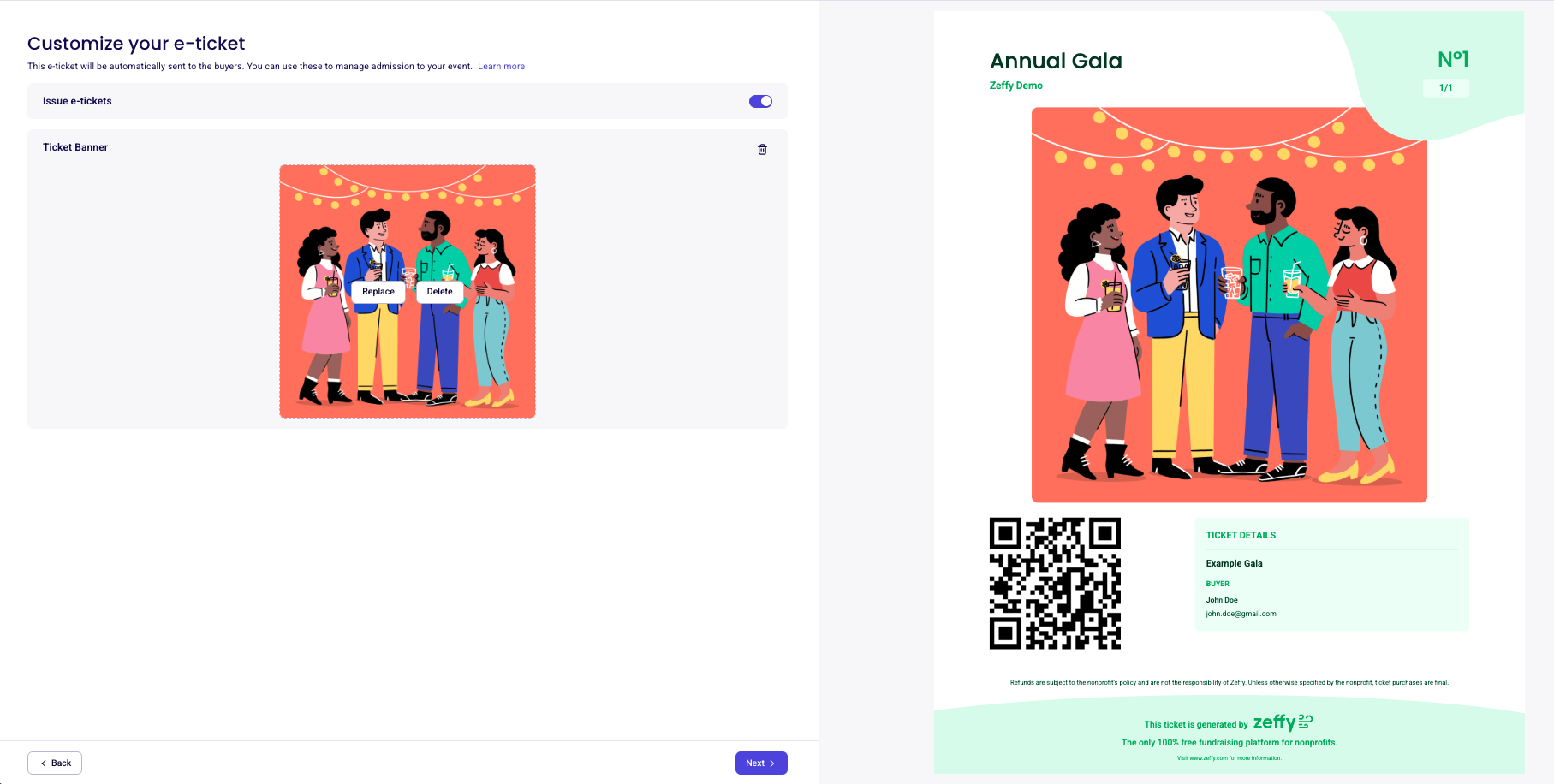
Users can customize the e-ticket by adding a ticket banner in the "E-ticket" section of the form editor.
It is not possible to edit an E-Ticket once it has been generated. In order to make edits, you will need to cancel the ticket and then re-issue a new one with the correct information. Read how t do this here!
How to view an e-ticket generated for an attendee
To view an attendee's e-ticket, navigate to the Payments section of your account and click on the payment for which you'd like to consult the ticket. A window will slide in from the right; from there, click e-ticket to open a PDF version of the ticket.
How to disable enable/disable e-ticket generation on a form
To turn off e-ticket generation in Zeffy, go to Campaigns and click on edit to the right of the form you're looking to edit. Click on e-Ticket in the side-bar options, then toggle off the option to generate e-tickets. This stops automatic e-ticket creation, allowing you to manage attendance without e-tickets being sent to attendees.
How can my donors save their e-tickets?
When donors open their confirmation email on their computer they will be able to save their tickets as PDFs.
When donors open their confirmation email on their mobile device they will be able to add their tickets to their Apple Wallet or Google Wallet. This makes access on the go easy!