
How to Edit Your Peer-to-Peer Team or Participant Fundraising Page
When you register for a nonprofit's peer-to-peer fundraiser (whether as an individual or part of a team) you can edit your fundraising page right away from the confirmation screen, or anytime afterward using the link sent to your registration email.
Before you can edit: activate / access your Zeffy account
Head to zeffy.com/login and enter the email address you used when you signed up for this fundraiser
You'll receive an email with a link to create your password
Click the link in that email, set your password, and you're in.
Editing your fundraising page
Once your account is activated:
Follow the link in your email to log into your Zeffy account.
Click on "Edit" next to the name of your form.
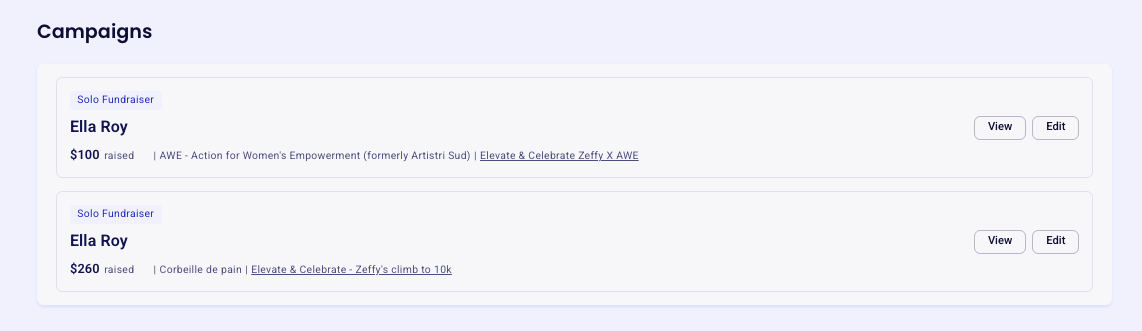
From the editor:
Click on edit to the right of the fundraising page you'd like to modify. Once in the editor, you'll be able to edit the following sections:
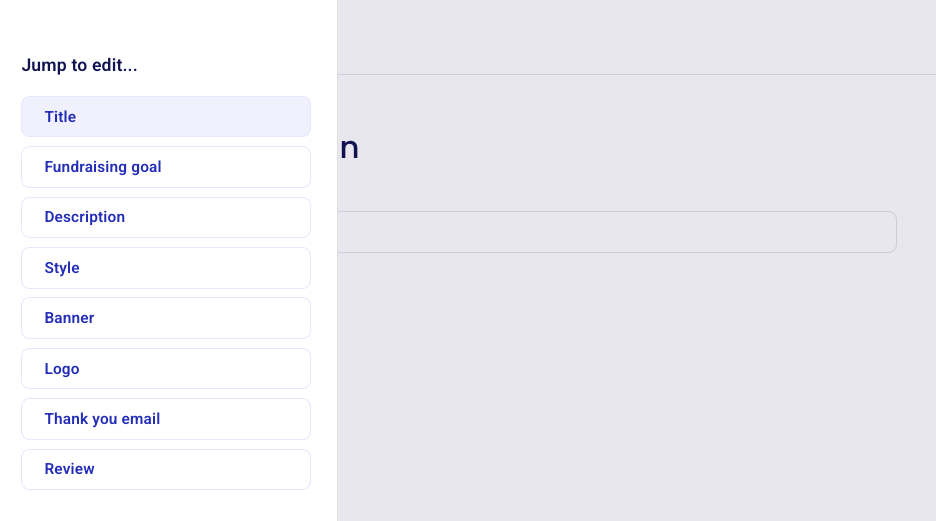
Update the title of your page
Change your fundraising goal amount
Edit your personal campaign description
Add a profile photo and banner image, and customize your campaign's color
Personalize the thank-you message that donors receive automatically when they contribute to your campaign specifically
Update your profile picture
From the fundraising page editor, you can add or replace your profile photo and banner image.
Need help with something else?
Some requests (like joining a different team, removing your page, or correcting a registration) can't be done from your account settings.
If you registered under the wrong team, submit Zeffy's Moving participant support request. Our team can move your page to the correct team. For registration corrections or page deletion, your best option is to contact the nonprofit directly. They manage the campaign and have the ability to make those changes on your behalf. Their contact information is usually at the top of the campaign page or in your registration confirmation email.
Common requests include:
Registered under the wrong team
Want your fundraising page deleted or closed
Need to update your registration details