
How to use Zapier's Formatter to separate data fields
When integrating Zeffy with other platforms through Zapier, you may need to separate combined data fields (like full names) into individual components. Zapier's formatter tool allows you to split these fields for proper data mapping.
Steps to use the Formatter
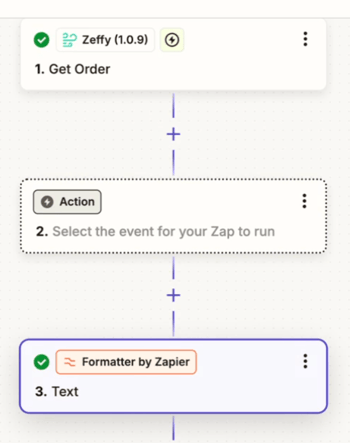
Add a Formatter step
Click the plus (+) action button in your Zap
Search for and select "Formatter," then choose "Text" under Action event
Configure the Formatter
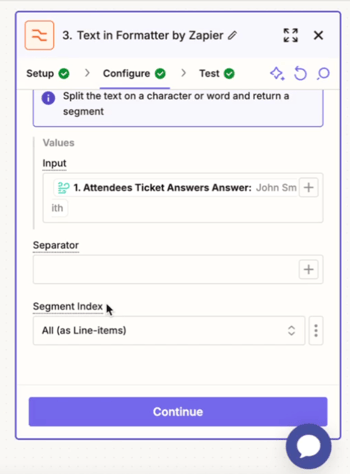
Under "Transform" select "Split Text"
In the "Input" field, select your Zeffy data field that needs to be split
Set the "Separator" based on how your data is formatted:
Use
[:space:]as the separator for full names (e.g., "John Smith")Use a "comma" for comma-separated values
Use other separators as needed for your specific data format
Test the Formatter
Run a test to ensure the data is being split correctly
The output will show you "Output 0" for the first part and "Output 1" for the second part
These separated values can now be mapped to their respective fields in your destination app
Important Notes
Make sure to select the correct Zeffy data field as your input
Double-check that your separator matches how the data is formatted in Zeffy
Test the split with actual data to ensure it works as expected
You can use multiple formatter steps if you need to split different fields
When to Use the Formatter
Splitting full names into first and last names
Separating multiple-choice answers
Breaking down combined address fields
Any situation where you need to split combined data into separate fields