
What to do if your campaign page or event only allows one purchase at a time
Most Zeffy forms let buyers purchase more than one item or ticket in a single transaction. If buyers can only purchase one at a time, there are a few settings that can be checked to correct this.
Check your purchase limit settings
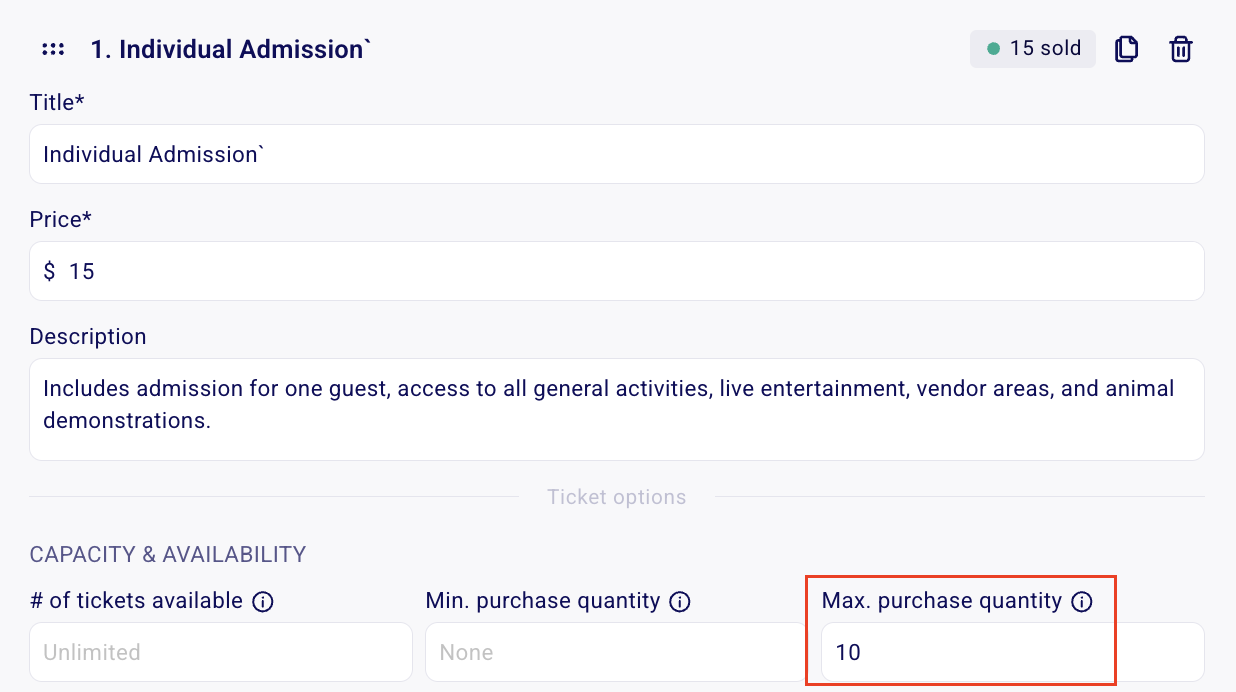
The most common cause is a per-rate purchase limit set to 1. In the campaign editor, go to the Tickets section, click See more options on the affected ticket type, and check the Maximum # (number) of tickets per purchase field. If it is set to 1, buyers can only purchase one ticket at that rate per transaction. Set it higher than 1 to allow multiple purchases of the same rate in one transaction.
For full details on all available sales limits, see How can I limit my sales or set a maximum number of sales?
Memberships: only one per transaction
If your campaign is a membership form, it is normal that only one membership can be purchased per transaction. Membership campaigns currently allow only one membership per purchase — this cannot be changed through settings.
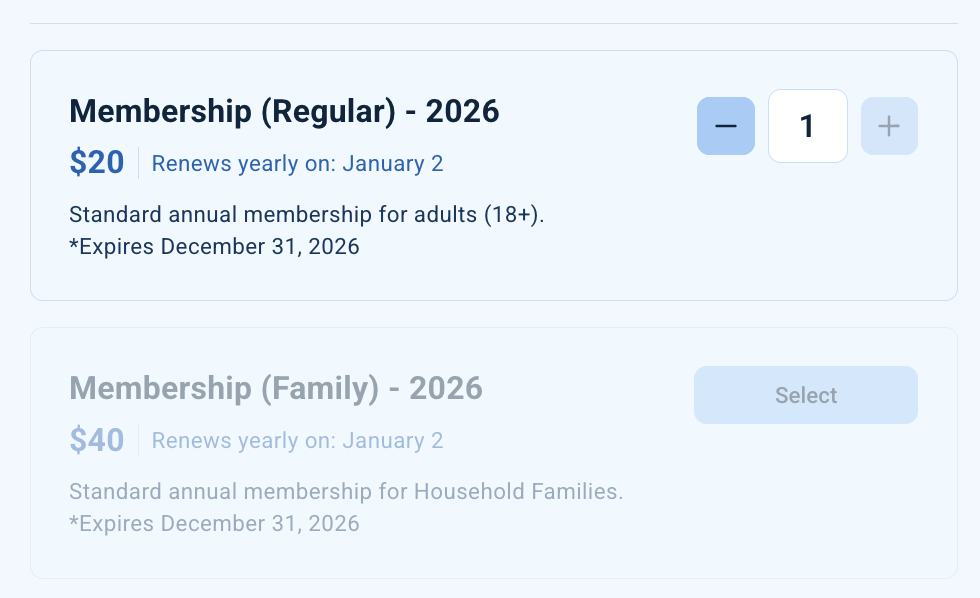
If you want buyers to purchase multiple memberships in a single transaction, use an Other Sales form instead. List your membership options there, and buyers can select more than one in the same purchase. Because you would no longer be using the membership form type, members will not benefit from automatic renewal payments or automated renewal reminder emails.
You can vote on the feature request to allow purchasing more than one membership per transaction on Zeffy's feedback page to help the product team prioritize this capability.
Member-only ticket rates: one ticket per membership
If your ticket is set as a members-only rate, it is expected that only one ticket can be purchased per active membership per campaign – even if the ticket type's Maximum # (number) of tickets per purchase is set higher than one. The member-only setting confirms that the buyer has an active membership. It does not extend the discounted rate to additional guests or allow one membership to unlock multiple member-priced tickets.
To allow a member to purchase more than one ticket at the same price, use a ticket type that is not restricted to members. The discounted price would then be available to anyone who selects that rate, so consider using a required checkbox or short-answer question on that ticket type to ask buyers to confirm their membership.
For more on setting up member-only tickets, see Create and manage a members-only ticket. For discount-code alternatives, see Offer different ticket tiers and rates.
Event tickets connected to a peer-to-peer registration page
If your event registration form is connected directly to a peer-to-peer campaign, the one-registration-per-purchase limit is expected behavior. Completing the registration also creates the participant's individual or team fundraising page, so each registration must be completed in a separate purchase to ensure the correct person is linked to their corresponding fundraising page. This limit cannot be changed.
Workaround: separate event registration with a redirect
The only workaround is to remove the registration requirement from the peer-to-peer campaign and instead redirect purchasers to the peer-to-peer campaign after they complete a separate event registration. To set this up, send Zeffy support the links to your peer-to-peer campaign and your event form, and the team will configure the redirect on the back end.
For example, some organizations use a thank-you page after a successful event registration to direct participants to their peer-to-peer campaign: view an example thank-you page.
Two important limitations apply to this workaround. First, creating a fundraising page would no longer be mandatory — participants could complete their event registration without continuing to the peer-to-peer campaign, and someone could create a fundraising page without first completing the event registration. Second, if someone purchases registrations for multiple participants, each participant's fundraising page still needs to be created individually; the purchaser would need to go through the fundraising page creation process separately for each participant.
For more on peer-to-peer setup, see Set up a peer-to-peer campaign.