
Offer different ticket tiers and rates
To offer more than one type of ticket and pricing option on your form, follow these steps:
Go to the Campaigns tab of your account
If your form has not been created yet, click "+ New campaign" and select the campaign type (not sure which form to choose? Find your answer here) and click "Continue".
If your form has been created already, click on the edit button to the right of your form.
In the form editor, go to the "Tickets" section
There will be one ticket type listed already. Just below it, there is an "Add another ticket type" button. Click the button to create a new ticket type.
Repeat step 4 to add as many different ticket types as needed. You can also set a ticket type's price to $0 to offer free tickets on a form that also sells paid tickets.
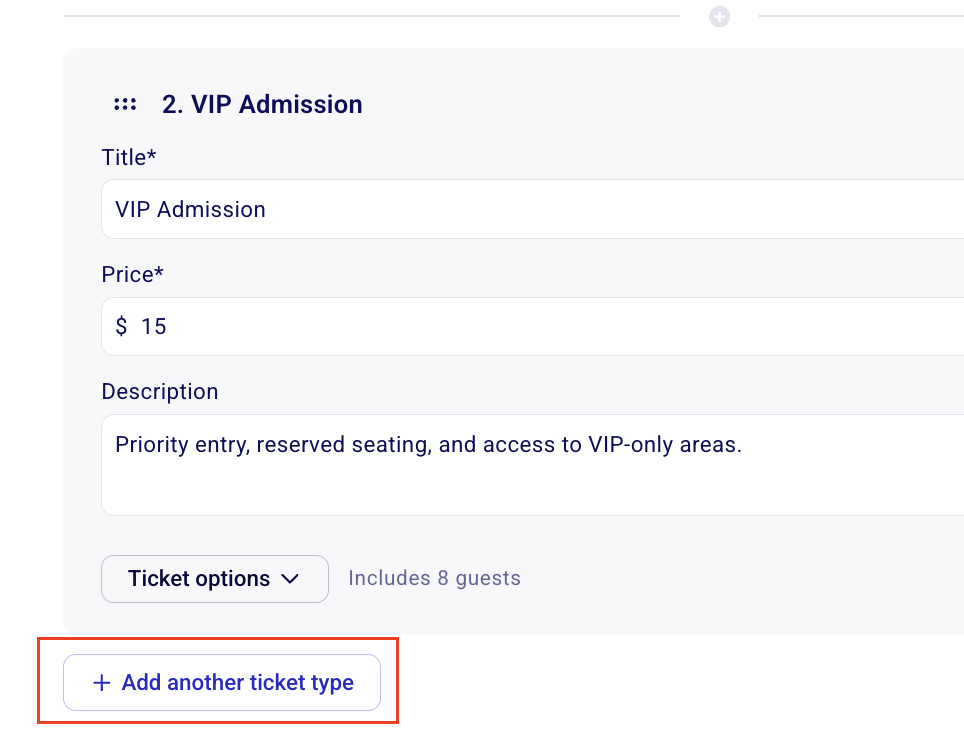
On event, online store, raffle and custom sales forms, your buyers will be able to purchase as many different ticket types as they wish to in one purchase. On membership forms, only one rate can be purchased at a time per buyer, even if you have more than one membership type.
Multi-date events: If you already added more than one date or time in the campaign Date and time section, name ticket rates by tier only (for example General admission or Family pass) - not by a specific date or time. Buyers select when they want to come from the date list, then pick a ticket rate. Do not put both a date picker and date-named tickets (for example "Friday Sept 3 10am") on the same form. See Setting up an event with multiple dates and times.
Common ticket tiers and how to configure them
Below are some common examples of different ticket types users like to offer on their forms, but this is not an exhaustive list of the different ways you can set up your form!
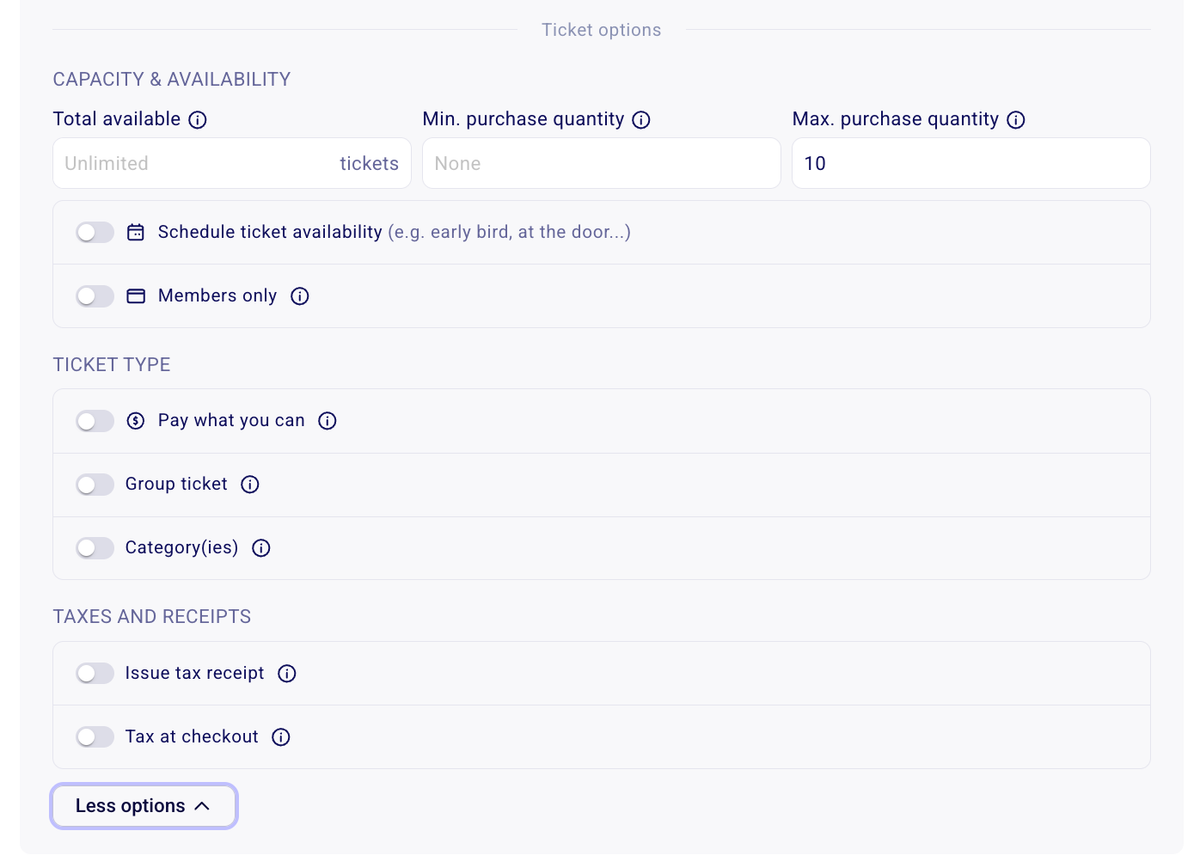
⏱️ Scheduled Ticket Availability
This allows you to set a start and end date for a specific ticket rate is on sale and available for purchase on your campaign. This is best used for things like early-bird pricing or last minute pricing that should only become available after a certain date or time.
Click here to learn how to schedule ticket availability.
🍀 Members Only Rate
This allows you to make a specific ticket type available only to active members in your Zeffy account. Members will need to be authenticated. Please note that this is only compatible with Zeffy memberships: the person’s email address must be associated with a valid, active membership in Zeffy for them to access it.
If you don’t see this option, it’s because you don’t have any members.
Create and manage a members-only ticket
💸 Pay What You can
A Pay What You Can ticket lets attendees choose how much they would like to pay.You set a minimum amount, and they can enter any amount above it. This makes your event more accessible while allowing those who can contribute more to do so.
Creating "Pay What You Can" (PWYC) or Sliding Scale Pricing on Zeffy
👨👨👦👦 Group Tickets
A group ticket allows buyers to purchase multiple tickets in one transaction. When buyers purchase a group ticket, they will receive a PDF containing all tickets included in that group.
This can also be used to offer a special rate when buyers purchase a certain number of tickets or more. For example, if an individual ticket costs $20 but you would like to give buyers $5 off each ticket when they purchase five or more, you could create a bundle ticket for five tickets priced at $75. Anyone who purchases one bundle would receive five tickets, once configured according to the instructions below.
Click here to learn how to configure a group ticket.
🧾 Tax Receipts
This option is available only to organizations eligible to issue tax receipts. If you do not see it, please consult our Knowledge Base for more information on receipting eligibility. When enabled, you can set the tax-receiptable amount for each ticket. For example, for a $20 ticket, you could issue a tax receipt for $5.
Automatic tax receipts for tickets, memberships, and items
% Taxes
Use this option to add applicable sales taxes to your ticket price. You can enter the tax rate, and Zeffy will automatically calculate and collect the tax during checkout.
Add taxes to ticket price or store items
🗂️ Categories
Group your tickets or items into categories so buyers can filter what they see on the form: buyers select a category at the top of the form and the form shows only the tickets or items in that category.