
Checking-in guests the day of your event: scan their e-ticket or check them in manually using the check-in manager
Check guests in manually from the check-in manager, or by scanning their e-ticket QR code with a phone camera or with the lightning check-in manager in the Zeffy Tap to Pay app.
Whether a ticket is checked in manually or by QR code, its status updates to checked in on your attendance report and counts as attended.
If a guest was checked in by mistake, you can reset their check-in status.
After the event, you can download an attendance report of who was checked in and who did not attend.
Check in guests manually
Use the Zeffy check-in manager from your event guest list to check attendees in one by one.
In Zeffy, open Campaigns in the left menu.
Click the three dots next to the event campaign, then select manage event.
Below the fundraising total, switch to guest list view.
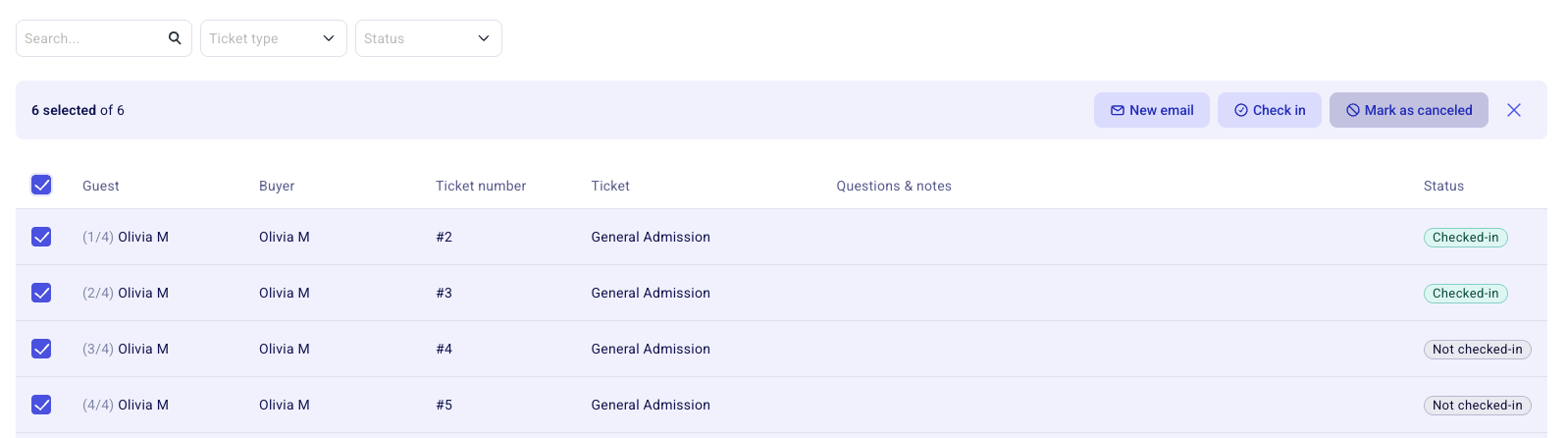
To check guests in in bulk, select the checkboxes to the left of their names, then click Check in in the bar that appears at the top of the list.
To check in or uncheck a single guest, use the search bar to find them and click on their name. Their ticket details open on the right side of the page.
Click the three dots next to their name and select Mark as checked-in or Mark as not checked-in. The status updates immediately.
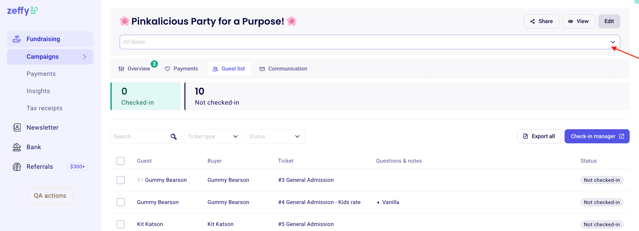
For multi-date events, filter to a specific event occurrence first. The guest list and check-in manager then show only guests for that date.
Open the check-in manager
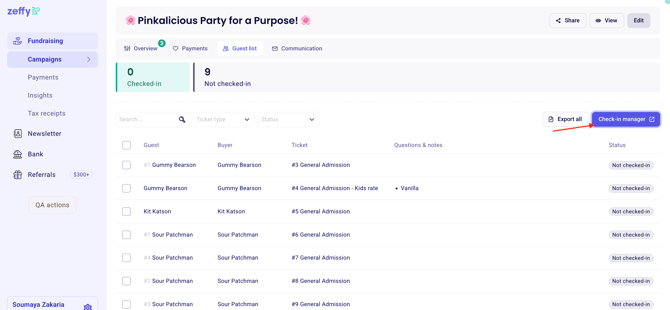
From guest list view, open check-in manager to manage check-ins in the dedicated tool.
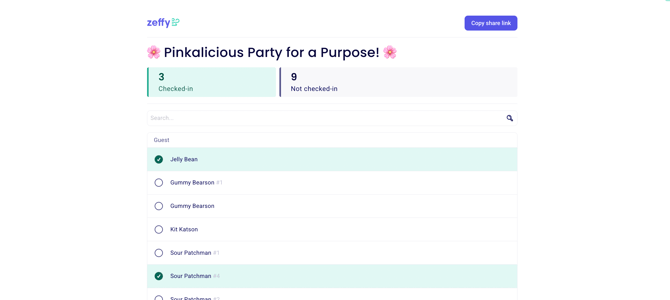
Click the circle to the left of a guest to check them in. A green checkmark shows they are checked in.
The top of the check-in manager shows how many check-ins are completed.
If one purchase includes multiple tickets, each guest appears on a separate line. Additional guests are numbered beginning with #1.
Unchecking a green circle undoes that check-in so the guest counts as not attended.
Share the check-in manager
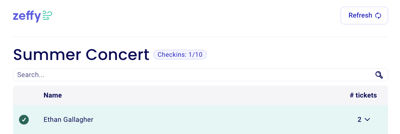
Use copy share link to share the check-in manager with your team. Volunteers can open the link on their device the day of the event.
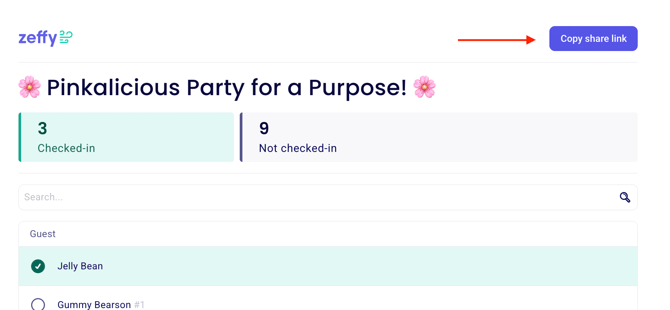
There is no limit to how many volunteers or team members can use the check-in manager at the same time. It refreshes automatically. Users can open a shared check-in manager link without being users on your Zeffy account.
Scan e-ticket QR codes
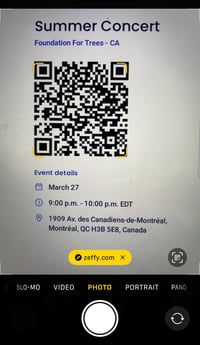
Guests can also be checked in through the QR code on the e-ticket they receive by email. You can scan with any smartphone camera or QR scanning app, or with the lightning check-in manager in the Zeffy Tap to Pay app.
Scan with a phone camera or QR app
No special hardware is required for this path. After you scan, you open the Zeffy link and confirm you are staff before the ticket is checked in.
Open your phone camera or QR-code scanning app and hold it over the e-ticket QR code.
Open the Zeffy link the QR code points to.
Confirm that you are a staff member or volunteer checking in guests.
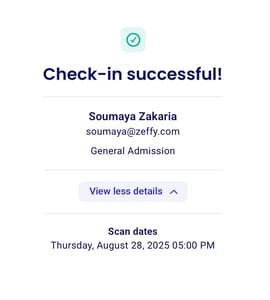
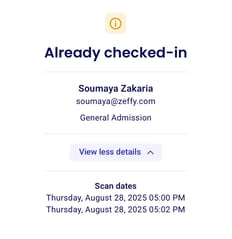
If the ticket is valid, the page shows it as checked in. You can open additional details to review scan dates.
If the ticket is invalid, the page shows the date it was previously scanned.
Scan with the Tap to Pay app lightning check-in manager
In the Zeffy Tap to Pay app, use the lightning check-in manager to scan e-tickets at the door. When you scan a ticket QR code with the app scanner, Zeffy automatically checks in the ticket and opens the ticket details. You do not need to open or follow a browser link.
Staff who check guests in from the app need the Access Guest List from App permission. Turn it on for each user in Settings → Manage Users. The permission can be granted per campaign. Full permission details are in User Roles, Permissions, and Account Ownership Transfers.
Set up the Tap to Pay app first if your team will scan at the door from their phones. See App: Setting Up Zeffy Tap to Pay.