
What to do if your event has been cancelled or rescheduled
If you need to cancel an event on Zeffy, follow these steps to manage the process effectively:
Watch the walkthrough below for the full cancellation and rescheduling flow, then use the sections that match your situation.
Close Your Campaign
To prevent new ticket sales, you can close your sales:
Go to Campaigns
Click on the three dots to the right of the form you want to close.
Click on the option "Close sales."
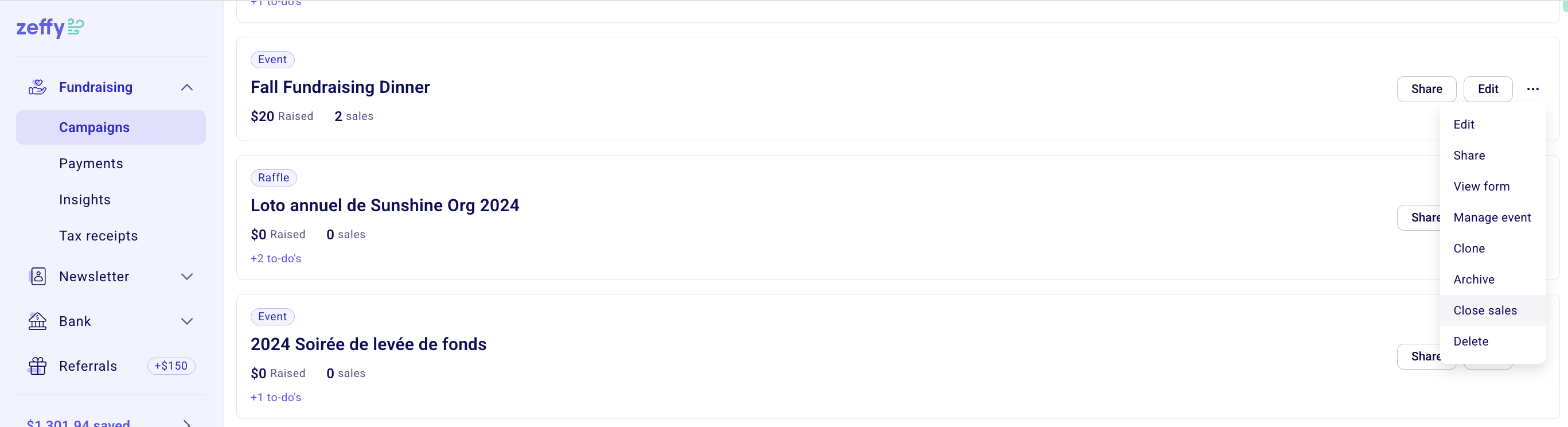
Additional donations can still be made on closed campaigns. To prevent additional donations from being made on a closed campaign, click "Edit" next to your campaign and navigate to the "Additional donation" section to toggle the option off.
Notifying Attendees
After you have closed sales you will want to let all your attendees know your event will no longer be taking place. You have the option to send a mass email to all attendees at once directly from your dashboard!
To draft the email, simply:
Go to Campaigns and navigate to the Communications tab
Select 'New email' or select a suggested template from our library.
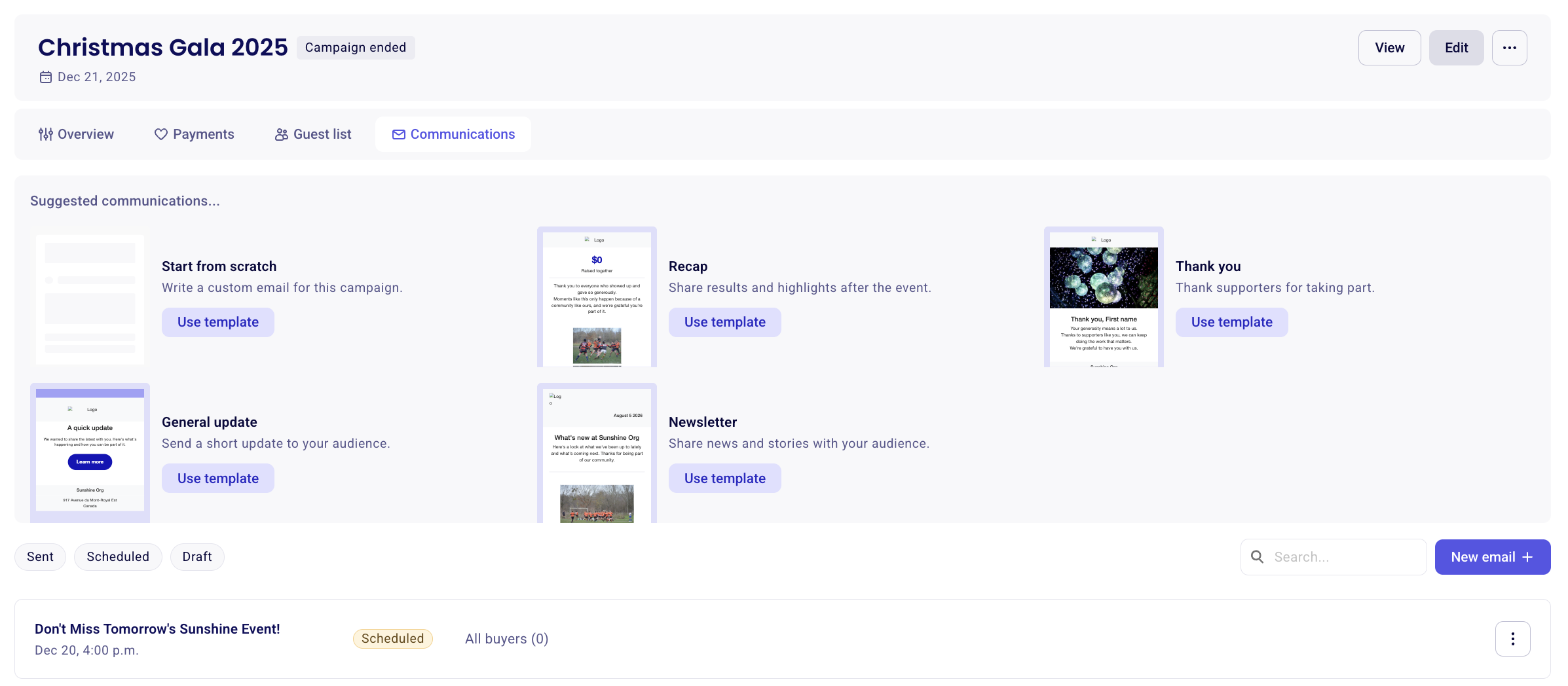
Compose your email in the email builder. To learn how to navigate the email builder, click here.
Click "Next" to customize the email subject line. Make sure the "Reply-to" email is set to an email address that you monitor in case your ticket holders email you back with questions.
Click "Next" - the "Send to" field should have already pre-selected all current ticket holders. If you want to add or remove contacts from the recipients list, you can customize your list.
Click "Next" to send or schedule your email.
After your email goes out, you can monitor it from the Communications tab to see how many ticket holders opened it, so you know who has seen the cancellation or rescheduling update.
Refunding and cancelling tickets or rescheduling your event
For a cancelled event, refund and cancel all tickets from the Payments tab: open each payment, click More in the top right corner, and select "Cancel and/or refund tickets." Select the tickets to cancel and the amount to refund.
Refunds reach the buyer's original payment method within 5 to 10 business days. For ACH (US) and PAD (Canada) payments, a refund can only be initiated 60 days after the payment has successfully processed.
For detailed instructions on cancelling tickets, full refunds, and partial refunds, see Managing Refunds and Ticket Cancellations in Zeffy.
Rescheduling your event
To reschedule an event, add the new date to your existing campaign, hide the original date, and transfer tickets to the new date. The ticket date updates automatically when you transfer the tickets. To email the updated ticket to the buyer, open the payment, click Actions, and select "resend the receipt."
Open your campaign in the editor, go to the date section, and add another date. Use the date picker to choose the new date and time, then hide the original date so only the new one is displayed on your campaign.
Save and exit, then open the Payments tab.
Open a payment, click Actions, and select "Transfer tickets to date." Select the tickets and the target date, then confirm.
All tickets in an order transfer together, and tickets can only be moved to another date within the same campaign that still has tickets available.
After the transfer, go back to the editor and update your event description so it reflects the new date and time. When you are ready to sell again, click the three dots next to the campaign and select "Open sales."
Ending or Deleting Your Campaign
In the case that you know you will be rescheduling your event, or hosting it in the future with a similar design, you can end the campaign to keep it in your "Past" campaigns view to duplicate it later on.
If you will not be rescheduling your event and you wish to delete your campaign:
Go to Campaigns
Click the three dots next to the campaign
Select "Delete"
Please note that if you choose to delete your form completely, you no longer have access to the campaign and you can no longer filter by this campaign in the "payments" section. Make sure to export all your donations for the campaign in the section "Payments" before doing so.
If you are cancelling the event for good, you can simply keep sales closed and leave the campaign as is.