
How to "unscan" or "uncheck" a guest that was accidentally checked-in
Reset the check-in status from the guest list
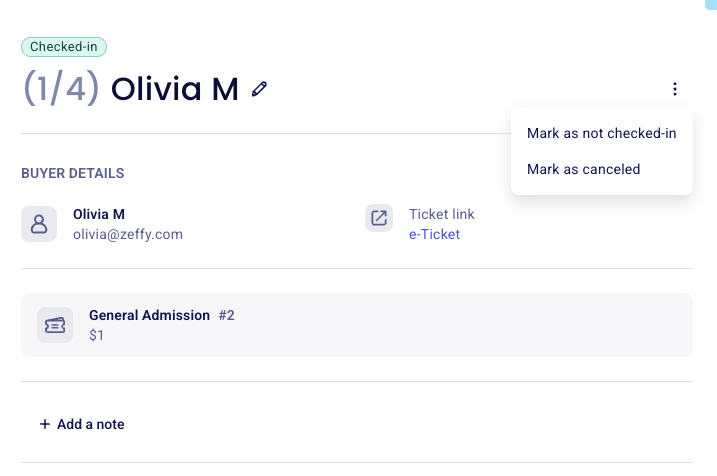
To uncheck a guest who was checked in by mistake, open their ticket details from the event guest list and select "Mark as not checked-in".
Log in to your Zeffy account and open Fundraising > Campaigns in the left-hand menu.
Click the three dots to the right of the campaign in question, then on manage event.
Below the fundraising total, switch into the guest list view. Make sure you are on the guest list page and not the payments tab.
Use the search bar to find the ticket and click on the guest name. Their ticket details page opens on the right side of the screen.
Click the three dots next to their name and select Mark as not checked-in. The status updates immediately.
If your event is a date with multiple occurrences, make sure to also add a filter for a specific event occurrence. The guest list then only shows guests for that date.
You can select Mark as checked-in from the same menu to check the guest back in, or Mark as canceled to cancel the ticket.