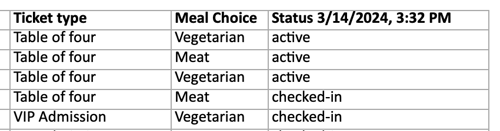
Attendance reports: download a report after your event to check whose tickets were checked-in or who attended.
The Attendance report provides insight on your event attendance. You will be able to view this report as your event check-ins are ongoing or after your event for a full report.
Accessing the attendance overview
Login to your Zeffy account and click on campaigns in the left hand menu.
Click the three dots to the right of the campaign and choose Manage.
Click the Guest list tab in the row of tabs at the top of the page.
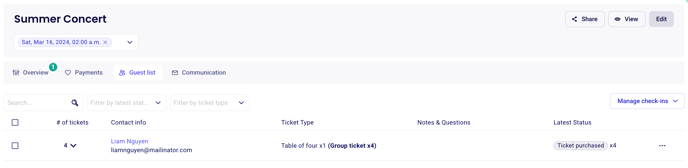
If your event has multiple dates, the check-in manager opens on the ongoing or next upcoming date. You can switch to another date, or to all dates, with the date selector in the check-in manager.
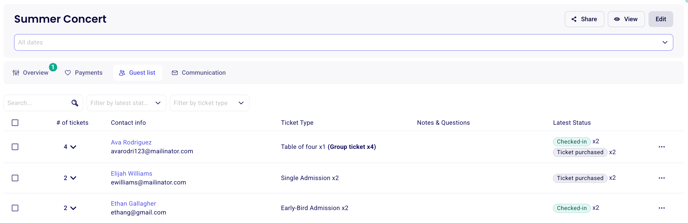
From there, you can take the following actions:
Accessing the check-in status of one specific guest
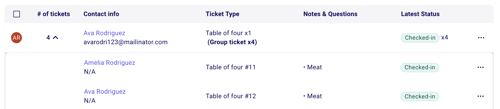
To access the status of one specific ticket, switch into the "guest list" table
Each ticket has its own row. Find the ticket and read its Status column. This column only shows for campaign types that support check-in.
Downloading the attendance overview
To download a report of your attendance, switch into the "guest list" table
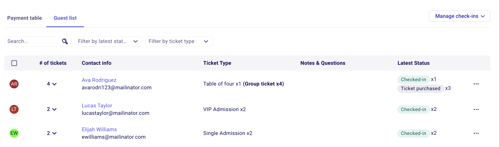
Leave all tickets unselected. The Export button only shows when no ticket is selected.
Click Export in the top right.
Choose the columns and a file type (Excel or PDF), then confirm.
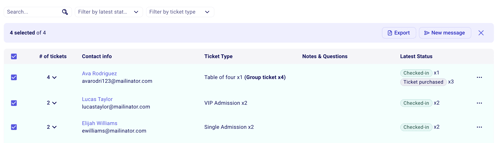
The exported sheet will contain one line for each ticket. The status column to the far right will indicate if that specific status is an active (valid), checked-in or cancelled ticket.