
Why does the Check-in Manager say "N/A"?
What does "N/A" mean?
When no guest name was collected for a ticket, the Check-in Manager shows the buyer's name for that ticket (with the ticket's position when the purchase has several tickets). "N/A" only appears if no name at all is on record for the ticket or its buyer
By default, only the buyer's name is captured when multiple tickets are purchased
Additional tickets in the same purchase show the buyer's name with the ticket's position (such as 2 of 3) if guest names weren't collected at the time of purchase. "N/A" shows only when no guest name, guest email or buyer name is available
Can I still check in tickets marked as "N/A"?
Yes! You can check in these tickets normally by either:
Clicking the checkbox next to each ticket
Scanning the QR code on their e-ticket
The "N/A" status does not affect the ticket's validity or check-in ability
How to avoid "N/A" in future events
If you want to see individual names for all tickets:
Edit your event form before launching ticket sales
Click "+ Add per attendee question" in the form editor
Add a new question, and select "Name" as the "Response format". Careful! You must use the "Name" response format, otherwise it will not remove the N/A wording.
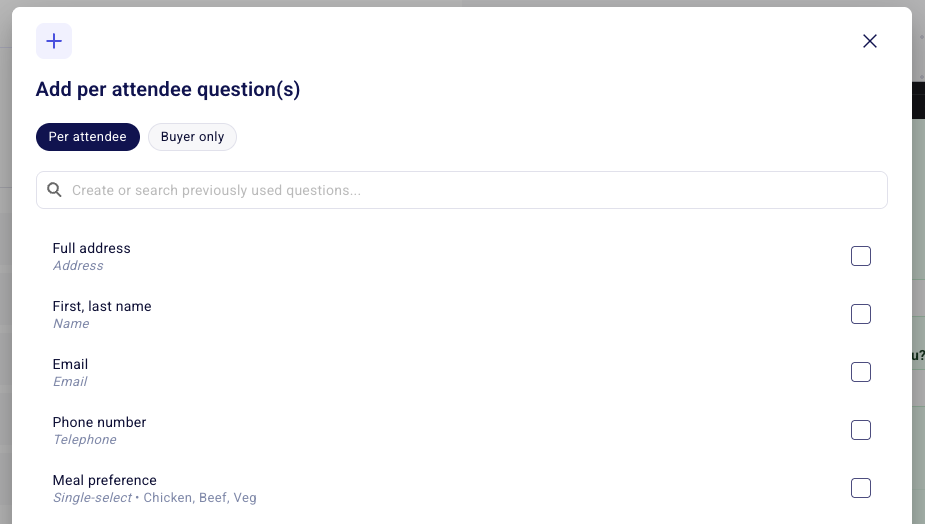
This will require each guest's name during checkout
Important Notes:
Multiple tickets purchased together will appear under the buyer's name
You can check in individual tickets within a multiple ticket purchase
Check-in status is tracked regardless of whether the ticket shows "N/A" or a name