
Managing Refunds and Ticket Cancellations in Zeffy
This article explains when you can issue refunds, what happens during the refund process, how to refund donations or purchases, and how to cancel tickets or memberships separately from refunds.
When can I initiate a refund?
Refund eligibility depends on the payment method and timing. If the refund option is greyed out on a transaction, one of the reasons below applies:
Standard payments (card, Apple Pay, Google Pay): You can issue a refund at any time within 180 days of the payment.
ACH (US) and PAD (Canada): Refunds can only be initiated 60 days after the payment has successfully processed. This is a security delay that cannot be bypassed. Until the 60-day mark, the refund option is greyed out.
Payments older than 180 days: Refunds can no longer be processed through Zeffy. You will need to return the funds to the donor manually (for example, via bank transfer or check).
Interac debit payments (Canada, including Tap to Pay): A Canadian payment processed by Interac debit can only be refunded in person, on the original machine. This refund cannot be processed in Zeffy, so it would have to be done outside of Zeffy.
$0 balance (UK, Australian and EUR accounts): When your Zeffy balance is $0, the refund option is greyed out. This applies to UK, Australian and EUR accounts (such as Irish and German accounts). See If you do not have sufficient funds below.
What happens when I issue a refund?
The refund process depends on whether you have sufficient funds in your Zeffy balance.
If you have funds in your Zeffy balance
When you initiate a refund, it is processed immediately through Stripe. Your donor receives a confirmation email with the refunded amount, and the funds return to their original payment method within 5 to 10 business days.
If you do not have sufficient funds
In the US and Canada: Zeffy first retrieves the necessary funds from your connected bank account. This process can take up to 7 business days to confirm the transfer was successful. Once confirmed, the refund is processed and the donor receives funds within 3 to 5 additional business days.
In the UK, Ireland, Australia and other EUR accounts: Refunds use your available Zeffy balance, and Stripe accounts in those countries cannot debit your bank account to cover refunds. When your balance is $0, the refund option is greyed out until your balance is sufficient again. If you need to issue refunds, you can wait for new payments to come in to cover the refund amount, or you can make a donation to your Zeffy account to fill the balance.
If the card your supporter used is no longer active or expired, the funds will still reach them - their bank will reroute the funds to their account.
Refunds cannot be cancelled or reversed. Once you initiate a refund, the process cannot be stopped. Double-check all details before confirming.
How to issue a refund
Log into your Zeffy account and go to Payments.
Locate the transaction you want to refund and click on it (make sure not to click on the name of the buyer but instead, click anywhere else on the payment line)
Click More in the top right corner and select
Cancel and/or refund tickets (for ticket purchases)
Issue a refund (for any other payment)
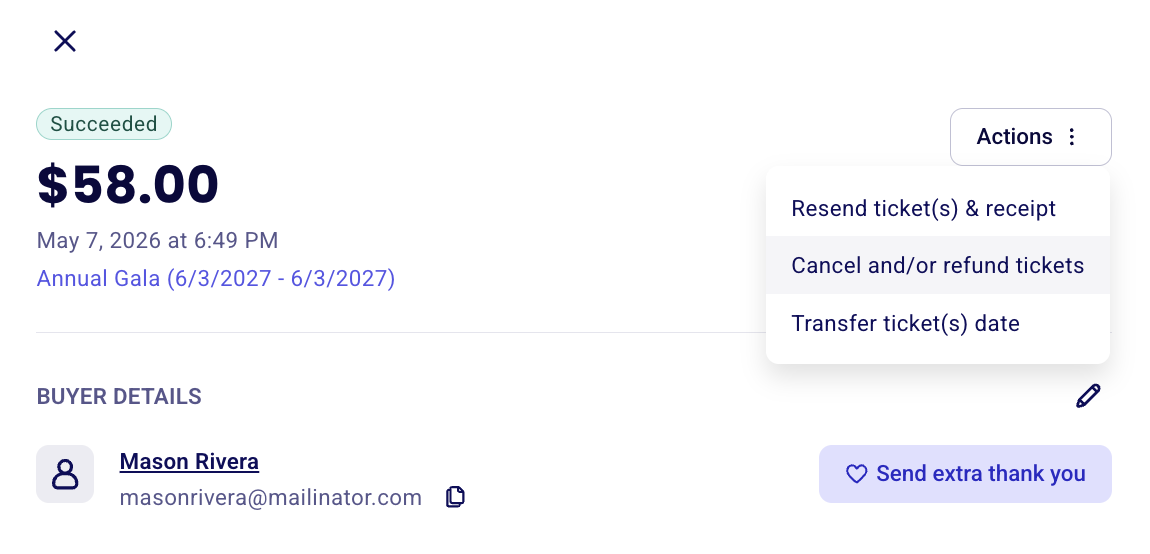
For Tickets
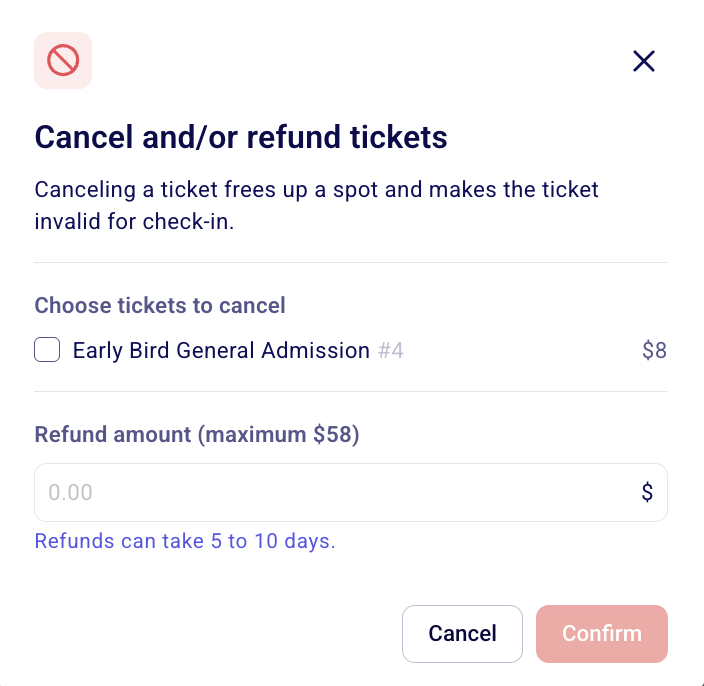
A pop-up will appear asking you to confirm the refund amount and select which tickets you'd like to cancel. You do not need to do both. For example, you can:
Cancel one or multiple tickets without issuing a refund
Issue a refund without cancelling tickets
Or complete both actions at the same time
Refund payment – Reimburses the donor using their original payment method.
Cancel tickets – Invalidates the QR codes on e-tickets or cancels the membership card. If applicable, cancelled tickets are also returned to your ticket inventory.
For Donations
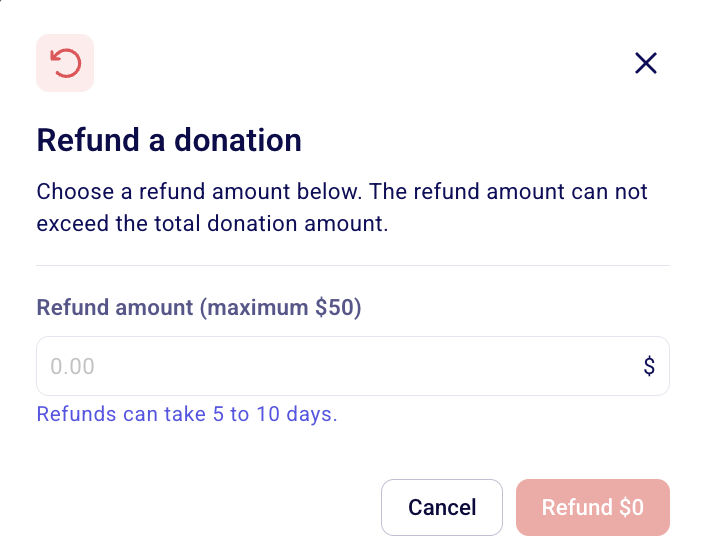
A pop-up will appear asking you to confirm the refund amount. Enter the amount you'd like to refund – either the full payment amount or a smaller amount if you'd like to issue a partial refund.
Click Refund.
Cancel tickets in bulk from the guest list
You can cancel one or several event tickets at once from the event guest list, without issuing a refund.
Log into your Zeffy account and open Campaigns in the left-hand menu.
Click the three dots next to the event campaign, then select manage event.
Below the fundraising total, switch to guest list view.
Select the checkboxes to the left of the tickets you want to cancel, then click Mark as canceled in the bar that appears at the top of the list.
To cancel a single ticket, click on the guest name in the guest list: their ticket details open on the right side of the page. Click the three dots next to their name and select Mark as canceled.
Once the payment is refunded:
Your donor will instantly receive a confirmation email for the refund, including an adjusted receipt if applicable.
The refund will appear on their original payment method within 5–10 business days.
If the card your supporter used is no longer active or has expired, the funds will still reach them. Their bank will automatically reroute the refund to their account.
What if I refunded a payment by mistake?
Since refunds cannot be reversed, you will need to collect the payment again. Here are two options:
Create a custom sales form with a ticket at the refunded amount. Send the form directly through Zeffy's emailing tool (found on their contact page).
Accept an offline payment and log it in Zeffy afterwards. For instructions, see Manual payment or registration entries to log cash, check or other offline payments.
Voluntary contributions to Zeffy
The optional contribution made to Zeffy is not automatically refunded when you refund a donor’s payment. This is because the transaction fees Zeffy covers on your behalf are still paid, even if the payment is later refunded. Donors therefore have the option to maintain their contribution to support the platform.
If a donor would also like their contribution to Zeffy refunded, they can request this directly from their confirmation email by clicking “Learn more” next to the receipt details.