
How to edit, manage or cancel a donor’s recurring payment
As an organization admin, you can manage a donor’s recurring donations (weekly, bi-weekly, monthly, quarterly, or yearly) from your Zeffy dashboard. You can update the donation amount, edit the charge date, update the payment method, or cancel future recurring payments.
Donors can also complete these actions themselves through their donor portal or payment confirmation emails. Use the steps below when a donor asks your organization to make the changes on their behalf.
Managing a recurring payment
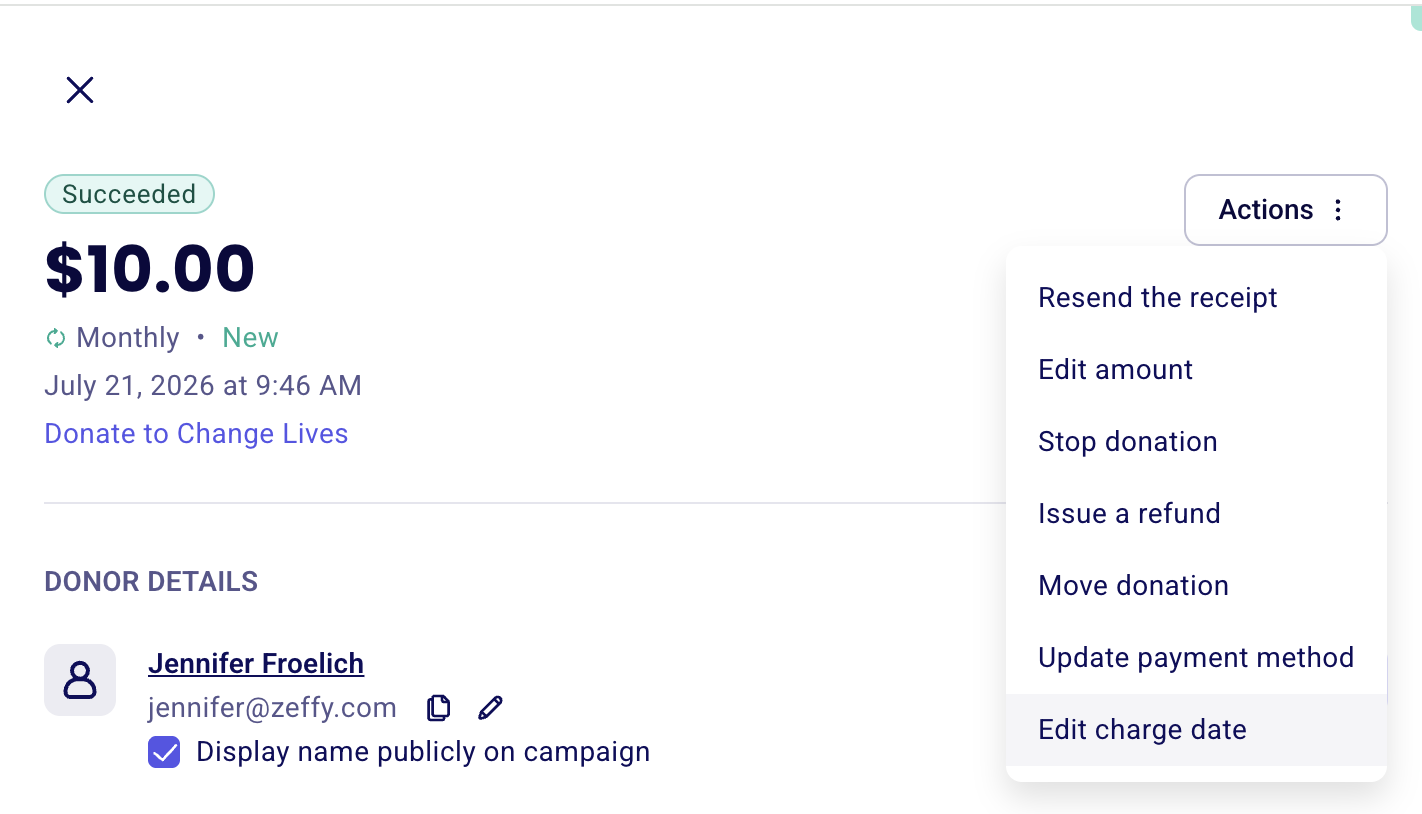
Open the payment in Payments, then use the More menu for management actions.
Log into your Zeffy account and go to Payments.
Locate the transaction and click it (click anywhere on the payment line except the buyer’s name).
Click More in the top right corner.
From this menu, you can:
Edit donation amount (not available for memberships)
Edit charge date (not available for memberships)
Update payment method
Stop donation / recurring payment
Edit amount
Use Edit donation amount to update the amount of future recurring payments.
For example, if a donor currently gives $50 monthly and wants to give $75, select Edit donation amount and enter the updated amount. Once confirmed, the donor receives a confirmation of the new donation amount.
Changes are not retroactive. The updated amount applies starting with the next scheduled payment only.
Edit amount is only available for recurring donations. It is not available for memberships.
Edit charge date
Use Edit charge date to change the day on which future recurring donation payments are charged.
This is available for recurring donations (monthly, quarterly, and yearly). It is not available for memberships — membership renewal dates are determined by the expiration date set by your organization.
Changes apply to future charges only. The next payment uses the new charge date you set.
Update payment method
Use Update payment method to update the credit card on the recurring payment. A secure payment window opens where you can enter the updated card number, expiration date, and CVC.
All future recurring payments are charged to the updated payment method.
Stop donation
Selecting Stop recurring payment cancels all future recurring payments associated with this payment. The donor’s payment method is no longer charged going forward.
Stopping a recurring payment does not refund previous payments. It only prevents future charges. If a refund is needed, issue a refund after the donation has been stopped.