
Creating and configuring an auction page on Zeffy
You can view a full tutorial of how to set up an auction form, what the bidding experience looks like and how to track bids and payments in Zeffy here:
⚠️ This video was filmed on a previous version of the platform - there is now a limit of 200 items per auction form.
Zeffy's auction form
With our auction forms, your supporters can effortlessly place bids on one or multiple auction items. Each bid is instantly recorded and displayed on your dashboard, allowing you to track your bids in real time.
Users don't have to sign up or sign in to make their bid, all they need is their contact and payment information.
Once the auction close date & time that you selected in your form configuration passes and the auction concludes, winning bids are automatically processed for payment, with the transactions appearing in your dashboard. You won't have to run after your bidders – they will be charged automatically if they win.
The winning bidder will automatically receive a confirmation of their win and a receipt via email. You can customize the email they receive beforehand.
All bidders who did not win the item(s) they bid on will receive a personalized email as well, thanking them for their participation.
Create your auction:
Log into your Zeffy dashboard on a computer.
Click on "Campaigns"
There, click on "+ New campaign" in the top right and select the event option.
Select "Auction" from the form type options
1) Describe your auction and set an open and end date
Enter your auction campaign title. Click "Next" to continue to the next step.
Note: The title will inform the structure of the campaign URL (Sharing link) and this cannot be edited once the campaign is created.
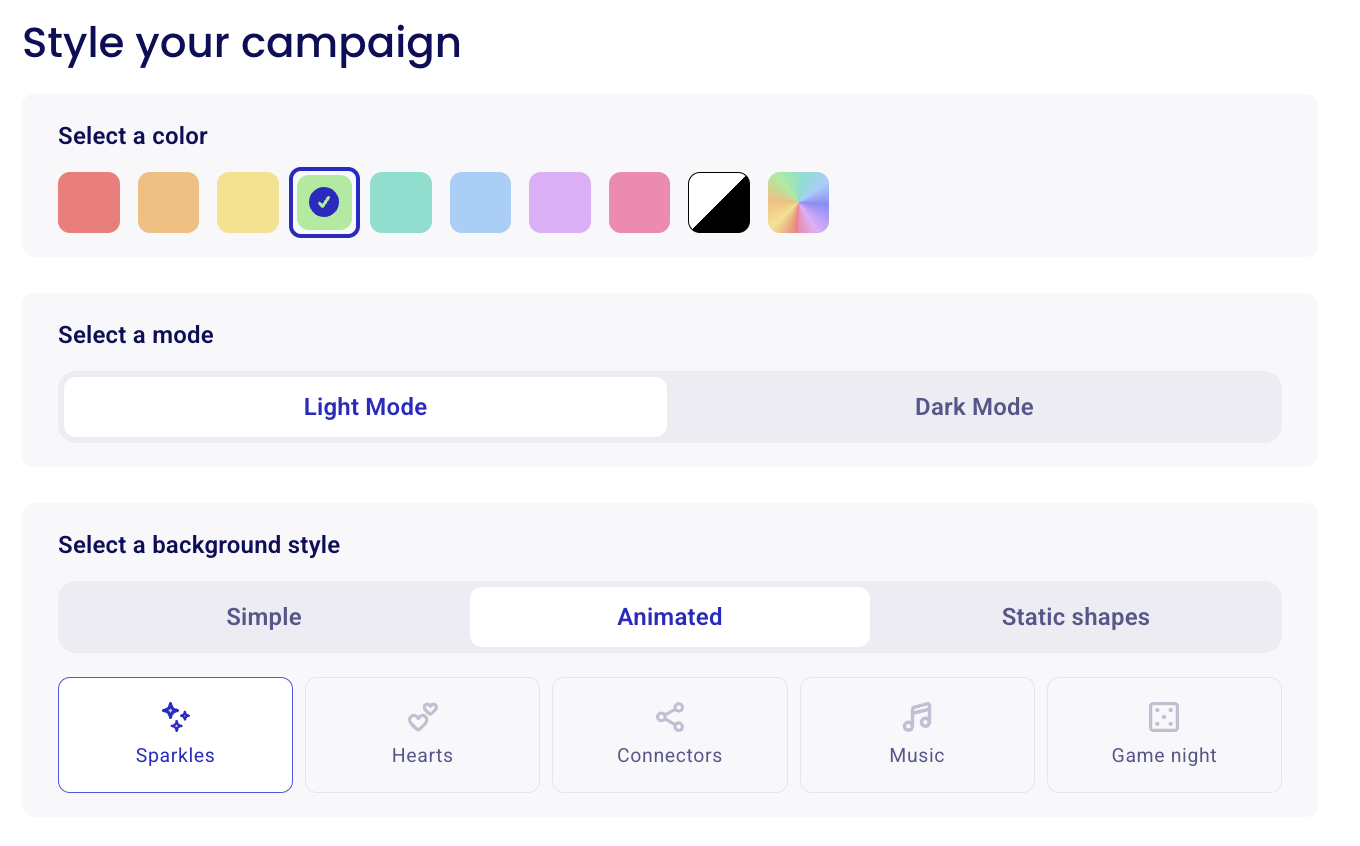
2) Style your campaign
Select a color scheme by clicking on a suggested color or entering a custom color hex code.
Select a mode; light or dark
Select a background style; simple, animated or static shapes
2) Set an automatic close date & time of your auction. Optionally add a bidding start date
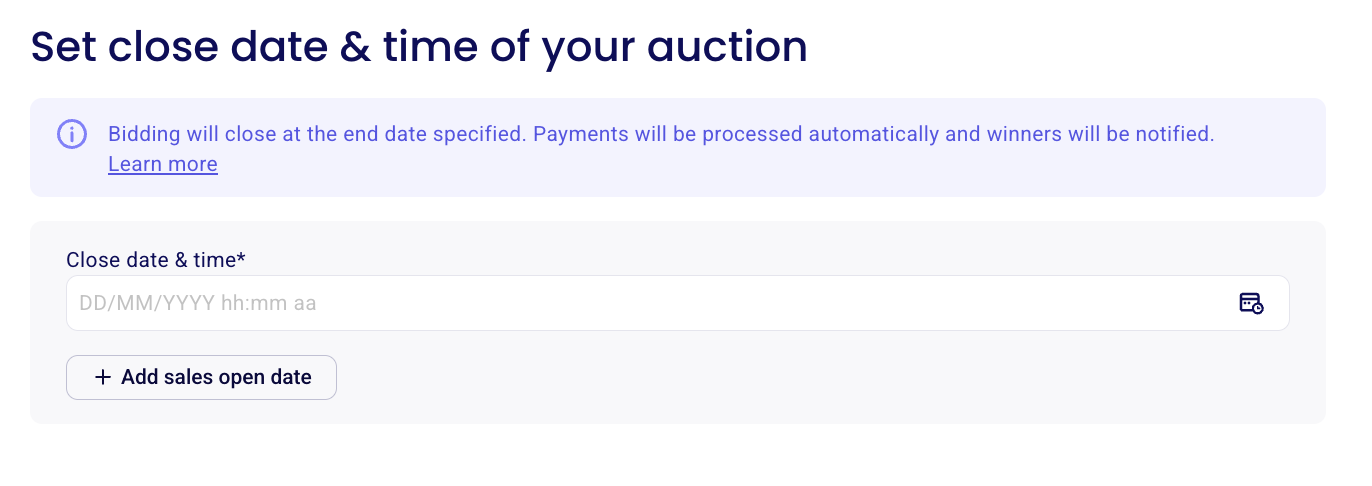
You must set an end date and time of your auction. Once the closed date passes, your winning bidders will be selected and bidding will close.
If you wish to extend your auction, you must change the date and time before it has passed. Once it has passed, the campaign is closed and cannot be re-opened.
Zeffy's anti-sniping rule allows bidding to continue up to 30 minutes after the close date has passed. If a bid is placed within 3 minutes of closing time, bidding is extended by another 3 minutes for every new bid placed, for up to 30 minutes.
Payments for the winning bid(s) for each item will automatically be processed at the end of the auction. Once the close time passes, bidding stops immediately. Closing out the auction and processing the winning payments takes about 15 minutes, so winning payments appear roughly 10 to 15 minutes after the close time (unless anti-sniping extended your close).
Set an automatic bid opening date (optional)
To schedule bidding to open at a specific date and time, select "+Add sales open date." This is optional. If you do not set an open date, bidding will be open as soon as your auction campaign set up is complete.
3) Tell us more about your auction
Add a detailed description of your auction and don’t forget to encourage people to bid by sharing how their support will help your mission.
4) Add a banner (image or YouTube video)
A square image, with a 1:1 ratio is recommended for your campaign banner image. Select an image from Zeffy's library, use the online search function or upload your own image file.
Alternatively, you can add a video which will play on the side of your campaign. Simply copy and paste a YouTube video link (YouTube shorts are not supported).
5) Upload your logo
A square image, with a 1:1 ratio is recommended for your logo.
6) Order fulfillment
Zeffy's shipping and pick-up options are available only on online store campaigns, not on auctions. To offer shipping or pick-up for your items, set up a separate online store campaign.
7) List your auction items
Name the item, define the starting bid, and define the minimum bid increment.
The starting bid is the price at which bidding will start. No supporter will be able to bid below the starting bid.
The minimum bid increment is the smallest amount by which a bid must increase in order to be accepted. If left blank, the minimum increment will be 1$. The minimum increment does not apply to the first bid placed.
You can add up to 200 items by clicking "+ Add another item" in the bottom left.
Add categories: Group your auction items into categories so buyers can filter what they see on the form. See Create categories so buyers can sort your tickets and items.
Add taxes: Turn on Tax at checkout for an item to charge sales tax on it when buyers pay. See Add taxes to ticket price, store items, or auction items.
⚠️ Each Zeffy auction form allows up to 200 items. If you try to add more, the system will display an error. Plan your auction within this limit for the best experience!
8) Collect bidder info
Add questions to the buyer to be asked once during checkout or per item to be asked for each auction item the bidder bids on. If a supporter bids on three items, for example, they will be asked this question three times.
Answers to questions to the buyer will be mapped to custom fields on the bidder's contact page.
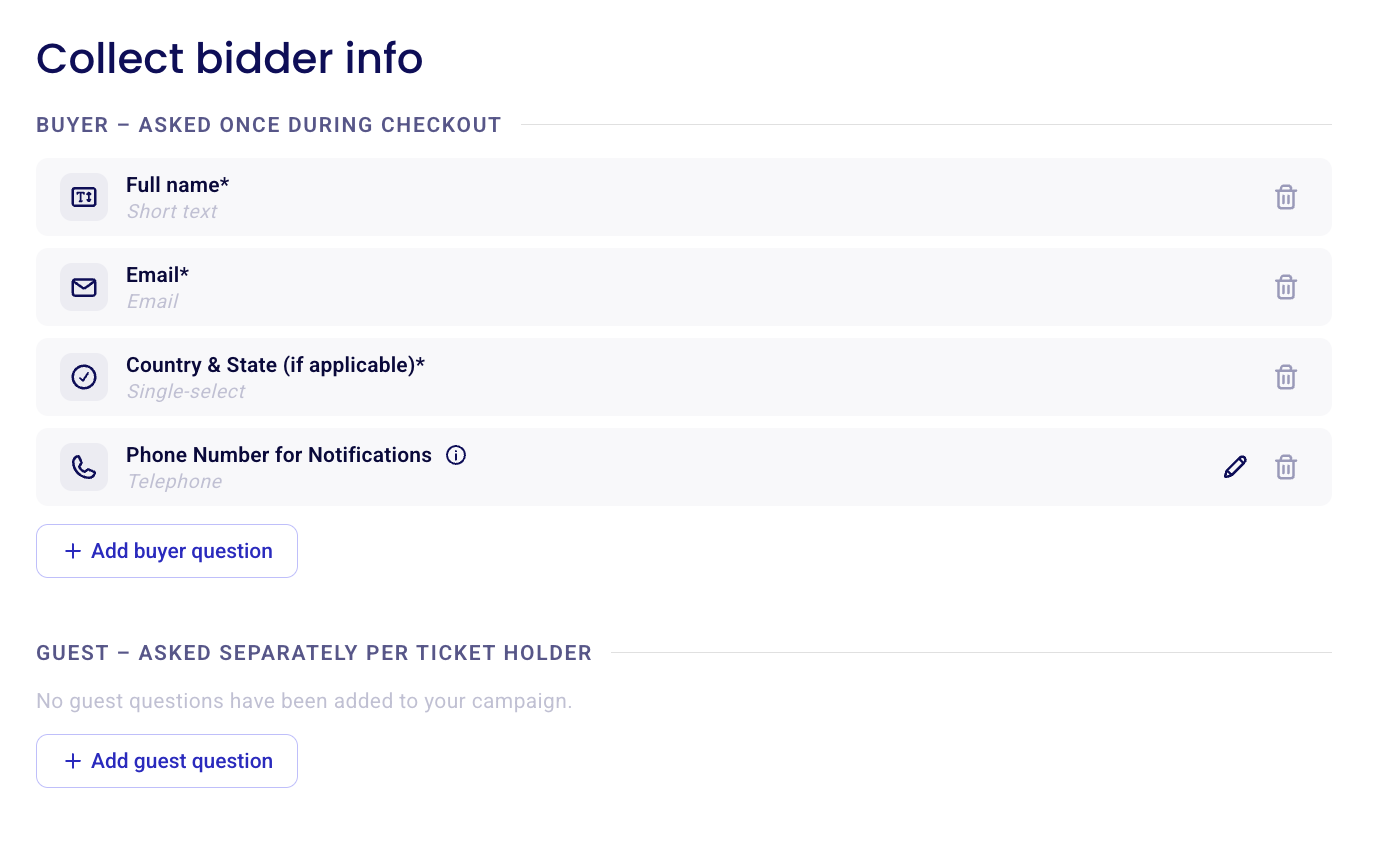
Choose response formats (single select, multiple choice, checkbox, etc.)
Set whether questions apply to all items or specific ones
Make questions required if needed (meaning a bid cannot be placed without answering it).
Set maximum choice limits. Setting a maximum choice limit will limit the number of times this answer can be selected. The option will be greyed out when the limit is reached.
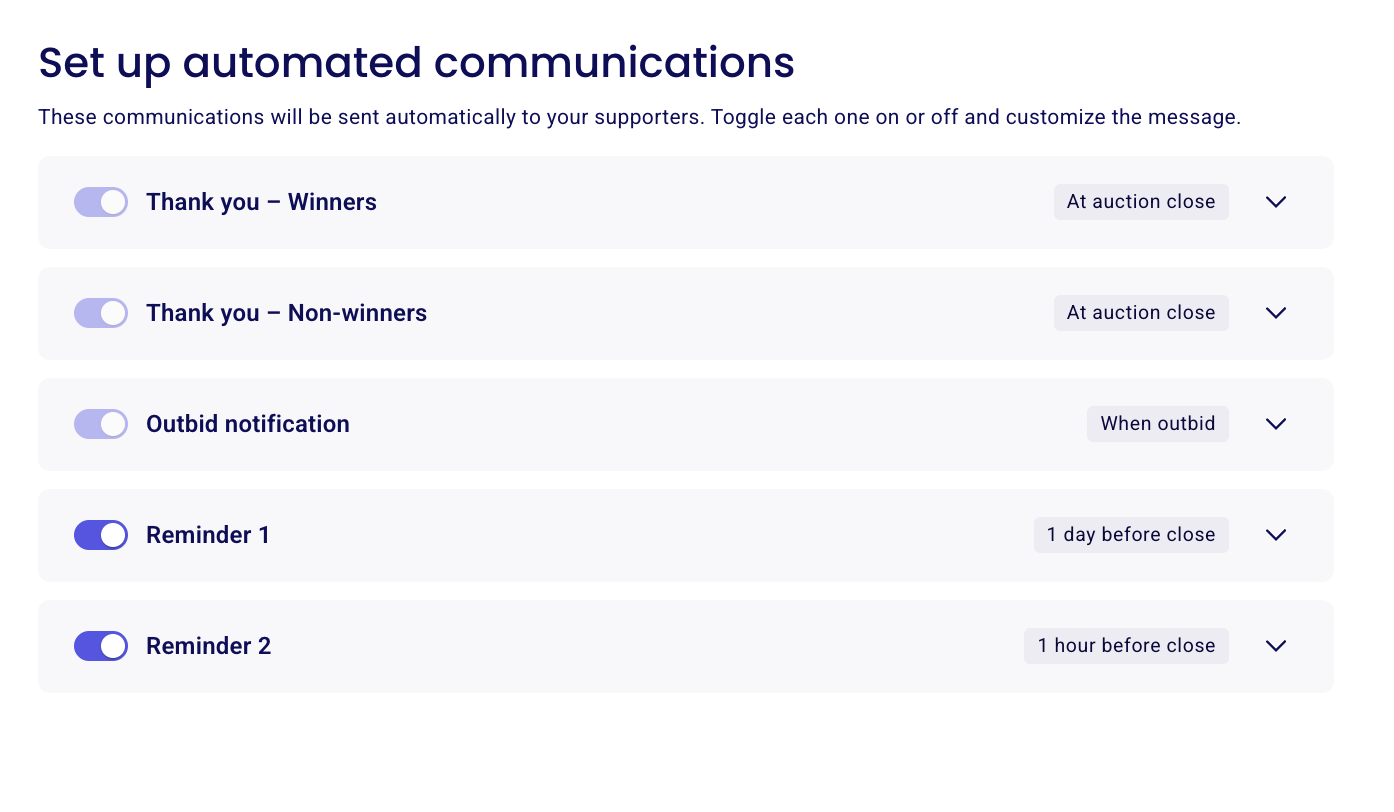
9) Set up automated communications
Thank you - Winners - Click the downward arrow to edit the email sent to the winning bidder after the auction has closed. This email will also include their receipt(s) for their purchase(s). See a preview of the email on the right.
Thank you - Non-winners - Click the downward arrow next to the email sent to the bidders that did not win once the auction is closed. All details about the items they bid on but did not win will be included in the email.
Outbid notification - Click the downward arrow next to the email to edit the email bidders receive when they have been outbid on an item. This email includes their private bidder link which re-directs them to the campaign through a private URL where their previous bid info, contact info and payment info is saved for quick re-bids.
Reminder 1 (optional) - Edit the email that is sent to all bidders 1 day before the auction closes to remind them to place their final bids. Turn this email off or schedule it to be sent at another time.
Reminder 2 (optional) - Edit the email that is sent to all bidders 1 hour before the auction closes to remind them to place their final bids. Turn this email off or schedule it to be sent at another time.
8) Advanced Settings
In your advanced settings, you'll be able to:
1) Manage collaborators:
Manage or invite the individual users who can collaborate with you on this campaign.
Add or edit emails to receive notifications of new bids and payments received.
2) Allow offline payments. Toggle this option on to allow bidders to participate without entering their payment information. In this scenario:
Bidders can submit their bids without providing payment information.
If they win an item, they will receive the winning bidder email, but they will not be charged automatically.
Winners must complete their payment outside of the Zeffy platform.
💡 By enabling cash/offline bids, you provide more flexibility to your bidders and accommodate those who prefer not to use online payment methods. For more information on how offline payments work please see our detailed guide here!
3) Assign non-eligible sales to a fund: Assign non-eligible sales from this campaign to a fund for reporting. Bidders won't see this or be asked to choose a fund. When enabled, all payments are automatically attributed to the selected fund in your payout reports. Eligible donations (including additional donations and any eligible portion of ticket sales) are reported separately as "Eligible donations from sales". (Learn more about funds)
4) Display bidders' names publicly on the auction. When a bidder is outbid, they will see the first name of the person who outbid them. The current highest bidder's name will be visible on the item.
5) Display the campaign on your Org Page. (Learn more about the org page)
6) Set the timezone of your auction
7) Enable form translation (Spanish for US, French for Canada).
Once your form configuration has been finalized and you're ready for it to be publicized, you'll be able to share it with your community. To learn how to share your form, consult the instructions here: Sharing your Zeffy form.
Other Features offered on our silent auction forms
📅 Set an automatic end date for your auction. Bids will open at the pre-configured open date and bids will close once your close date passes. Anti-sniping automatically extends an item's close time by 3 minutes if a bid is placed within the last 3 minutes, up to a maximum extension of 30 minutes.
🖼️ Add up to 200 items with associated images
📍 Set a pick-up location so that your supporters automatically know where their items can be picked up (if applicable)
💰 Set a starting bid. This is the minimum amount that can be bid by participants.
➕ Set a minimum bid increment. This is the smallest amount by which a bid must increase in order to be accepted.
❓Ask your supporters custom questions to collect additional information during their bidding process.
📧 Customize the emails sent to your winners as well as supporters that did not win any items.
🔔 Configure and automate a reminder email to remind your supports to place their final bids
📧 Automatic email notifications to bidders when they are outbid
💸Auto-bidding lets bidders set a maximum bid so Zeffy automatically bids on their behalf up to their limit
💵Having the option for bidders to pay in cash