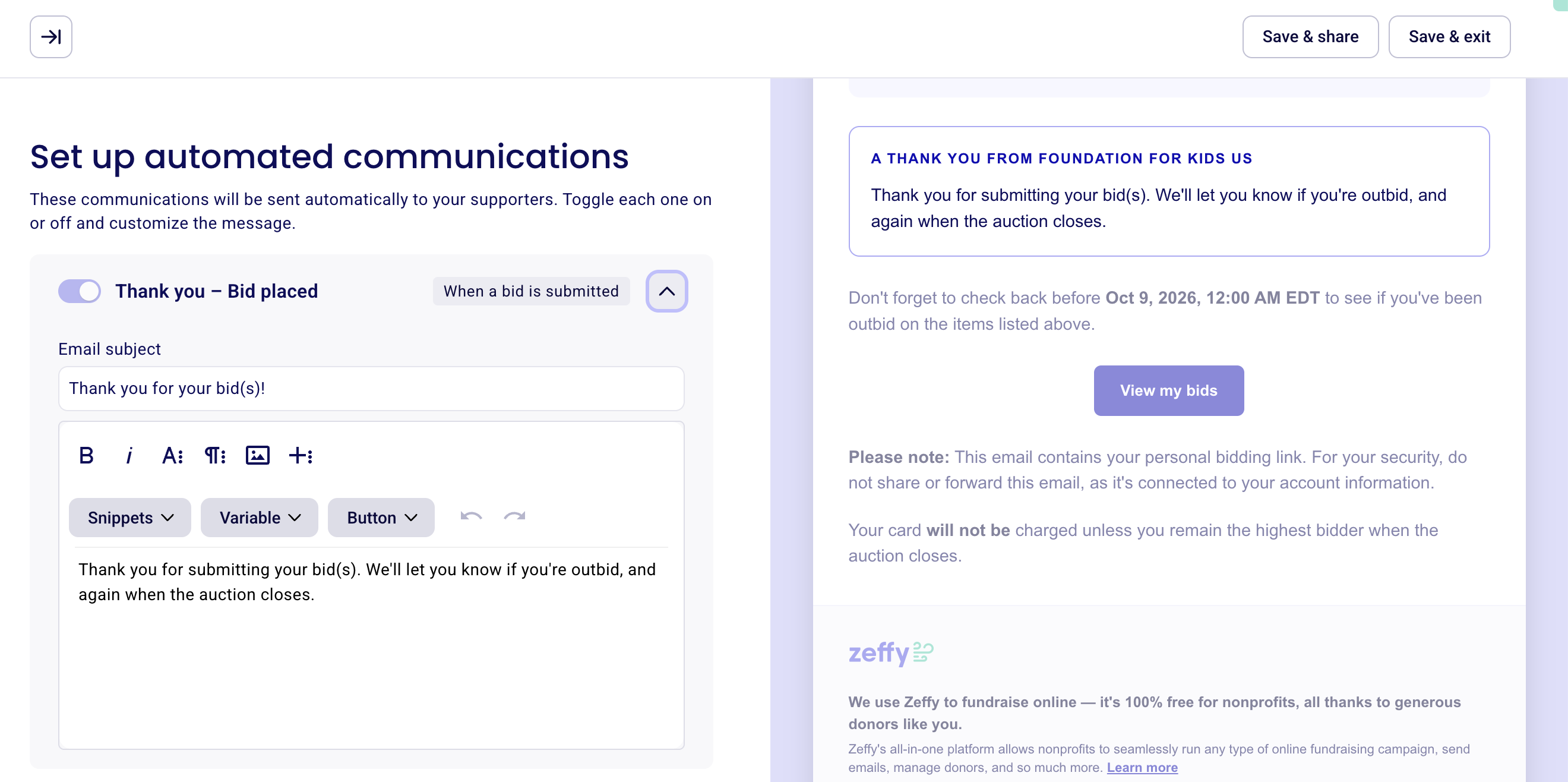
Edit the emails sent to winners or bidders who did not win once your auction ends
Here is a list of all the emails sent to your bidders during an auction:
Bid confirmation email — sent automatically each time someone submits a bid, confirming that their bid was received.
Outbid notification email — sent automatically when another participant places a higher bid on an item. This email is customizable and includes a link back to your auction form so the bidder can place a new, higher bid. Click the arrow beside this email in the form editor to update its message.
Auction results emails — sent automatically once the auction closes. Both can be customized in your form editor:
Winning bidders receive an email confirming they won. They are automatically charged for their item and receive a payment receipt.
Non-winning bidders receive a separate email thanking them for taking part and letting them know they were not the highest bidder. This can be a nice opportunity to invite them to support your organization with a donation, even if they did not win an item.
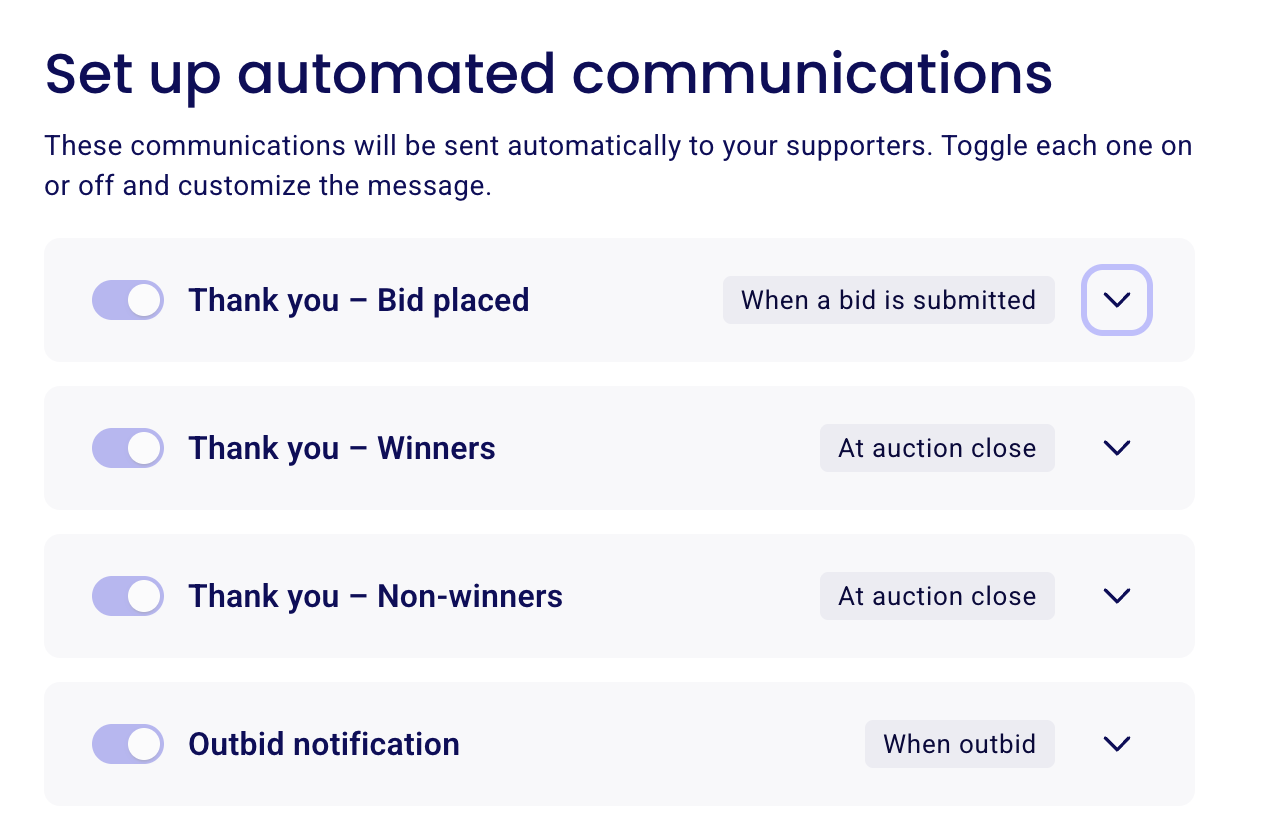
All four emails can be customized in your campaign settings directly.
Head to campaigns and click on edit to the right of your campaign
In your campaign editor, head to the section called "automated communications" where you'll see all automated emails linked to your auction. Click on the arrow to the right of the email you'd like to edit
Edit the contents of the email and make sure to save your changes. Edit the contents of the email and make sure to save your changes.