
How to cancel an ongoing auction
There is no cancel button for an ongoing auction. To cancel one, delete the auction items you no longer want, close sales on the form, and email your bidders. Deleting an auction item fully cancels all bids on that item, and no winner is charged.
1. Delete the items you want to cancel
Deleting an item cancels all bids on it, so no winner is charged for that item. To cancel the entire auction, delete every item.
Click "Fundraising" in the menu bar on the left, then "Campaigns".
Click "Edit" to the right of your auction.
In the "Item" section, delete each item you want to cancel.
2. Close sales on your auction form
Closing sales stops new bids from being placed on your auction items.
Go back to "Campaigns" in the left-hand side menu of your Zeffy dashboard.
Click the three dots to the right of the auction form you want to cancel.
Click "Close sales".
3. Communicate with your bidders
Let your bidders know the auction is cancelled and that they will not be charged.
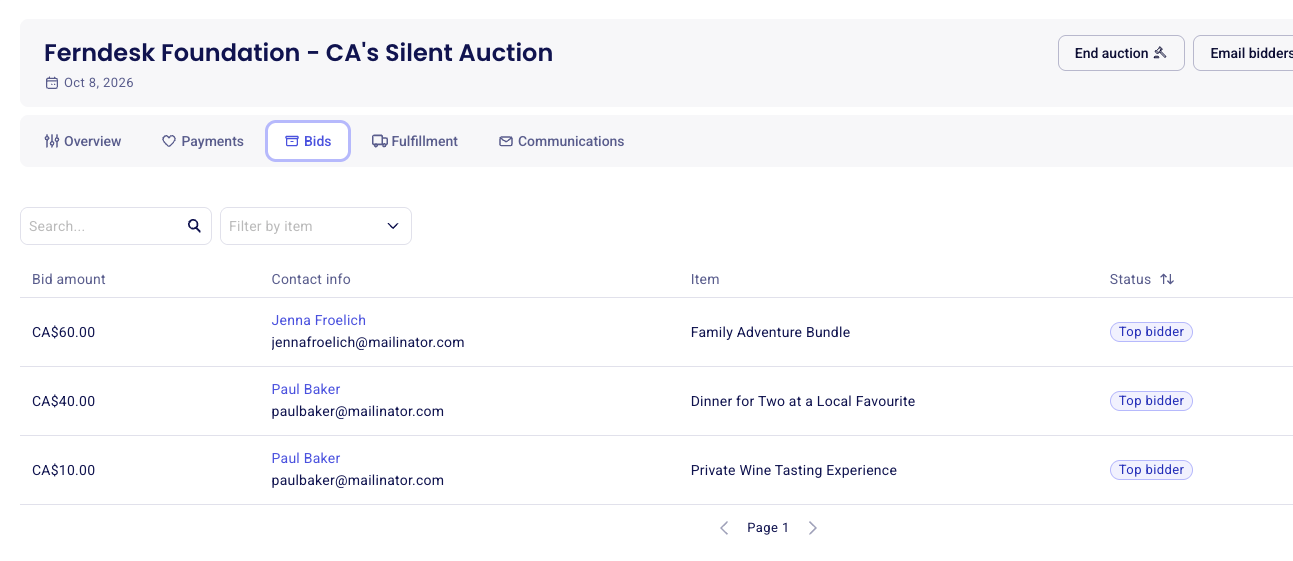
To see who bid on your items, open your auction from the "Campaigns" tab and select the "Bids" tab.
Copy the bidders' email addresses from the list.
Draft an email explaining the cancellation: navigate to "Newsletter", click "Emails", then "New email", and paste the bidders' email addresses in the "To" section.
You can include the reason for the cancellation, confirmation that they won't be charged, any alternative plans or future auction dates, and contact information for questions.
Once the email draft is ready, click "Send".
Only want to remove the highest bid on an item, not the whole item? Cancel that bid instead of deleting the item: the next highest bid automatically becomes the new top bid and that bidder is notified. See Can I cancel/delete a bid?