
What to do if a bidder needs to change their payment method
For current highest bidders wanting to change their payment method
Option 1: Placing a new bid
This method works wonderfully for bidders who are already the highest bidder and would like to switch their payment method for personal preference. If your donor is willing to place a slightly higher bid to use their new payment method, this is a fantastic option! After the payment goes through, you can easily provide a partial refund to cover the difference.
To do it you can provide your bidder the following instructions:
1. Open the auction form using the form URL.
2. Place a new bid ($1 higher than their current bid)
3. Enter their new preferred payment method
Once auction has ended and the payment is processed, you can refund the difference.
To refund the difference:
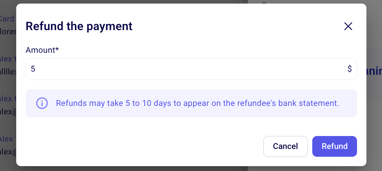
1. Head to "Fundraising", then "Payments".
2. Click on the payment in question and select refund. A window will appear in which you can enter the amount you would like to refund to issue a partial refund amount
⚠️ We recommend providing the link directly to your donor her and clearly stating they will need to use the link you provide. If they submit a new bid from their bidder page the charge will go through with their original payment method.
To find the link to your auction form head to "Campaigns". From there click the three dots to the right and click share to copy the link.
If the bidder is still seeing their original bidder experience, it might look a bit different from what we want. Here's an example:
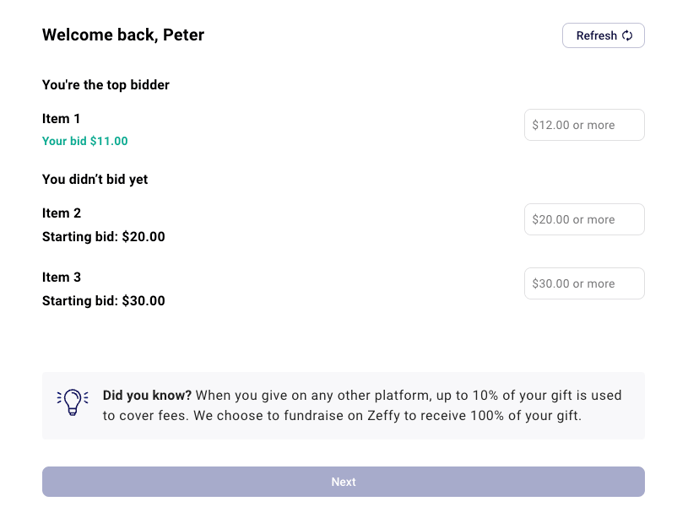
In this case have them open the form URL in an incognito tab. This will let them start fresh and enter their new payment method without any hiccups.
Option 2: Process and Refund
This method would be perfect if your bidder doesn't mind waiting for the charge going through, and being refunded before purchasing with the correct payment method.
Let the original payment go through as usual.
Issue a full refund through Zeffy (see instructions on how to issue a refund here!)
Create a custom sales form:
Set up a ticket at the exact item price
Use the emailing tool to send them the form (more instructions here!)
Add a "pre-filled form" variable in the emailing tool and select the form you created with their item.
Bidder can then enter their new payment method.
Option 3: Offline Payment
If you are hosting an in person auction and your bidder would like to pay by cash, cheque ect. this would be a great solution for you!
Accept payment outside of Zeffy (cash, check, etc.)
Log the payment manually in Zeffy:
Create a separate form for manual entries
Record the offline payment there. To log an offline payment, you can check out the following resource: Manual payment or registration entries to log cash, check or other offline payments.
⚠️ Please note that you will not be able to select your auction form to log a manual entry, so we recommend choosing a different form to log this payment under, such as an custom sales form.
For payments which have failed after the auction is closed
On our auction forms, if a payment fails, there is no further attempt to charge them or another bidder. The highest bidder must be contacted to secure their payment.
If someone's automatic payment fails, there are two ways you can go about receiving the funds they owe for the item they bid on:
Option 1: Custom Sales Form
Create a "custom sales" form with a ticket listed at the price of the item they owe.
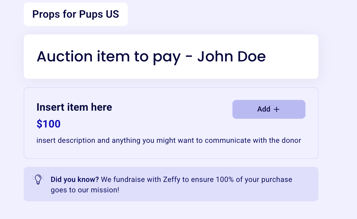
Then, you can send them the form directly through Zeffy using the emailing option that is found on their contact page. In the emailing tool, click on your text box to add a "pre-filled form" variable and select the form you created with their item.
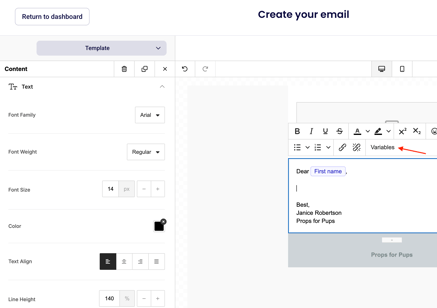
All they will have to do is enter their payment method. The funds will be transferred directly to your organization.
Option 2: Offline Payment
You can accept an offline payment and log it in Zeffy afterwards. To log an offline payment, you can check out the following resource: Manual payment or registration entries to log cash, check or other offline payments. Please note that you will not be able to select your auction form to log a manual entry, so we recommend choosing a different form to log this payment under.