
How to add items to your auction
To add more items to your auction, follow these simple steps:
Access Your Auction Form
Log into your Zeffy dashboard on a computer
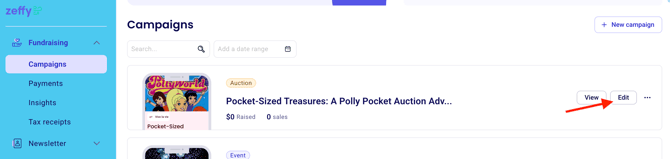
Click "Campaigns" in the menu on the left
If a "Campaigns" sub-item appears, select it. Then select edit next to the auction form in question.
🌟 If you haven't had a chance to set up your auction form yet you can check out our complete guide on how to get started here! 🌟
2. Configure Basic Item Information
Click on the "Item" section and select add another item at the bottom of your current item list.
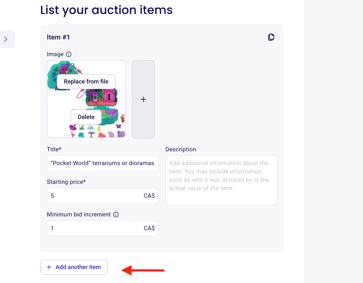
Enter the item name
Add a detailed description of the item
Set the starting bid (minimum amount that can be bid)
Define the minimum bid increment (smallest amount by which bids must increase)
3. Add Images
Click "Upload image" for each item
Upload clear, high-quality photos of your items
Use square images (1:1 ratio) for optimal display
4. Add More Items
Click "+ Add another item" to list additional auction items
Repeat the process for each item
⚠️ Important Notes:
There is now a limit of 200 items per auction form to ensure a smooth experience!
The starting bid and the bid increment must each be at least $1. If you leave the bid increment blank, it defaults to $1.