
Set up shipping and pick-up for your online store
Offer pick-up and shipping on an online shop campaign from Order fulfillment settings, then track each order on the Fulfillments tab. This feature is available only on online stores—not on auctions or other campaign types.

Offer pick-up or shipping
Turn on pick-up, shipping, or both while you create or edit your online shop.
Open Campaigns, then create a new Online shop campaign or edit an existing one.
Go to the order fulfillment step in the form editor.
To offer pick-up, turn on Offer a pick-up address, enter the pick-up address, and add pick-up instructions for buyers.
To offer shipping, turn on Offer shipping and enter the shipping cost.
Continue through the rest of the shop setup, or save your changes if you are editing an existing shop.
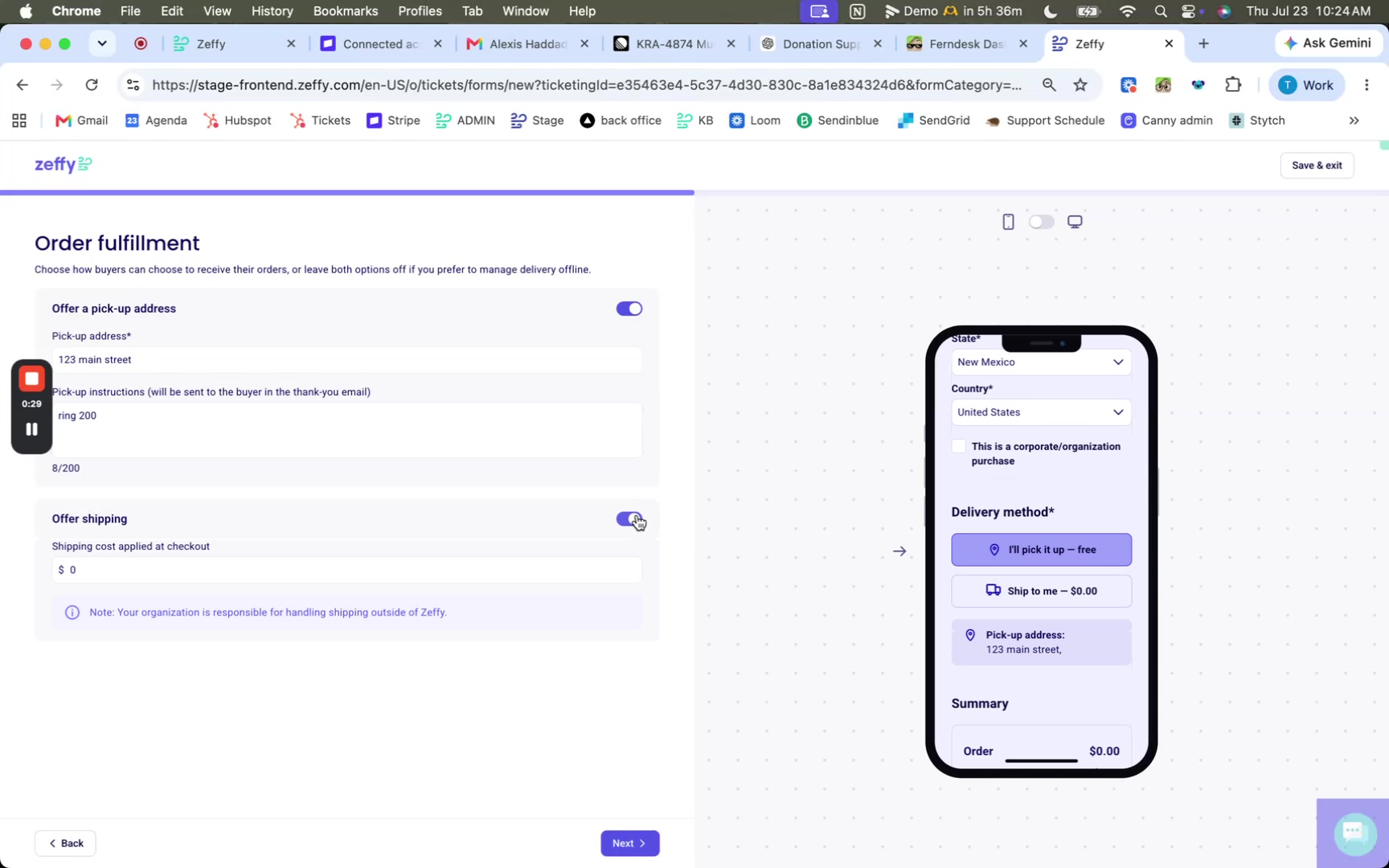
Shipping and pick-up are available only on online store campaigns, not on auctions or other campaign types.
Collect buyer address details
Add address questions in Collect buyer information when you need a full delivery address beyond the default fields.
In the online shop editor, open the step where you collect buyer information.
Click + Add buyer only question .
Choose Full address when you want buyers to enter a complete address, then add the question.
Default buyer fields already include full name, email, and country and state. Use additional questions only for details you still need.
Customize fulfillment emails
Online shops include automated emails you can turn on and edit for purchase confirmation and fulfillment updates.
In the online shop editor, open automated communications.
Customize the Thank you email sent after purchase.
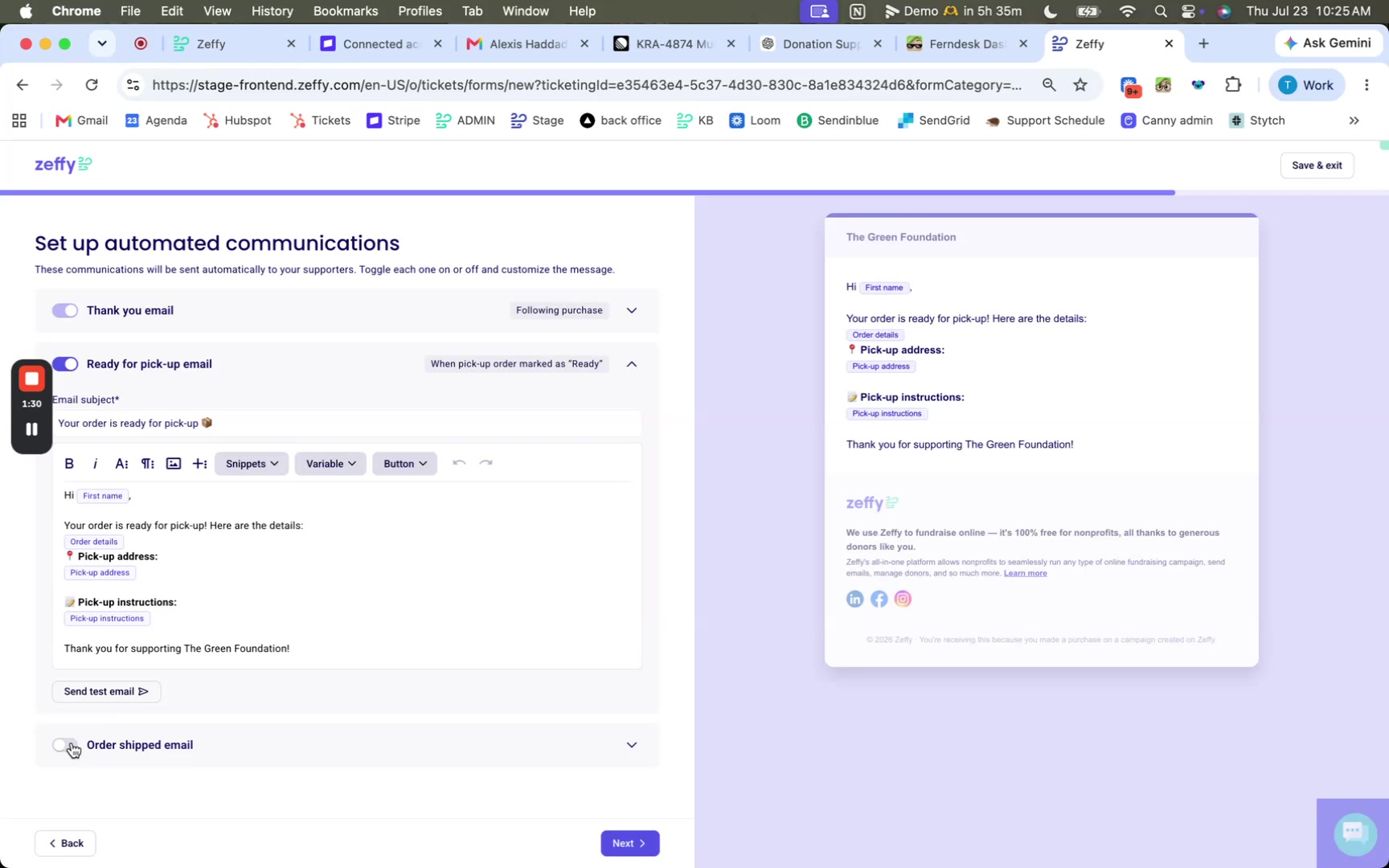
Turn on and customize the Ready for pick-up email if you offer pick-up.
Turn on and customize the Order shipped email if you offer shipping.
What buyers choose at checkout
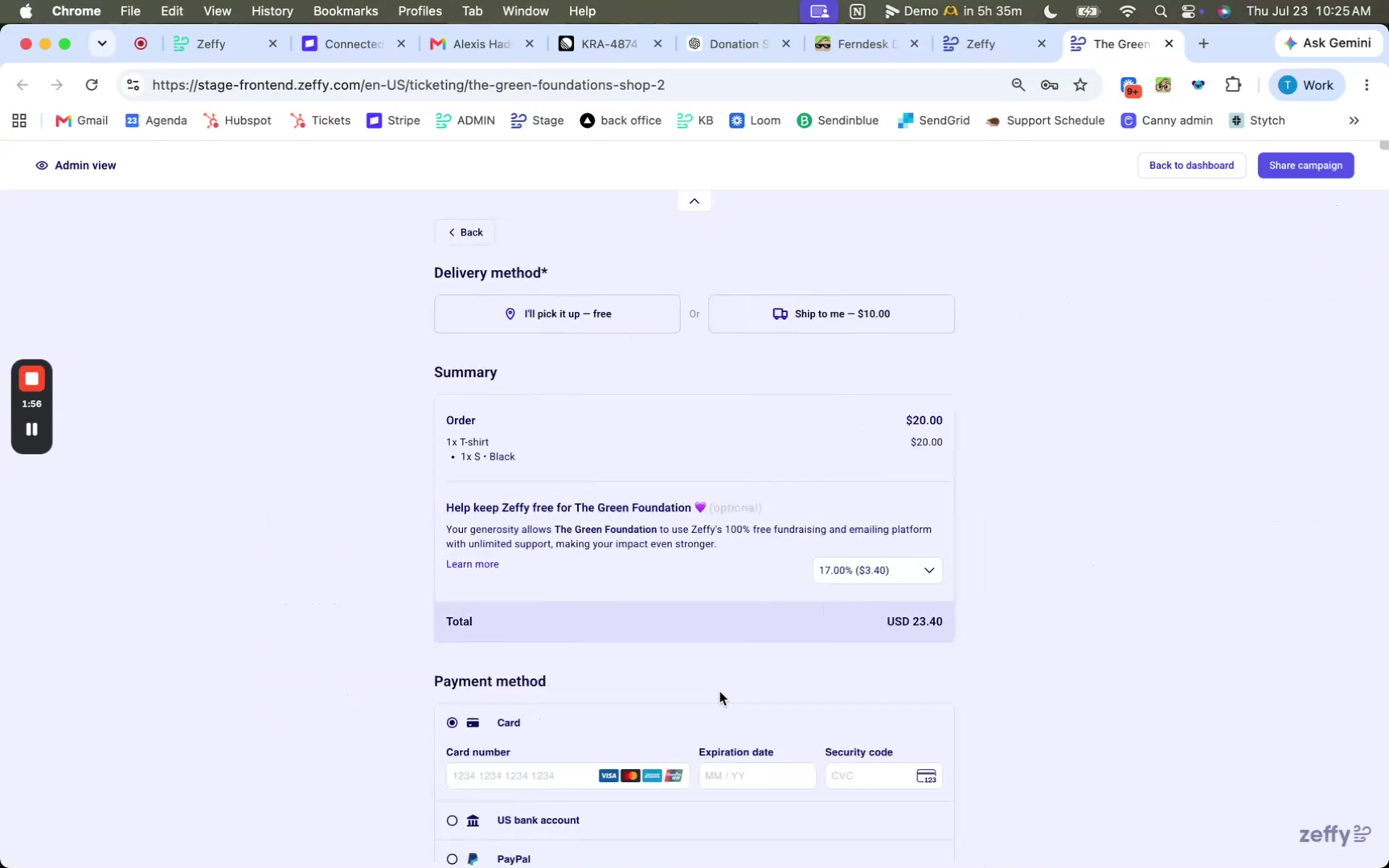
When pick-up or shipping is enabled, buyers select a delivery method before they pay.
I'll pick it up - free when pick-up is offered
Ship to me with the shipping cost you set when shipping is offered
Buyers then enter payment and buyer information. If the shipping address matches the billing address, they can keep that option checked.
Manage orders on the Fulfillments tab
After sales come in, update each order’s fulfillment status from the shop campaign dashboard.
Open Campaigns and select your online shop.
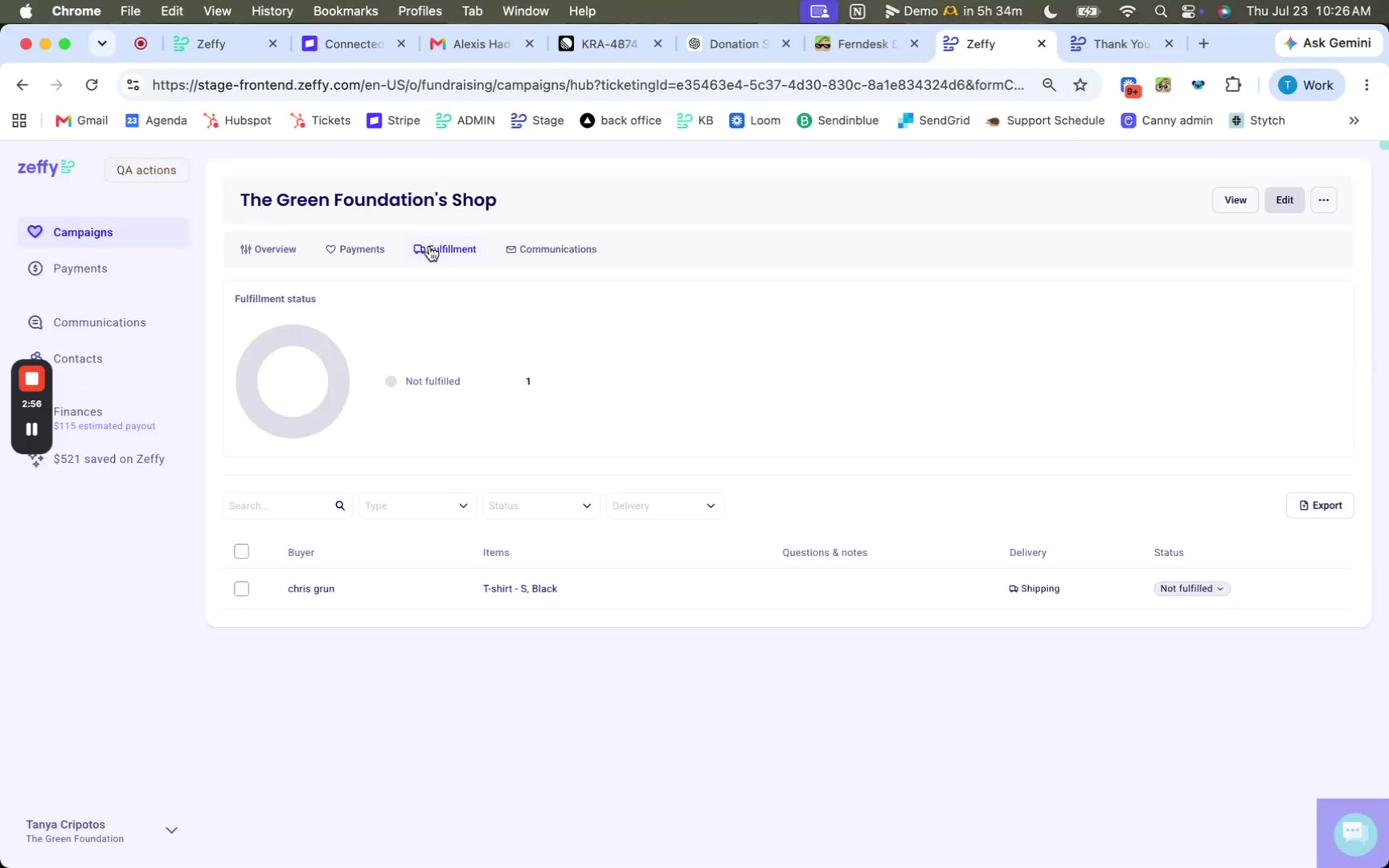
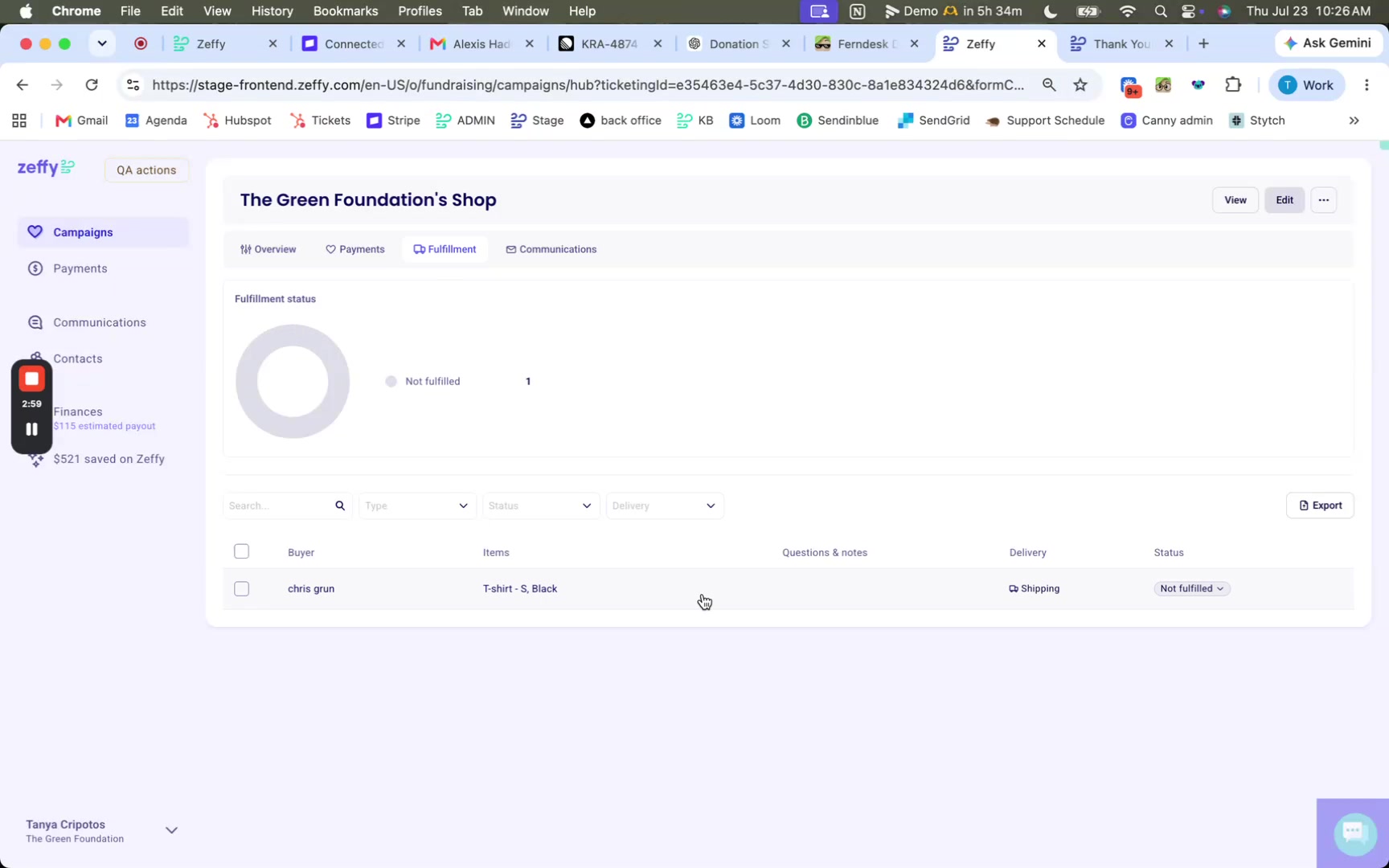
Open the Fulfillments tab to see orders for the shop.
Select an order to view the purchased items and details.
Change the status from Not fulfilled to Ready or Fulfilled.
Filter the list by delivery method (for example, Shipping) or by status (for example, Fulfilled) when you need a shorter list.
Related setup
Configure your online store for the full shop setup flow
How to add product variants (sizes, colors) and manage inventory for sizes, colors, and stock
How to Sell Digital Products/Downloads when you deliver files by email instead of shipping physical items