
Adding images to items in your online-store / e-commerce form
You can add multiple items and pictures to your online boutique when you create an e-commerce form.
Head to the campaigns tab and click "+ New campaign" in the top right (or on edit to the right of your existing form if you have one)
Select the "Online Shop" option and start building your online store. When you are in the "Add items to sell" step of your form creation, you will be able to list multiple items and their associated pictures.
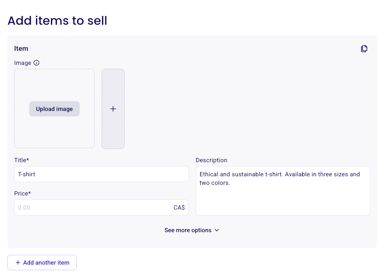
Simply enter your item name and import the picture you would like to upload by clicking on "Upload Image". You can add up to 20 images per item.
You can add as many items as you would like by clicking "Add item."
If you have a limited quantity of an item for sale, be sure to open the "Options" menu to input the quantity in the "Total number of items for this rate" box.
Attention: To optimize the presentation of the article in your form, please import a square image to your form.
To offer pick-up or paid shipping on an online store, use Order fulfillment settings—not a separate store item. See Set up shipping and pick-up for your online store.