
Ask additional custom questions to donors and buyers
What information does Zeffy collect by default?
The first name, last name, email, state/province and country are asked to all supporters by default to complete a transaction. This information is necessary to process the payment.
Add custom questions to your form
You can add as many custom questions to your campaigns as needed. You can choose between the following question types: short-form questions, telephone number, additional email, a date, multiple choice questions (single or multi-select), full name or a checkbox option.
For donation forms or peer-to-peer campaigns
In your Zeffy account, click on "Campaigns" in the menu bar.
Click on "Edit" next to the name of the form for which you want to add custom questions, or begin creating a new campaign.
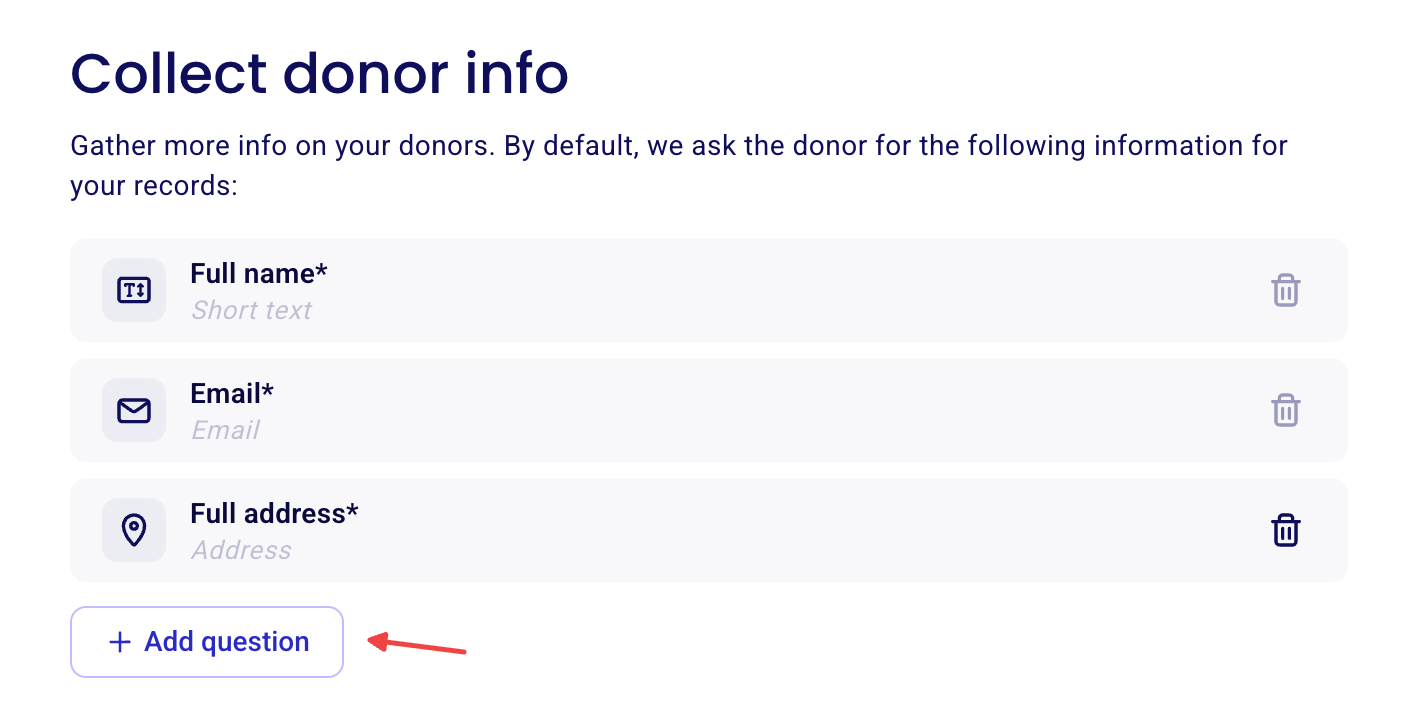
In the form editor, navigate to the "Questions" section which asks "Do you want to collect more info from your donors?"
Click "+ Add question" to add questions to your form.
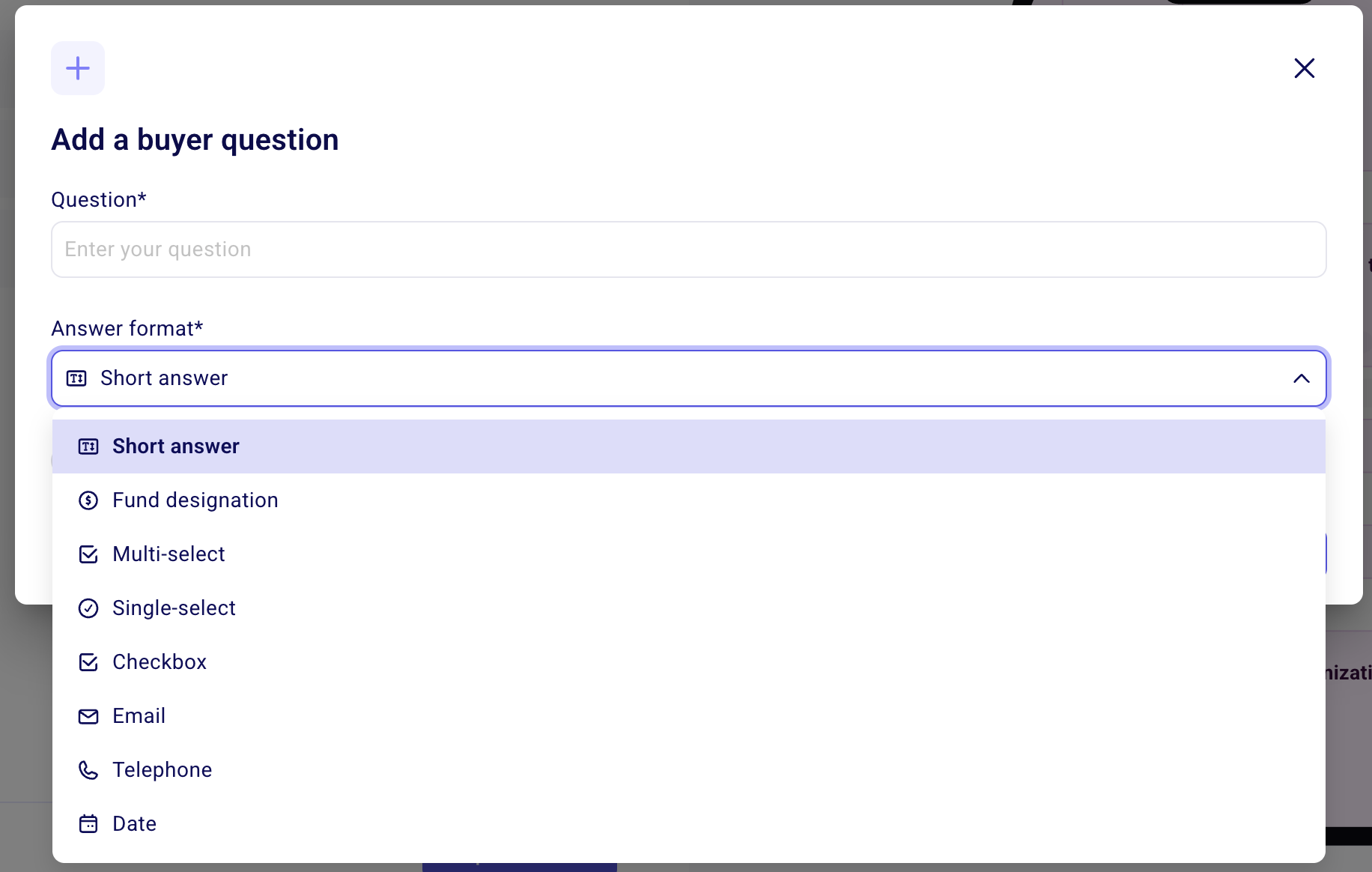
Select the appropriate response format and enter the question in the "Question" field.
You can choose to make this question required or optional using the "Required" toggle.
Click "Add question" to add more questions.
For events, raffles, online stores and memberships
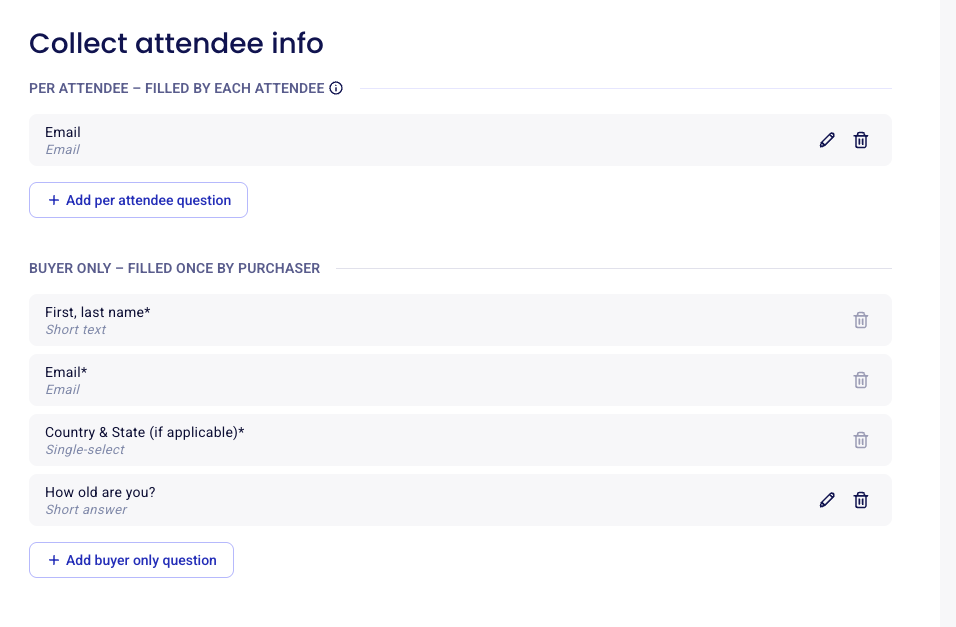
In the "Questions" section of these forms, questions are grouped by who fills them in. The wording follows your campaign type:
Events: "Per attendee – Filled by each attendee" and "Buyer only – Filled once by purchaser"
Raffles: "Per ticket" and "Per buyer"
Online stores: "Per item" and "Per buyer"
Memberships: "Member info" and "Buyer question"
Per attendee, per ticket and per item questions are asked once for every ticket, item or attendee in the order: a purchase with 3 tickets gets 3 answers to the same question. Buyer questions are asked once per purchase, no matter how many tickets or items it includes.
In your Zeffy dashboard, go to "Campaigns" in the menu bar.
Click on "Edit" next to the name of the form for which you want to add custom questions.
Click on the Questions section in the left-hand navigation pane.
Click + Add per attendee question or + Add buyer only question (the button names follow the wording of your campaign type).
In the window that opens, search previously used questions and check the box next to a question to reuse it, or create a new question from scratch.
Word your question, select the question type, and choose whether it is required.
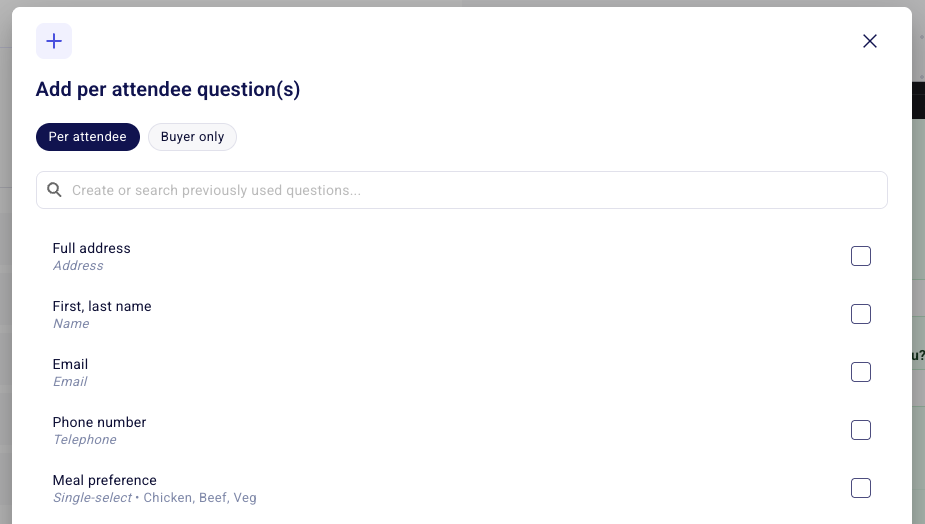
Editing a saved question updates it everywhere. If you select a previously saved question and then update it, every instance of that question changes, including on your other campaigns. If you want to change a question without changing it on other campaigns, create a new question instead.
To learn how to obtain the name of each guest attending your event and have the name appear in your event guest list and check-in manager, see Obtain all event attendee names when multiple tickets are purchased.
Buyer questions are saved to your contacts
Answers to buyer questions are saved to the buyer's contact page as custom properties. Answers to per attendee, per ticket or per item questions are not: they are available in your payments report and printed on each individual e-ticket. See Custom questions and custom contact fields.
Ask questions only for specific tickets
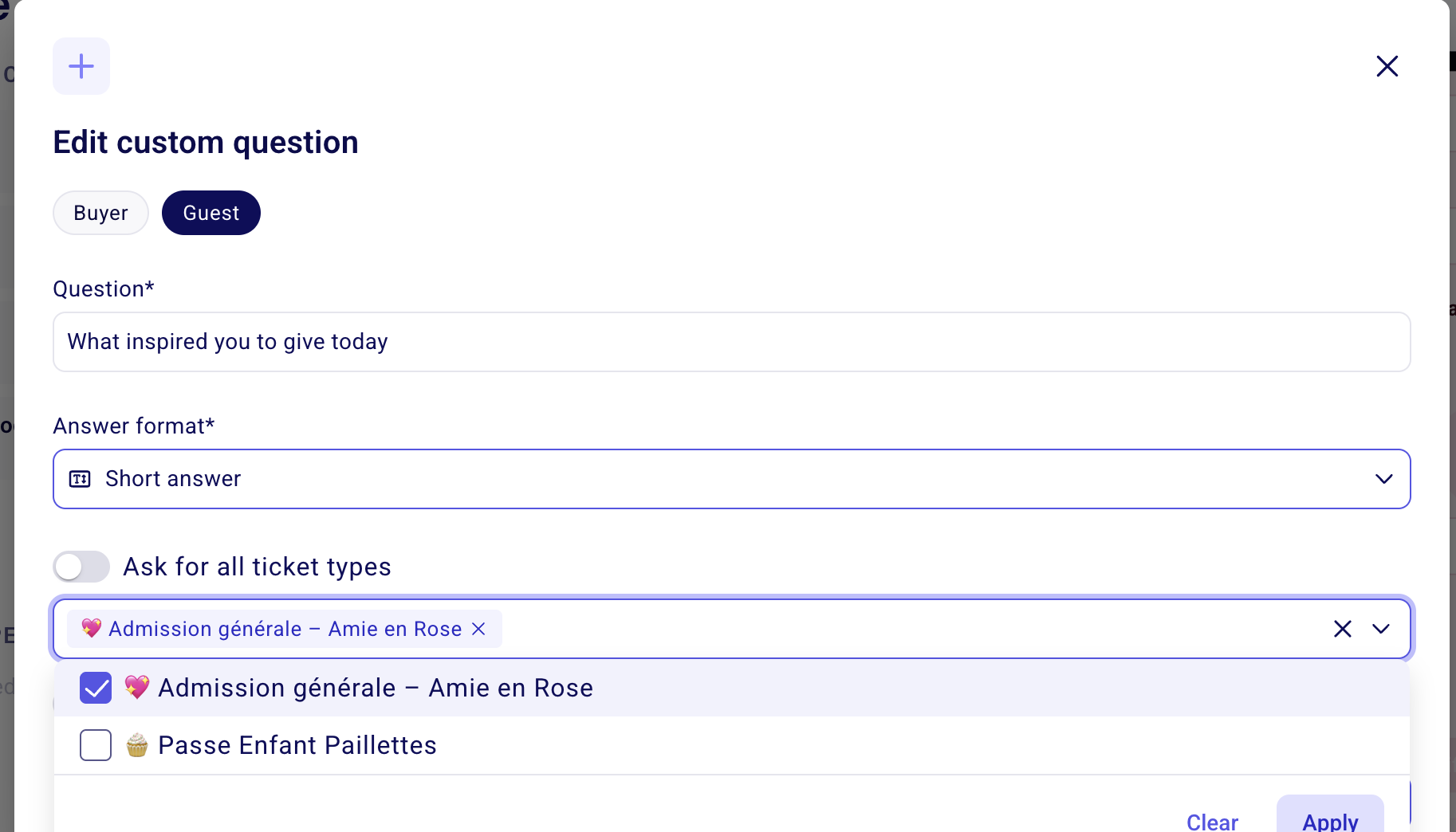
If you have more than one ticket type on your form, you can specify which ticket rates you want a question to be asked for. In order to be able to associate a question with a particular rate, it must be added as a per attendee (per ticket) question.
To ask the question when any ticket is selected for purchase on your form, leave "Ask for all ticket types" selected.
To ask the question only when a specific ticket type is selected for purchase on your form, uncheck the option to ask it for all ticket types and select which ticket rates you wish the question to appear for.
Tips and question types
Select the right type of question
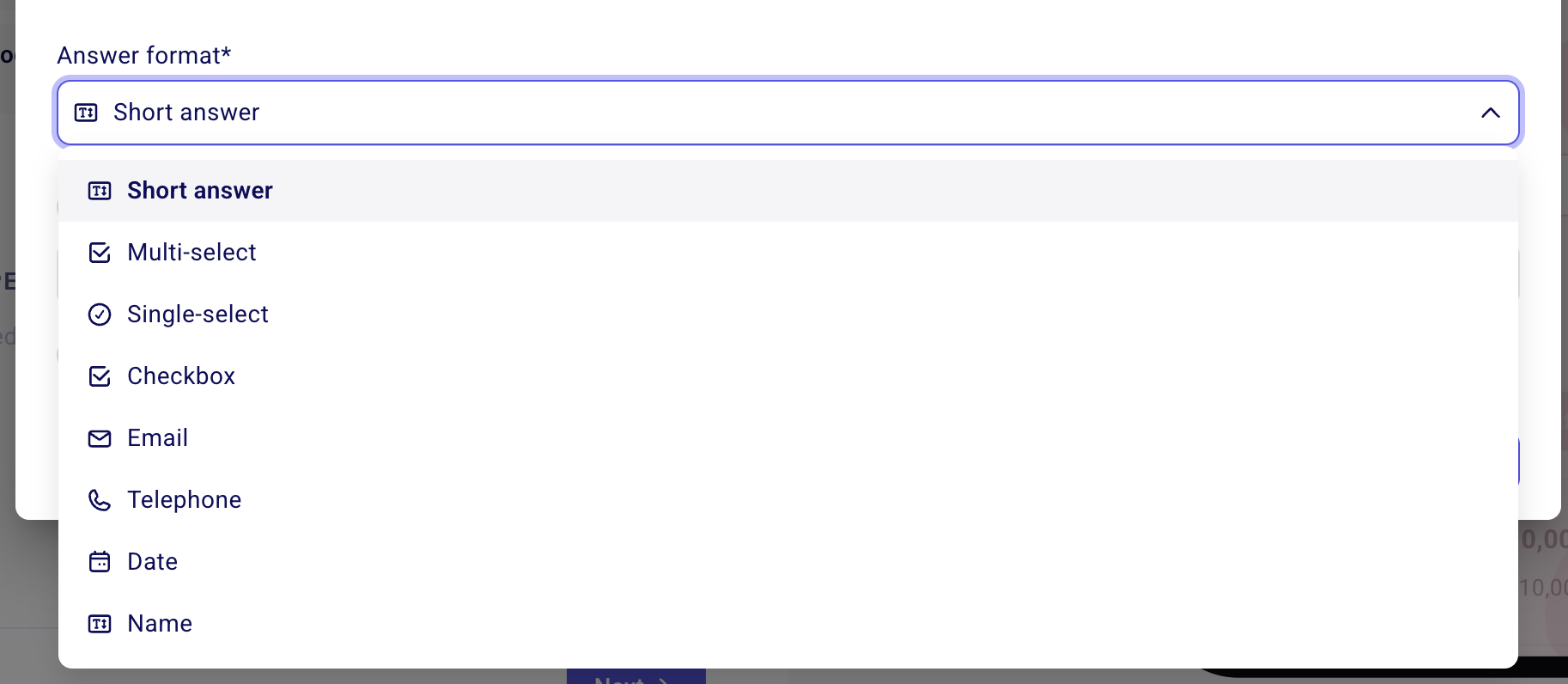
The types of questions you can ask are short question, telephone, email, date, single-select, multi-select, name or checkbox (true/false).
Some question types map to specific data fields, so it is important to choose the correct question type when asking your attendees for more information. For example, the "Telephone" question type maps onto the "Telephone" field on the donor's contact page. The "Full name" question type will map onto the guest name in the check-in manager and guest list.
To learn more about data mapping when using custom questions, see Custom questions and custom contact fields.
Make your question required
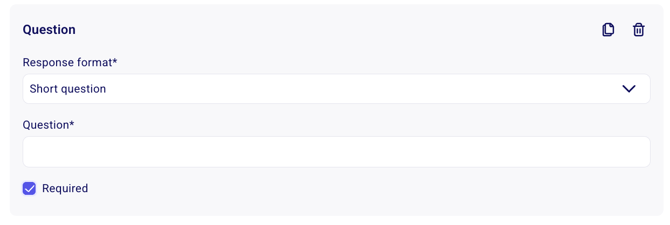
For each question, you will be able to specify whether or not you would like the question to be required.
⚠️ MCQ with single answer are automatically required – the purchase cannot be completed without one answer being selected.
Question limits for MCQ questions
For MCQ questions, you can set a limit on how many times each answer option can be selected. You can use this feature to indicate how many meal options, clothing sizes, or spots in activities are available for example.
To do this, chose MCQ with single or multiple answers as the question type. Then, click on "a maximum choice limit" below the question.
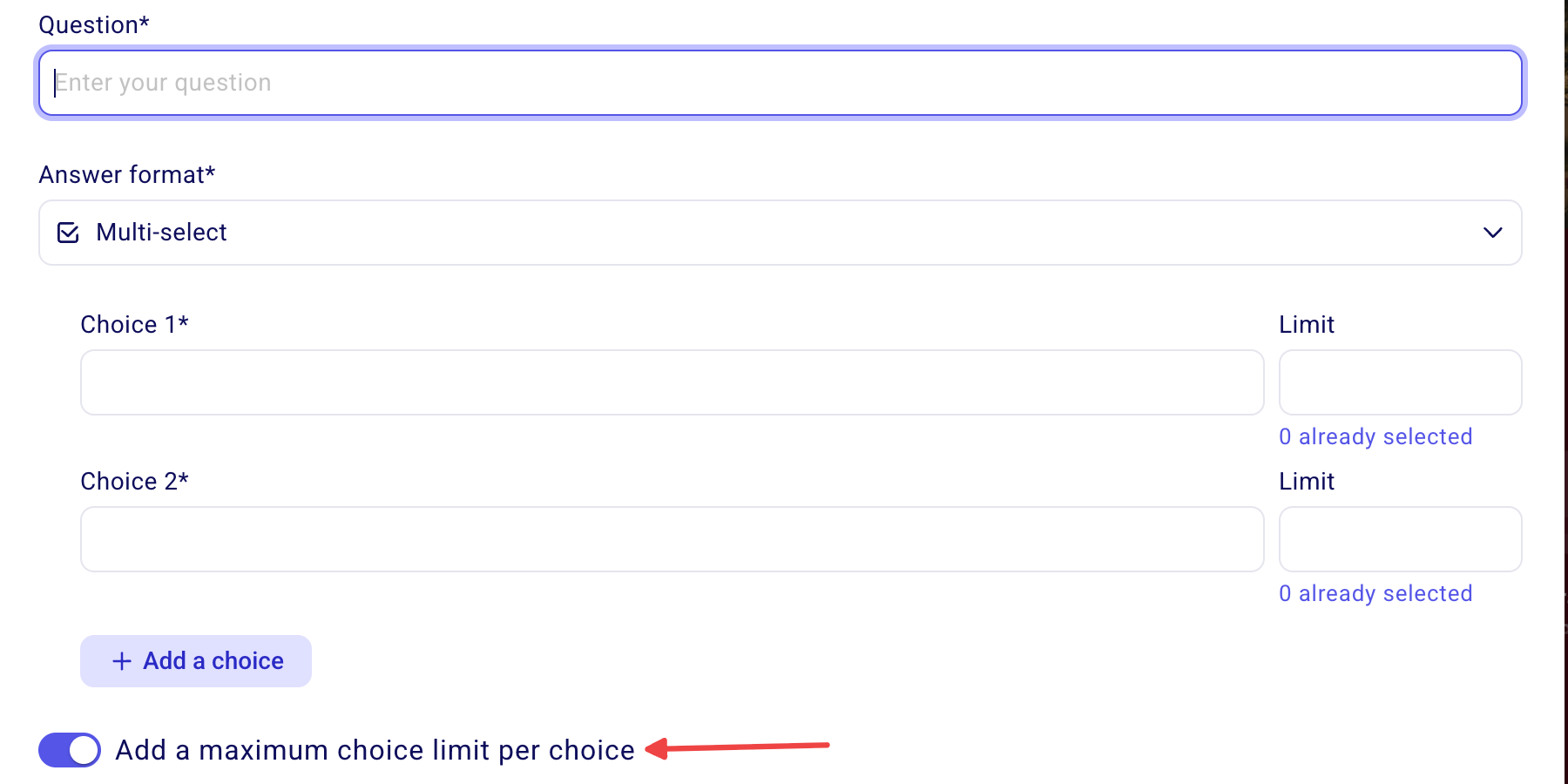
You can then enter the limit that corresponds to each multiple-choice answer in the field to the right. On the form, your buyers will be able to see how many of each selection are still available.
How to review the answers submitted by donors and buyers
To retrieve answers for a specific payment, head to the 'Payments' tab and click on the transaction in question (do not click the contact name). A page with the payment details should open towards the right with the answers to your questions listed on it.
To get an overview of the answers of all your payments, you can export your payment data.
Go to "Payments" and filter by form name.
Select the form for which you wish to view the information.
Click "Export" with the filter applied.
Confirm the type of export you'd like to initiate: change the "type of export" to an itemized payments export.
Click here for more detailed information.
You can also adjust which columns appear in the payments table, see Customize the columns in the payments table.