
Customize the columns in the payments table
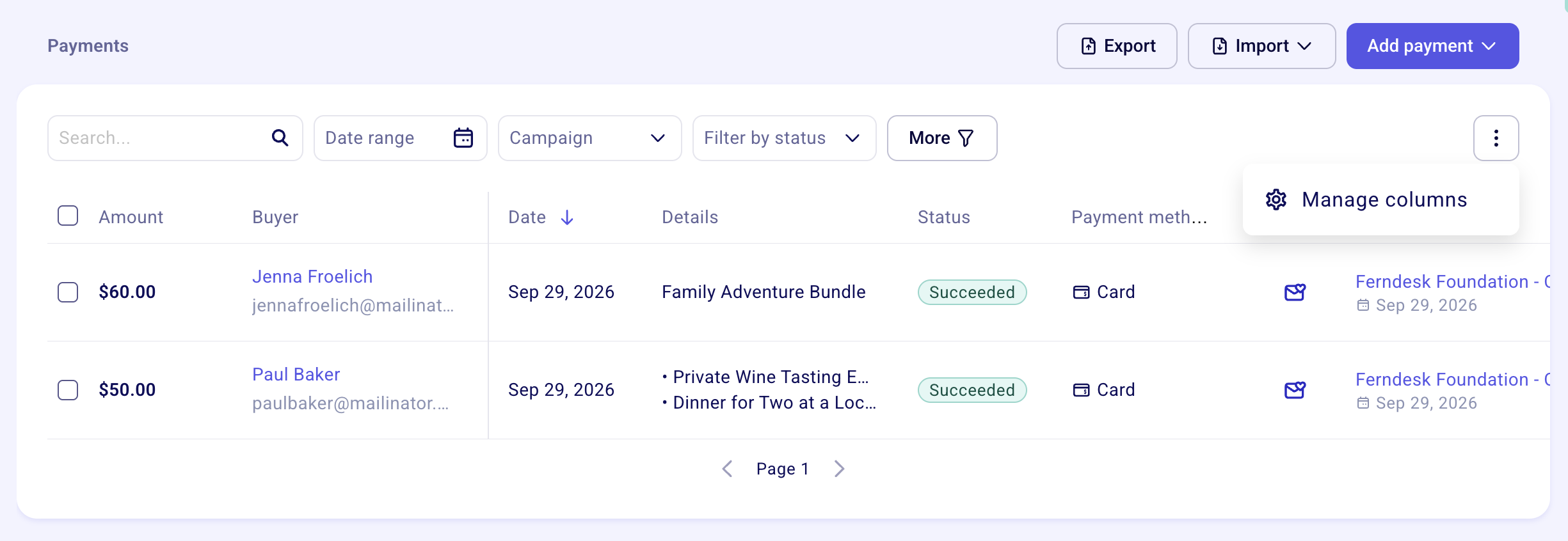
Choose which columns appear in the payments table, and in what order, from the Payments tab: click the three dots in the top right corner, then Manage columns. This only changes what you see in the table; exports are not affected. To narrow which payments appear in the table, see Filter the payments table.
Show, hide, and reorder columns
Go to the Payments tab.
Click the three dots in the top right corner of the table.
Click Manage columns.
Check the box next to a column to show it, or uncheck it to hide it.
Drag and drop a column to change its position in the table.
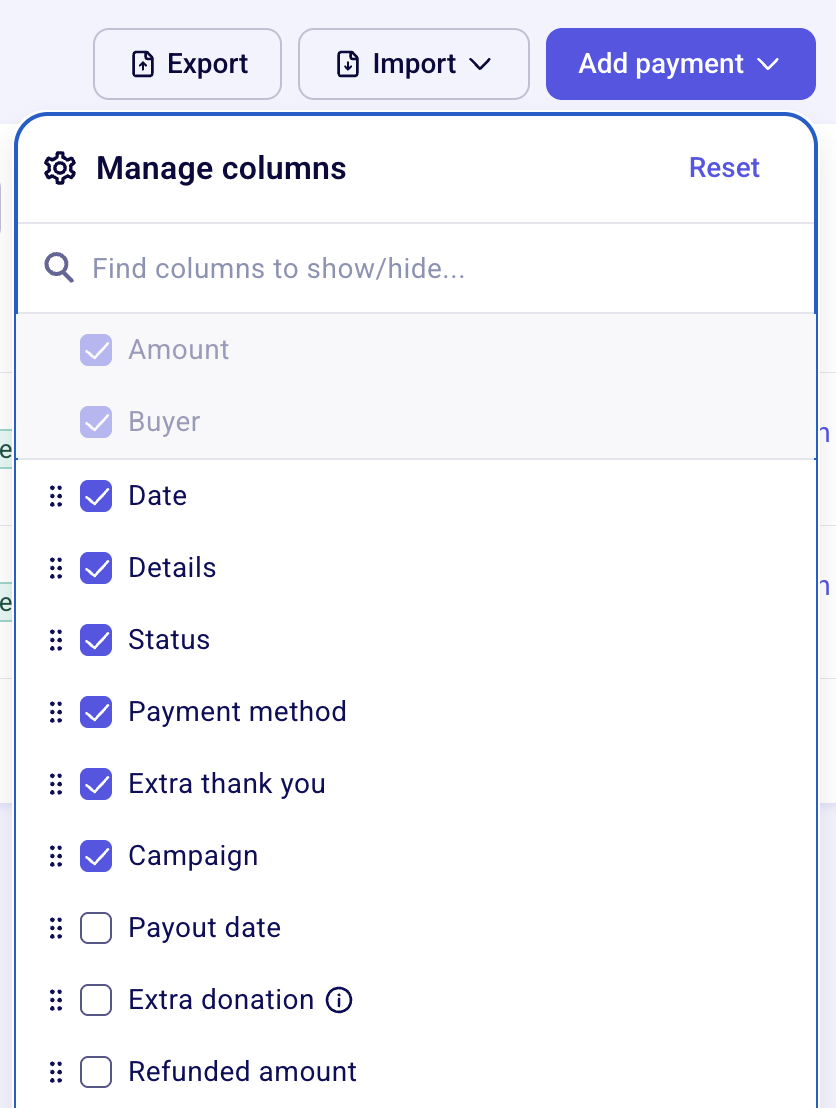
Amount and Buyer always stay in the table: their checkboxes in Manage columns are grayed out and cannot be unchecked. Click Reset in the Manage columns panel to restore the default columns.
Hiding a column only removes it from the table view. Click a payment to open its details panel and see the full payment information.
Columns you can show
All of these columns are available under Manage columns:
Amount
Buyer
Date
Details
Status
Payment method
Extra thank you
Campaign
Payout date
Extra donation
Refunded amount
Recurring status
Discount
Sales taxes
Fund
Buyer email
Buyer company name
Buyer address
Buyer city
Buyer postal code
Buyer region
Buyer country
Buyer language
Tax receipt #
Tax receipt URL
Eligible amount
Campaign link
Main campaign title
Team title
Team creation date
Note
In honour/memory of
Payment handler
Ticket occurrence
Ticket expiration date
Exports are not affected
Column changes apply only to the payments table on screen. When you export, you still have access to the same column selection, so you can export any column even if it is hidden in the table.