
Notifications for new payments
Notification emails can be configured individually for each form, allowing you to choose different email addresses to receive notifications for each campaign. You can also enable payment notifications for all campaigns at once.
Set up payment notifications for one campaign
You manage the email addresses that receive payment notifications a campaign's advanced settings.
Log in to your Zeffy dashboard and go to Campaigns.
Find the campaign you want to edit and click Edit to open the form editor.
Go to Advanced settings and select Manage collaborators.
Enter the email address that should receive notifications.
Select "Notifications only - for this campaign."
Click Add collaborator.
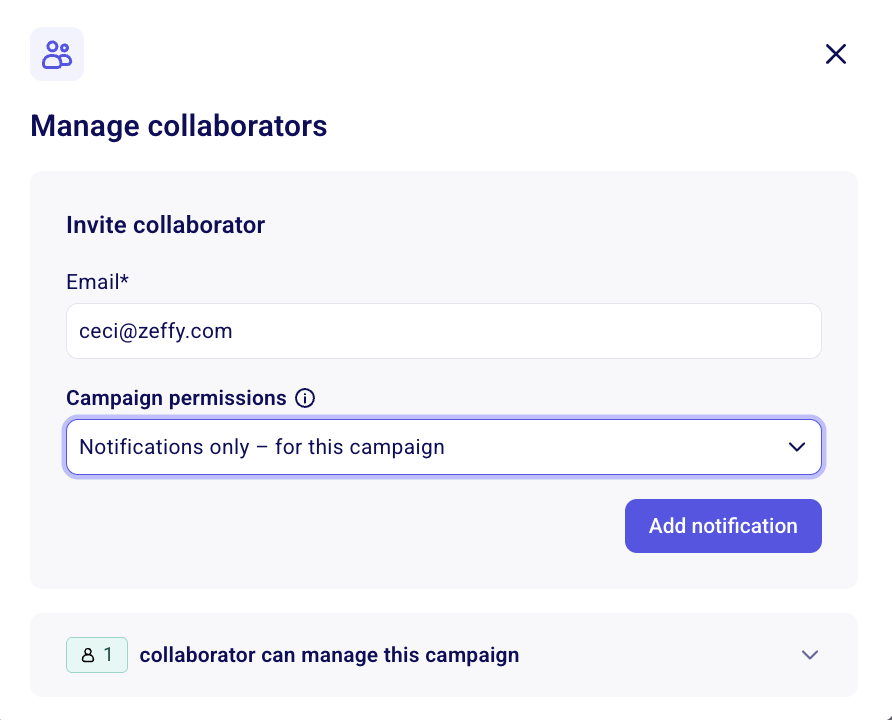
With "Notifications only - for this campaign" selected, the person receives payment notifications but cannot log in to your Zeffy account or view campaign data. If you later give them other permissions, they'll have limited access to your account for this campaign only.
Set up notifications for all campaigns
To have a collaborator receive payment notifications across every campaign, or multiple campaigns you choose, follow these steps:
Go to Campaigns, open a campaign, and click Edit.
Go to Advanced settings and select Manage collaborators.
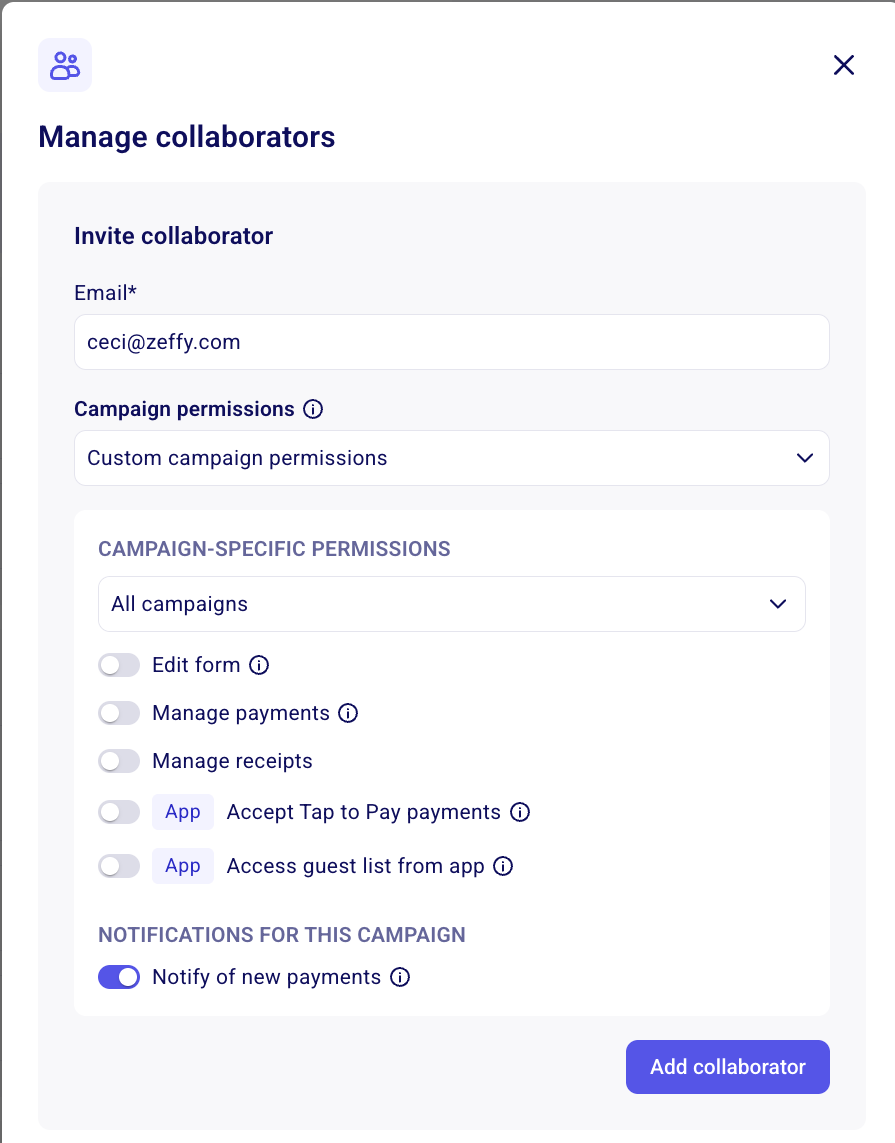
Enter the email address that should receive notifications.
Select "Custom campaign permissions."
Toggle on "Notify of new payments."
Choose "For all campaigns," or select "Only specific campaigns" and pick the campaigns it should apply to.
Click Send invite.
Remove a collaborator from payment notifications
Remove someone from payment notifications from the same Manage collaborators screen, without removing their other campaign permissions.
Go to Campaigns, open the campaign, and click Edit.
Go to Advanced settings and select Manage collaborators.
Open the "X collaborators can manage this campaign" dropdown.
Select the pencil icon next to the person's name.
Toggle off "Notify of new payments."
Click Apply permissions.
If the person has other permissions enabled, they stay associated with the campaign, but they no longer receive emails about new payments.
These settings must be configured on each individual form. To receive an email for every new transaction, follow the steps above to add yourself as a recipient on each of your forms.