
Edit, move or manage your peer-to-peer fundraising pages and teams
You can edit or delete peer-to-peer participant and team pages from your Zeffy dashboard. Participants can also manage their own fundraising pages by logging in with the email address used to create their page.
Edit a participant or team page
For participants
Participants can edit their own fundraising page by going to zeffy.com/login and signing in with the email address associated with their page. From there, they can update details such as their fundraising goal, description, profile photo, and banner. They can consult the instructions here if needed: How to Edit Your Peer-to-Peer Team or Participant Fundraising Page as a participant
For organization administrators
To edit a participant or team page on someone’s behalf:
Go to Fundraising → Campaigns.
Select your peer-to-peer campaign.
Open the Overview tab.
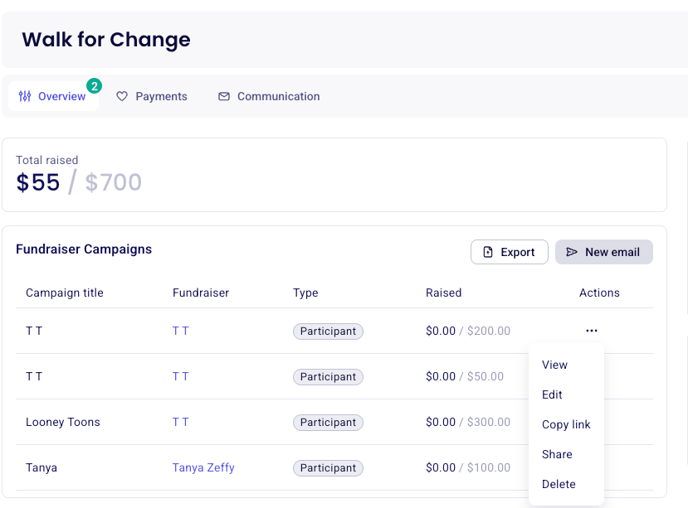
Scroll to the Peer-to-peer participants and teams section.
Find the participant or team you want to manage.
Click the three dots to the right of their name, then select Edit.
You can update the page’s settings, description, banner, photo, logo, and other available details.
Delete a participant or team page
Go to Fundraising → Campaigns.
Select your peer-to-peer campaign and open the Overview tab.
Scroll to the Peer-to-peer participants and teams section.
Find the participant or team page you would like to remove.
Click the three dots to the right of the page, then select Delete.
What happens to donations when a page is deleted?
Deleting a participant or team page does not delete, refund, or otherwise affect donations already received.
If you delete a participant page, donations previously credited to that participant remain part of the campaign total and are re-associated with the main campaign.
If you delete a team page, the participant pages within that team are also deleted. Donations made to the team and its participant pages remain part of the campaign total and are re-associated with the main campaign.
Move a donation to another participant or team page
If a donation was credited to the wrong participant or team page, you can move it yourself. For example, you may want to move a donation from one participant to another, or from a team page to a participant page so that it counts toward that individual’s fundraising total.
Go to Fundraising → Payments.
Find and open the donation.
In the payment details panel, click More.
Select Move donation.
Choose the participant or team page where the donation should be counted.
For full instructions and restrictions, including how moving a monthly donation works, see Move a donation to another form.
Move a participant to another team
If a participant has joined the wrong team, our team can move them to the correct one. We can also merge teams when needed.
Submit a request through this form and select Moving participant.
Move a participant yourself
If you prefer not to wait for support, you can use the following workaround:
Create a new fundraising page for the participant under the correct team.
Move their donations from the old page to the new page.
Delete the old page once its raised amount is $0.
1. Create a new participant page in the correct team
Go to Fundraising → Campaigns and open your peer-to-peer campaign.
Click View to open the public campaign page.
Click Fundraise as though you were creating a page as a fundraiser.
Create a new fundraising page using the participant’s name, email address, and fundraising goal.
Select Join a team, then choose the correct team.
If your campaign has a registration process that you need to bypass, add ?openFundraiser=True to the end of your peer-to-peer campaign URL.
For example: https://www.zeffy.com/en-GB/peer-to-peer/Zeffy-run?openFundraiser=True
This opens the direct fundraising-page creation flow. It also works for creating a page for a registrant who completed registration but never created a fundraising page. For more detail, see Why are some peer-to-peer registrations missing a fundraising page?
2. Move the donations from the old page
Go to Fundraising → Payments.
Filter payments by your peer-to-peer campaign.
Add a filter for the old participant page to see all donations credited to it.
Open each donation and select More → Move donation.
Choose the new participant page as the destination.
3. Delete the old page
Once all donations have been moved and the old page shows $0 raised:
Return to your peer-to-peer campaign’s Overview tab.
Scroll to Peer-to-peer participants and teams.
Find the old participant page.
Click the three dots beside it and select Delete.