
Set suggested donation amounts and custom amount options
When you create a donation campaign, you can customize how donors select their gift amount. This includes setting suggested donation amounts, choosing which giving frequencies to offer, and configuring default selections.
Suggested donation amounts
All Zeffy donation forms display four suggested donation amounts at the top of the amount selector. Donors can click one of these suggestions or enter a custom amount in the open text field below.
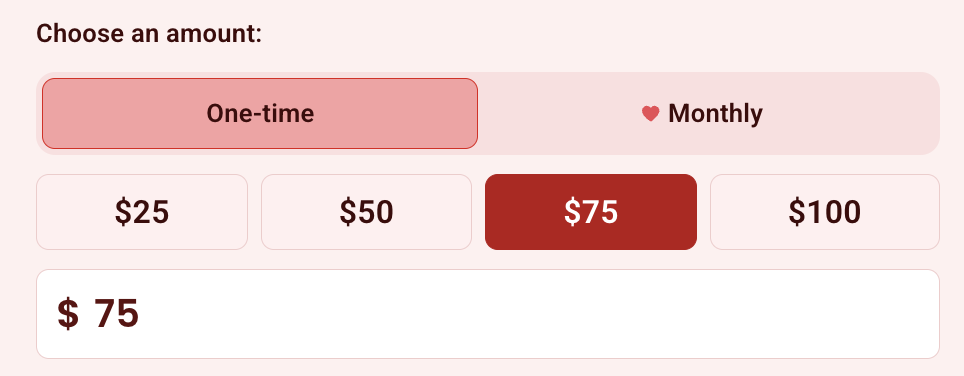
Key details:
You can edit the four suggested amounts, but you cannot add more or remove any. The form always shows exactly four suggestions.
Each suggestion can include an optional impact description that appears when the donor clicks that amount.
If smart amounts are toggled on, impact descriptions will not appear for donation amounts.
Because Smart amounts automatically adjust the suggested donation amounts shown to each donor, it isn’t possible to tie a specific impact description to a fixed amount.
Donors can always enter a custom donation amount (it is enabled on all donation pages by default), regardless of the suggested amounts displayed. Depending on your default amount settings (see below), this field may be prefilled with your third suggested donation amount instead of appearing as a blank “Other amount” field.
Smart amounts
Turn on Smart amounts in the suggested amounts section to let Zeffy suggest optimized donation values that boost giving. Suggested amounts adapt per donor based on device, time, and other factors, starting from your default amounts.
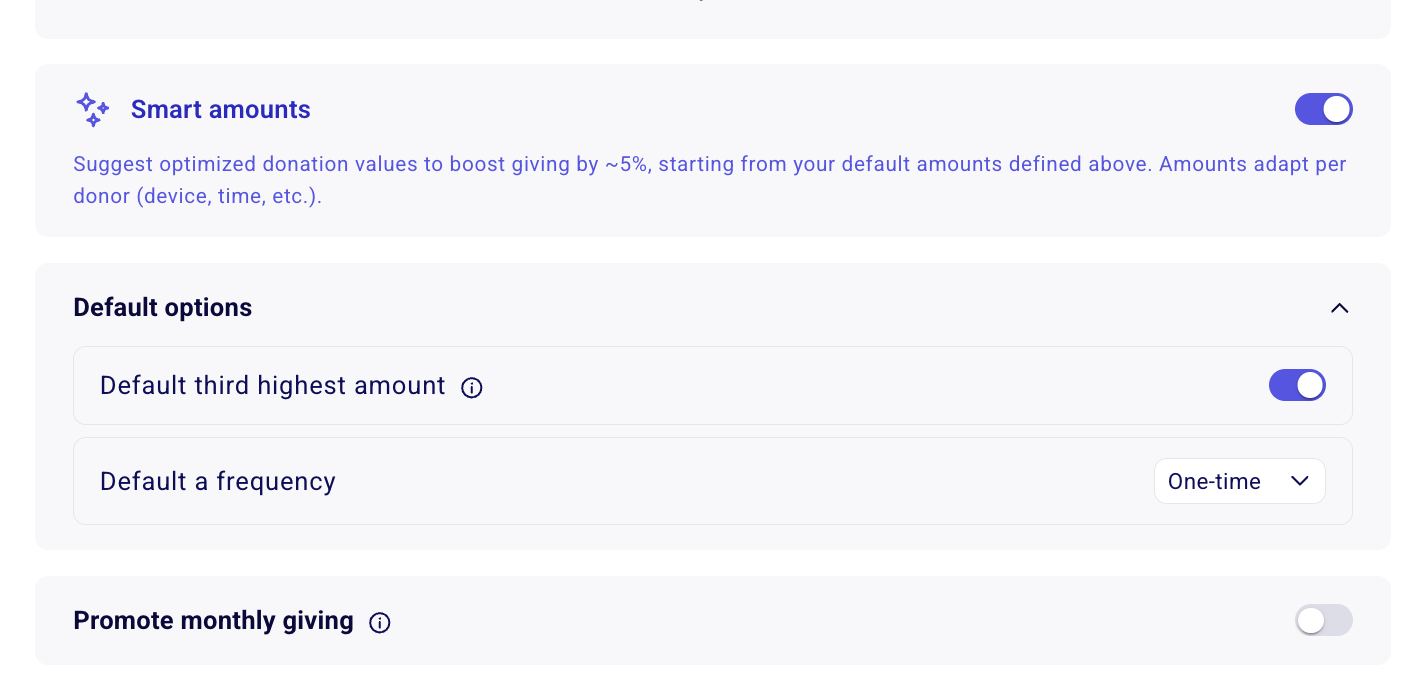
When Smart amounts is on, impact descriptions do not appear for donation amounts. Because suggested amounts vary from donor to donor, an amount can no longer be tied to one specific impact description.
Giving frequencies
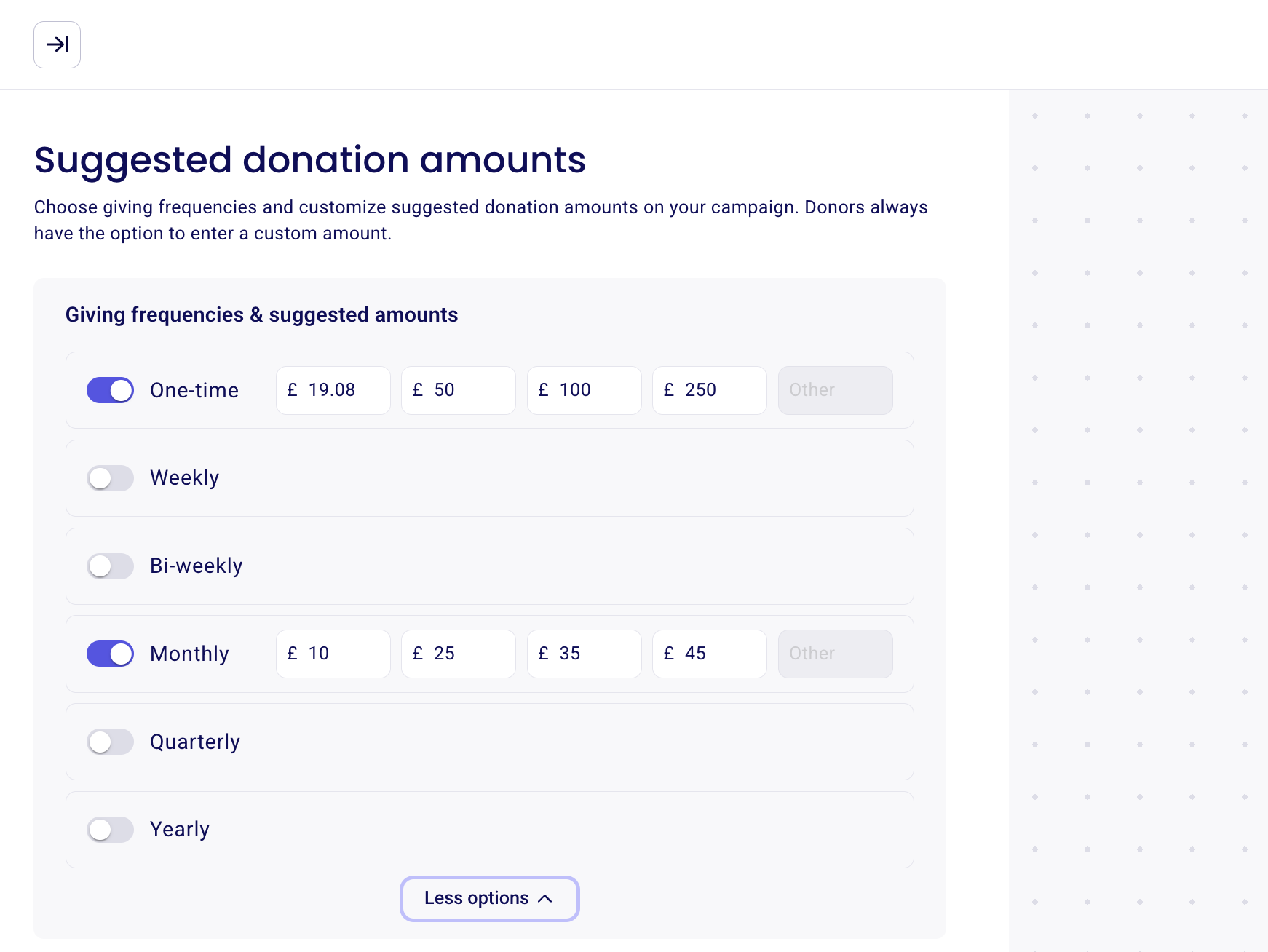
You can activate any combination of these giving frequencies:
One-time
Weekly
Bi-weekly
Monthly
Quarterly
Yearly
For each active frequency, you can set different suggested amounts tailored to that giving schedule.
Default settings
Default amount
When Default third highest amount is enabled in the Default options section, the third suggested amount is pre-filled when a donor opens your form. To leave the amount field empty, expand Default options and toggle Default third highest amount off.
Default a frequency
Use Default a frequency in Default options to pre-select a frequency when the form loads. For example, set the default to Monthly to encourage monthly giving. Only frequencies you have activated are available as defaults.
Promote monthly giving
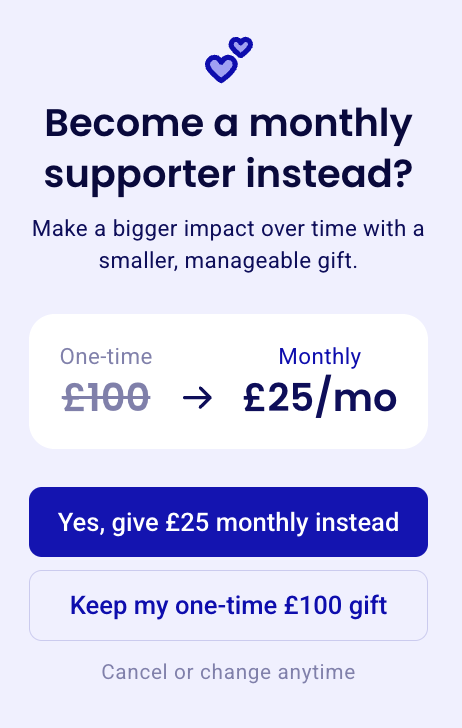
Toggle on Promote monthly giving in the suggested amounts section to invite one-time donors to become monthly donors. When a donor chooses a one-time amount, they see a prompt showing that amount next to a suggested monthly amount, and can either switch to monthly giving or keep their one-time gift. The prompt also tells donors their donation can be canceled or changed at any time.
Show only the custom amount field
If you prefer not to display suggested amounts, you can create a form with only the custom amount field visible:
Open your donation campaign in the form editor.
Navigate to the "Suggested Amounts" section.
Toggle off all giving frequencies (one-time, weekly, bi-weekly, monthly, quarterly, yearly).
Save your changes.
When all frequencies are toggled off, your form will display only a custom amount field for one-time donations.
Note: When you remove suggested amounts, recurring options (weekly, bi-weekly, monthly, quarterly, yearly) are also removed. Donors will only be able to make one-time gifts.