
How to Find Your Campaign's Share Link
Every Zeffy campaign has a unique shareable link that you can use to promote your fundraiser, event, membership, donation form, raffle, or store.
Sharing your campaign link makes it easy for supporters to access your campaign directly and complete their donation, registration, membership purchase, or other transaction online. You can include this link in emails, text messages, newsletters, social media posts, QR codes, website buttons, and more.
How to retrieve your campaign link
Log in to your Zeffy account.
Navigate to Campaigns.
Find the campaign you would like to share.
Click the three dots (⋯) to the right of the campaign.
Select Share.
In the sharing pop-up, click Copy link. Alternatively, you can manually highlight the campaign URL and copy it using your device's copy shortcut (for example, Command + C on Mac or Ctrl + C on Windows).
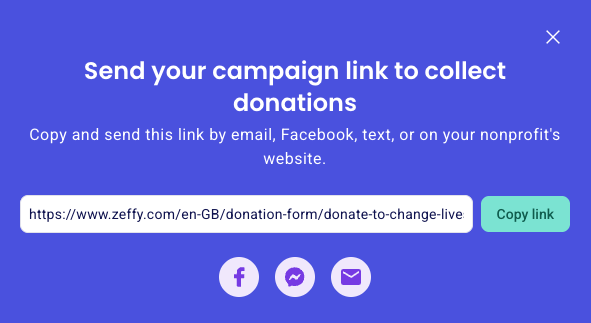
The campaign URL is now copied to your clipboard and ready to be pasted wherever you'd like to promote your campaign.
Next steps: Share your campaign
Once you've copied your campaign link, you can paste it anywhere you'd like to promote your campaign and collect donations, registrations, memberships, ticket purchases, or other payments. Some common ways organizations share their campaign links include:
Social media
Share your campaign on Facebook, Instagram, LinkedIn, X, or other social platforms to reach supporters and expand your campaign's visibility.
Include your campaign link in newsletters, fundraising appeals, event reminders, and other email communications to make it easy for supporters to participate.
Your website
Add the link to a button, banner, menu item, or text hyperlink on your website so visitors can access your campaign directly.
Text messages and messaging apps
Send the link through SMS, WhatsApp, Messenger, or other messaging platforms to quickly connect with supporters.
If your share button is greyed out on your campaign, this means your campaign is still in Draft mode and has not yet been published.
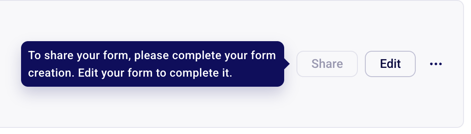
To share your campaign, you'll first need to publish it. To do so, click Edit and complete the campaign creation process until the very end, where you'll see a Congratulations! Your campaign has been created message.
Once your campaign has been published, the Share option will become available and you'll be able to retrieve and copy your campaign link.