
How to add your Zeffy campaign to a Squarespace website
Adding your Zeffy campaign to your Squarespace website makes it easy for visitors to donate, register for events, purchase memberships, buy tickets, or support your organization directly from your website.
There are two ways to add a Zeffy campaign to a Squarespace website:
Add a button that links to your campaign
Embed the campaign directly on your page
Option 1: Add a button
Buttons are a great way to drive visitors to your campaign while maintaining the look and feel of your website.
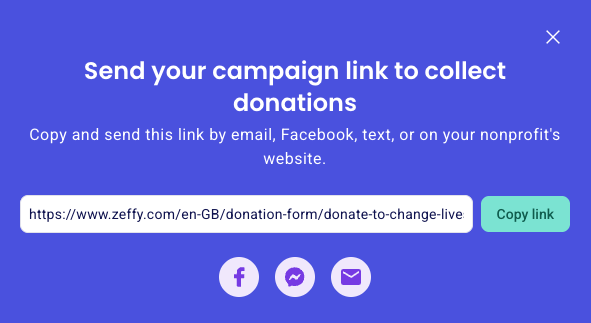
Retrieve your campaign link
Log in to your Zeffy account.
Navigate to Campaigns.
Find the campaign you would like to share.
Click the three dots (⋯) to the right of the campaign.
Select Share.
In the sharing pop-up, click Copy link. The campaign URL is now copied to your clipboard.
Create a button on your Squarespace website
In Squarespace, open the page where you'd like to add the button.
Click Edit.
Hover over the area where you'd like the button to appear and click Add Block (+).
Search for and select Button.
You can also follow Squarespace's detailed instructions for adding a button to your website:
https://support.squarespace.com/hc/en-us/articles/360000293128-Adding-buttons-to-your-site
Add your Zeffy campaign link to the button
In the Button block editor, enter the text you'd like displayed on the button (for example, "Donate Now" or "Register Today").
Click Attach Link.
Under URL, paste the Zeffy campaign link copied in Step 1.
Click outside the editor to save the button.
Click Save or Publish to update your website.
Save / Publish your changes
Option 2: Embed your campaign
Embedding allows supporters to interact with your campaign directly on your website without leaving the page.
Retrieve your campaign embed code from Zeffy
Log in to your Zeffy account.
Navigate to Campaigns.
Find the campaign you would like to share.
Click the three dots (⋯) to the right of the campaign.
Select Share.
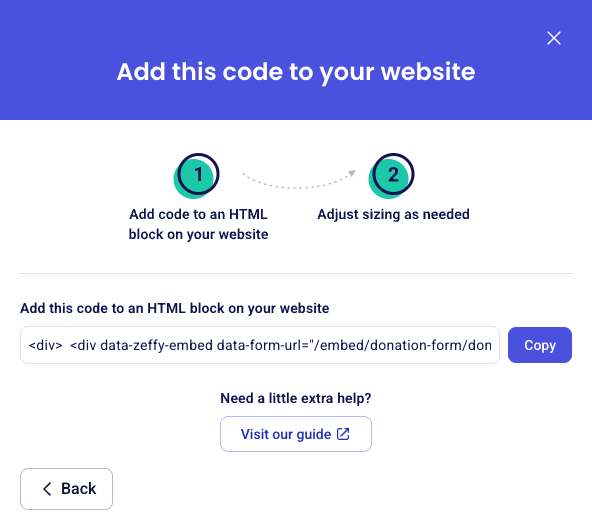
In the sharing pop-up, click More ways to share and then select the Embed option.
Under Embeds, choose the Campaign option.
Copy the generated HTML embed code. You'll use this code in the next steps to add your campaign to your website.
Add an HTML embed element to your Squarespace website
Open the page where you'd like to embed your campaign.
Click Edit.
Hover over the area where you'd like the campaign to appear and click Add Block (+).
Search for and select Code.
You can also follow Squarespace's detailed instructions for adding an HTML block to your website:
https://support.squarespace.com/hc/en-us/articles/205815908-Using-code-injection
Add your Zeffy embed code
Paste the HTML code copied from Zeffy into the Code Block.
Click Apply.
Save or publish your page.
Your Zeffy campaign should now appear directly on your Squarespace website.
Why does my embedded campaign look different from the full Zeffy page?
Embedded Zeffy campaigns use a simplified layout designed to fit seamlessly within your website and allow supporters to complete their donation, registration, or payment without leaving your page.
As a result, embedded forms do not display your campaign description, images, logo, or nonprofit name. Instead, they focus only on the information needed to complete the transaction.
If you'd like visitors to see additional campaign details, we recommend adding that content directly to your website above or beside the embedded form. Alternatively, you can add a button that links directly to your Zeffy campaign page, which displays the full campaign experience, including all images and descriptions.