Use Fund Designation to Categorize Donations and Let Donors Choose a Fund
Fund designation is a coding process that categorizes donations by assigning them to specific funds. You can let donors choose a fund on your donation form, or assign payments to a fund internally so every donation is tracked in the right category.
How Funds Work in Zeffy
You create your funds once in Zeffy — they then become available across all of your donation forms.
Designating a payment to a fund can be done by the donor or internally by the organization by assigning a campaign to a specific fund.
For each campaign, you choose which funds are available for selection and can set a default fund.
When donating, the donor chooses the fund they wish to support or, if the campaign is assigned to a fund internally, the payment is automatically assigned to that fund.
The selected fund appears in your reports — in the campaign breakdown and the payout report — so you can quickly identify how much has been raised for each fund, per campaign and per payout.
Setting up your Funds - Video Guide
Setting Up Your Funds to Allow Donors to Select the Fund They Wish to Support
Option 1: From a Donation Form
When building or editing a donation campaign, navigate to the Questions step.
Click "Add a custom question"
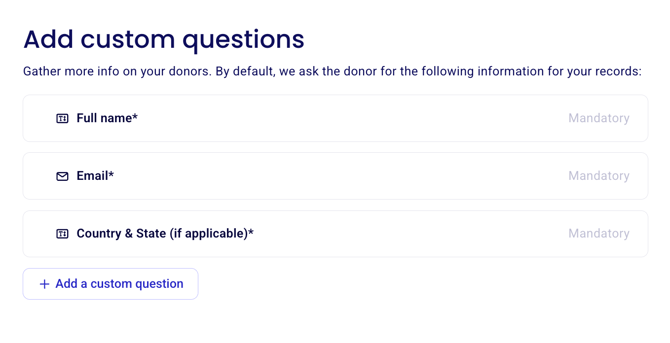
Select the Fund Designation option.
A General Fund is included by default. If your organization only has one fund, you can rename it to match your fund's actual name.
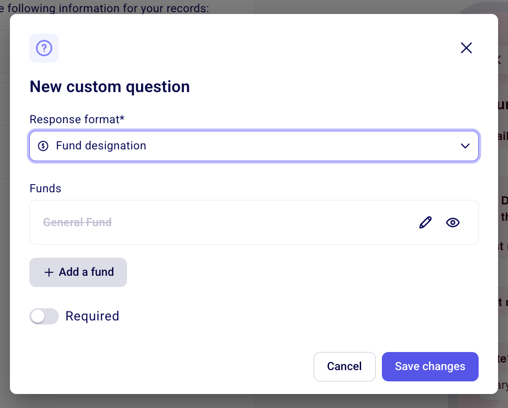
Click Add Fund to add additional funds.
For each fund, you can add:
A fund name
A fund code (optional)
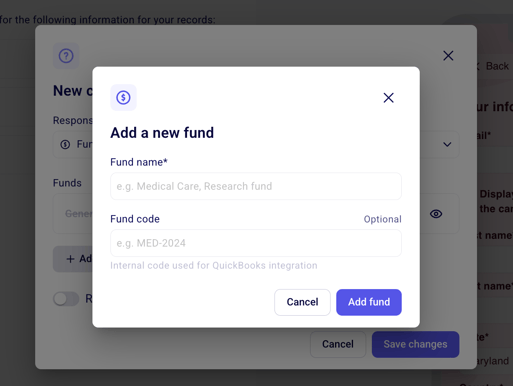
Once you've added all your funds, click Add fund.
To edit a fund, click the pencil icon
To hide a fund from the available funds to choose from on that campaign, click the eye icon. If the fund name is greyed out with a strikethrough, that means it is hidden for that campaign.
The fund options displayed are campaign-specific.
Option 2: From Your Account Settings
You can also manage your funds at any time from your account settings:
Click your name at the bottom of the left-hand menu.
Go to Settings.
Under Bank, select Manage Funds.
From here you can add a fund by clicking "Add new fund"
You can edit, or archive any of your funds by clicking the three dots next to the fund name.
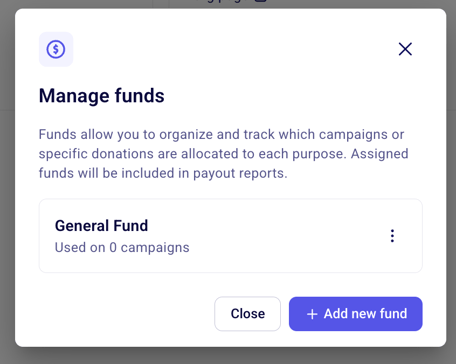
Archiving a fund keeps your existing data intact but removes the fund from your future forms. This is the easiest way to retire a fund — you won't need to go into each individual campaign to remove it.
Assigning a Campaign to a Fund Internally
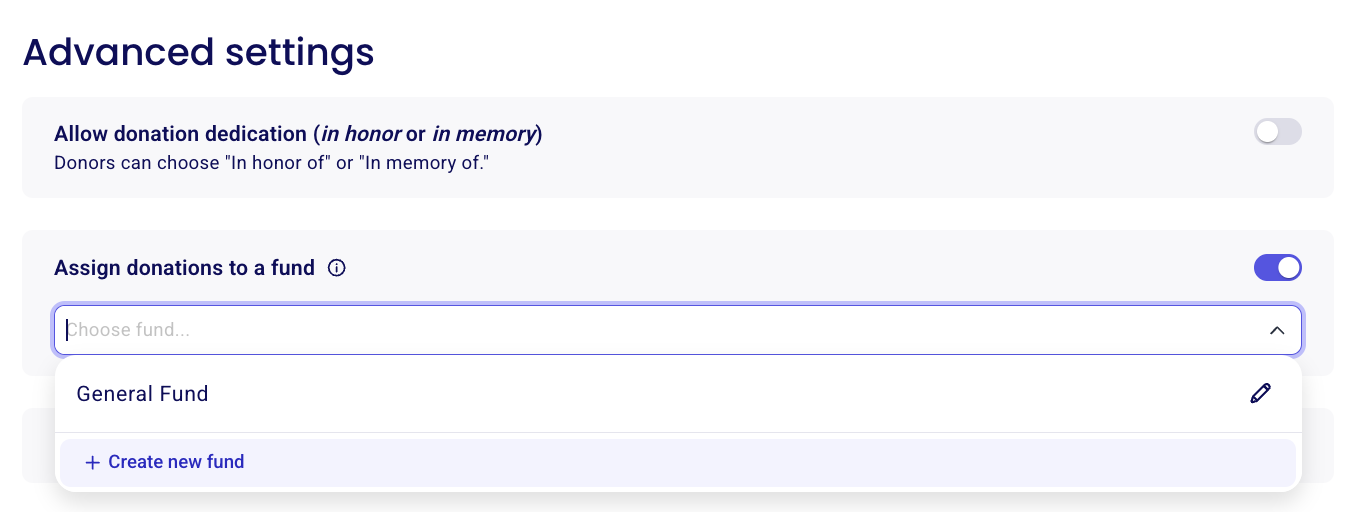
If you want payments from a campaign assigned to a specific fund without donors choosing one, configure it in the campaign’s Advanced settings.
Open your campaign editor and go to Advanced settings in the left-hand menu.
Toggle on the option that matches your campaign type:
Assign non-eligible sales to a fund for ticketing campaigns
Assign donations to a fund for donation campaigns
Select or create the fund you want to assign those payments to.
Event ticket sales
Event campaigns allow one fund designation for ticket sales. When you turn on Assign non-eligible sales to a fund, all ticket revenue is attributed to the selected fund for reporting. Buyers do not see this option and cannot choose a fund on the event form. All ticket sales go to the fund you select in Advanced settings.
Additional donations on event forms
Additional donations on an event form are separate from ticket purchases. In your payout reports, they appear separately as Eligible donations from sales. They cannot be directed to a different fund from ticket sales.
For how additional donations work at checkout, see Additional donations on event forms.
Activating Fund Designation on a Form
Once your funds are created, here's how to make them available to donors on a specific campaign:
Open the Questions step of your donation campaign.
Select the "Fund Designation" question type.
All existing funds will be listed automatically — no need to re-enter them for each campaign.
To hide a fund from the available funds to choose from on that campaign, click the eye icon. If the fund name is greyed out with a strikethrough, that means it is hidden for that campaign.
Choose whether to make fund selection required or optional:
Optional: If a donor doesn't select a fund, their donation is automatically routed to the General Fund.
Required: Donors must make a deliberate choice before completing their donation.
Customizing Fund Visibility Per Campaign
You can show or hide specific funds on a per-campaign basis. This is helpful when a campaign is dedicated to a single cause.
For example, if you're running a campaign specifically for your medical fund, you can hide the General Fund on that campaign so donors only see the relevant fund option.
By default, the General Fund is not visible. You can hide or unhide individual funds depending on what makes sense for each campaign.
When editing a fund, note that it will edit that fund across all campaigns, not on that one campaign specifically.
What Donors See
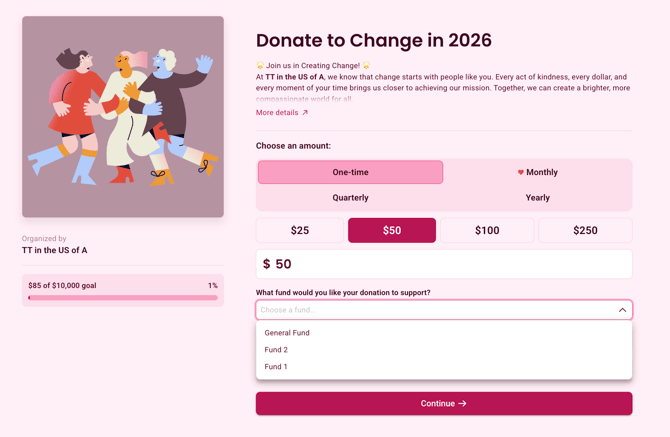
When fund designation is active on a form, donors will see a fund selection option at the first step, when entering their donation amount. They can choose which fund they'd like to support before completing their payment.
Tracking Fund Designations
Once donations come in, you can track fund allocations from:
The Campaign Manager:
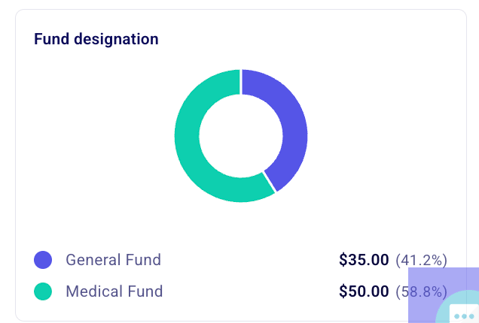
A fund designation graph is available in your campaign manager, showing a breakdown of which donations went to which fund.
To access your campaign manager, head to Campaigns in your left-hand side menu and click on your campaign. Refer to the Fund designation graph on the right-hand side of that page to view the breakdown of funds allocated to each fund.
The Payments Report
To view your donations report, head to the Payments section of the campaign manager and click the "Export" button above the list of payments. Customize the columns included in the report to view all relevant information, including the selected fund.
The Finances Tab
When viewing a payout, you'll see a breakdown of funds both per campaign and per fund, giving you a clear picture of where your donations are going.
To view the details of a specific payout, click on the payout line to open the transaction details.
To export your payout report, including fund information, click the "Export" button at the top of the list of transactions. A spreadsheet will be downloaded to your device.
The Payments Tab
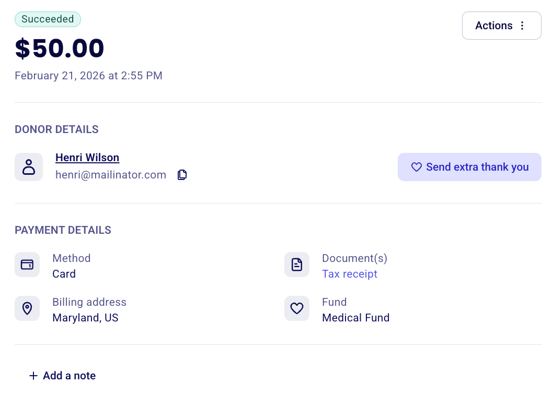
From the Payments section, you can click into any individual donation to see which fund it was designated to under "Payment details".