
Share your campaign on a flyer
Zeffy does not have a built-in flyer creation tool, but you can create a custom flyer for free using design tools like Canva and add your campaign's QR code so supporters can scan it and give instantly.
How to create a flyer for your campaign
Since Zeffy does not provide a flyer creation process, use a free design tool to build your flyer. Canva is a popular free option with templates for event posters, donation appeals, and fundraising flyers. After creating your design, add your campaign QR code so supporters can access your form directly from their phone.
How to get your campaign's QR code
Follow these steps to locate, copy, or download your campaign QR code from your Zeffy dashboard.
Log in to your Zeffy account.
Navigate to Campaigns.
Locate the campaign you'd like to share.
Click the three dots (⋯) to the right of the campaign.
Select Share.
In the sharing pop-up, click More ways to share and then select the QR code tab.
Click Copy image to copy the QR code to your clipboard, or Download image to save it as a PNG file on your device.
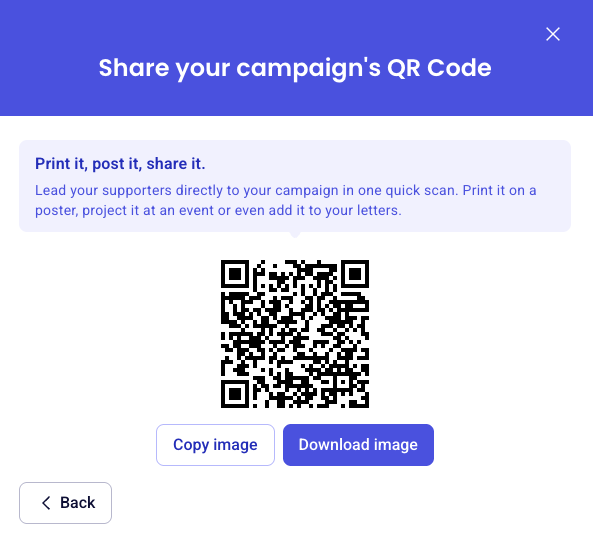
You can now paste or place the QR code onto your flyer design. When supporters scan it with their smartphone camera, they are taken straight to your campaign page to donate, register, or purchase.
No special app is required — any smartphone with a camera can scan the QR code and take your supporters directly to your campaign.
How to add the QR code to your flyer
Open your flyer design tool (for example, Canva).
Upload the QR code PNG file you downloaded from Zeffy, or paste the copied image into your design.
Place the QR code in a visible location on your flyer, such as the bottom corner or center.
Include a short call-to-action near the QR code, such as "Scan to donate" or "Scan to register."
Download or print your finished flyer.
Once printed, your flyer lets supporters access your campaign instantly by scanning the code with their phone.