
How to Add a Waiver to Your Form
While Zeffy doesn't have a specific function to add a waiver to your forms, we offer two different types of workarounds!
Want to be able to add waivers directly to your form? Zeffy gets better every day, thanks to your suggestions. Vote on this feature request here!
Adding a Waiver As a Custom Question
One way to add a waiver question is to add it as a custom question in your form.
Access Form Editor
Log in to your Zeffy dashboard
Go to "Campaigns"
Click "Edit" next to the campaign you want to edit, or create a new campaign
Add the Waiver Question
In the campaign editor, open the "Questions" section
Click "+ Add question"
For event and store forms, click "+ Add buyer only question"
Select "Checkbox" as the question type
Turn on the "Required" toggle
Configure Waiver Text
In the checkbox question field, enter your complete waiver text
Ensure your waiver language is clear and comprehensive
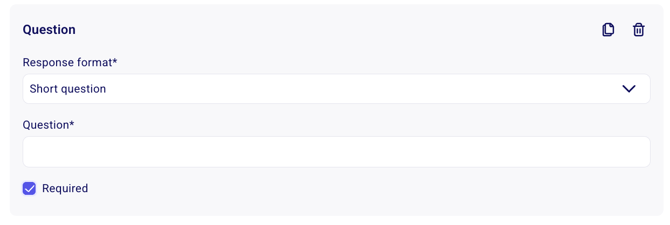
Here's what the custom question form looks like when editing:
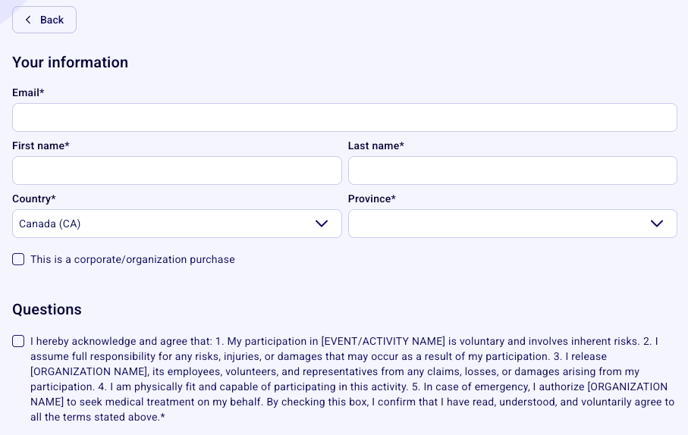
Here's what the waiver will look like on your form:
Adding a Waiver To Your Thank You Email
Another option is to add your waiver document to your thank you email as an attachment. Your thank you email is sent out to every person who makes a donation or purchases a ticket from your campaign.
Access Form Editor
Log in to your Zeffy dashboard
Go to "Campaigns"
Select the campaign you want to edit
Click "Edit"
Navigate to Thank You Email Settings
Go to the "Automated communications" section
Open "Thank you email"
You'll see options to edit both the email subject and body
It is a good idea to include what your buyers should do with the waiver in the body of your thank you email - should they email a signed copy back to a specific email, upload it somewhere, print it out and physically hand it over at the event?
This will prevent any confusion!
Add Your Attachment
Click the paperclip icon in the email editor toolbar
Select your waiver from your computer
Zeffy accepts PDF, JPG, PNG and JPEG files
Wait for the upload to complete
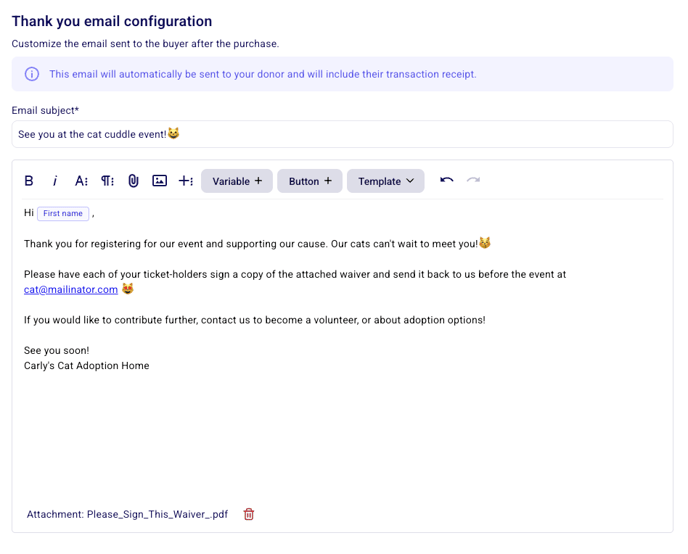
Here's what the thank you email with an attachment looks like when editing:
⚠️ Remember that the maximum file size is 20MB. You can only upload one attachment per email.