
Set your "Doing Business As" (DBA) name
If you need to associate a different name with your Zeffy account — such as for a chapter of a larger organization — you can set a "Doing Business As" (DBA) name in Zeffy.
Set your DBA name
Log in to your Zeffy account.
Click on your name in the bottom left corner and select "Settings".
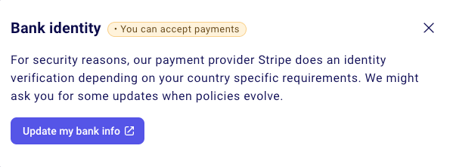
Under Bank, click on "Bank Identity" → "Update My Bank Info".
In the Business Details section, click "Edit" on the right side.
Legal Business Name — must match your organization's official name associated with your 501(c)3 or charity.
Business Name (optional) — this is where you add your DBA name, such as a chapter name (e.g., "DeLorean Foundation - Montreal Chapter").
Save your information.
If your bank account is different from your legal business name, ensure the DBA name you enter is an exact match with the name associated with your bank account to avoid discrepancies.
Change the name that appears on your forms
If you want to change the name that appears on your Zeffy forms:
Go to Settings → Organization information.
Change your organization name.
Important: Changing your organization name will trigger a new Stripe verification in the backend. If this happens, go back to Settings → Bank Identity and change your "Legal business name" back to the name of your registered nonprofit.
Managing multiple organizations
If you're managing multiple nonprofit accounts (for example, different chapters), see Switch between organization or donor profiles for instructions on creating and switching between multiple organization accounts.