
How to delete or undo a data import
Undo an entire data import
To delete all of the data from a contact import, go to "Contacts"
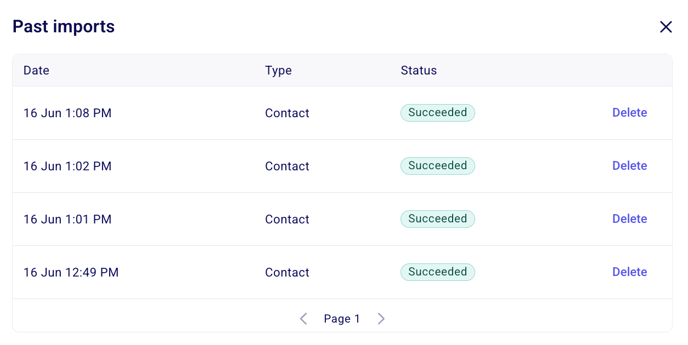
Click "More actions" and select "View past imports"
A pop-up titled "Past imports" will appear on your screen. Click "Delete" next to the import you wish to remove, then confirm
To undo a payment import instead, go to "Payments" > "Import" > "import history" and click "Delete" next to the payment import you wish to remove
Delete individual contact data
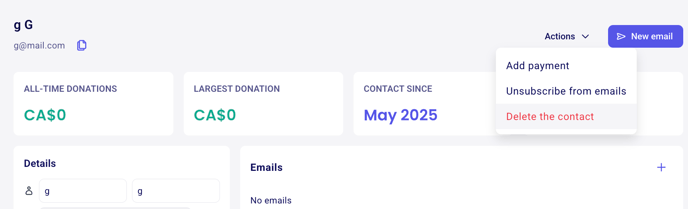
If you only wish to delete a few contacts from a contact import, go to "Contacts" and search for the contact you wish to delete. Their contact page will open to the side of your screen. Click the "Actions" button at the top to view the "Delete the contact" option:
💡 Contacts can also be deleted in bulk: select multiple contacts (or a filtered selection) and delete them together, up to 50,000 at a time. Contacts with an active membership are skipped.
Delete individual imported payments
You can delete imported payments one at a time, just like manually entered payments:
Go to "Payments"
Find the imported payment you want to remove and click anywhere on the row (avoid clicking the donor's name, which will take you to their contact page)
Click "Actions" in the top right-hand corner of the payment drawer
Click "Delete" to remove the payment
For payments that have an e-ticket or membership card associated with them, deleting the payment will automatically cancel the ticket or card as well.
What to do next
Importing contacts into Zeffy — Try importing again with a corrected file.
Managing and editing contacts — Review your remaining contacts after cleanup.