How can I duplicate or clone my form?
To duplicate a form:
Log into your Zeffy dashboard on a computer.
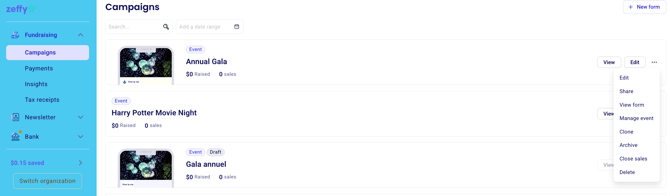
Go to "Campaigns".
Next to the name of the form you want to duplicate, to the right of the screen, you will see 3 little dots. Click on the 3 little dots.
Click on "Clone".
You will be prompted to rename your form and then taken to your cloned (or duplicated) form editor. Here, you can change any information that needs to be adjusted for the current campaign and then click "Save".
⚠️ The name you assign to your new form will be the name included in the form URL. The form URL cannot be adjusted once the form has been created. If you make a mistake, you can always duplicate the campaign and rename it to have the desired name in the URL.
When you go back to your campaigns list, you should see your new form in the list.
Make sure to update any dates or images found in the different sections of your new form when you are duplicating/cloning an old form!
⚠️ When you duplicate a campaign that has reminder emails, the reminders are copied to the new form with the same timing (for example, a set number of days before the event).
They stay active and are sent automatically relative to the new campaign's date, so review their content and timing in the new form.