
When you enter a custom hex code, Zeffy applies a variation of that color instead of the exact code. This keeps your form legible and readable for donors, so the final color may differ slightly from the hex value you entered.
How can I change the style of my form?
You can customize the color, mode, and background of your Zeffy form in the "Style your campaign" panel.
Log into your Zeffy dashboard
Go to "Fundraising", then "Campaigns" in the left side menu
Click on the form you would like to edit
Or, click the three dots next to the form name and select "Edit"
Open the "Style your campaign" panel
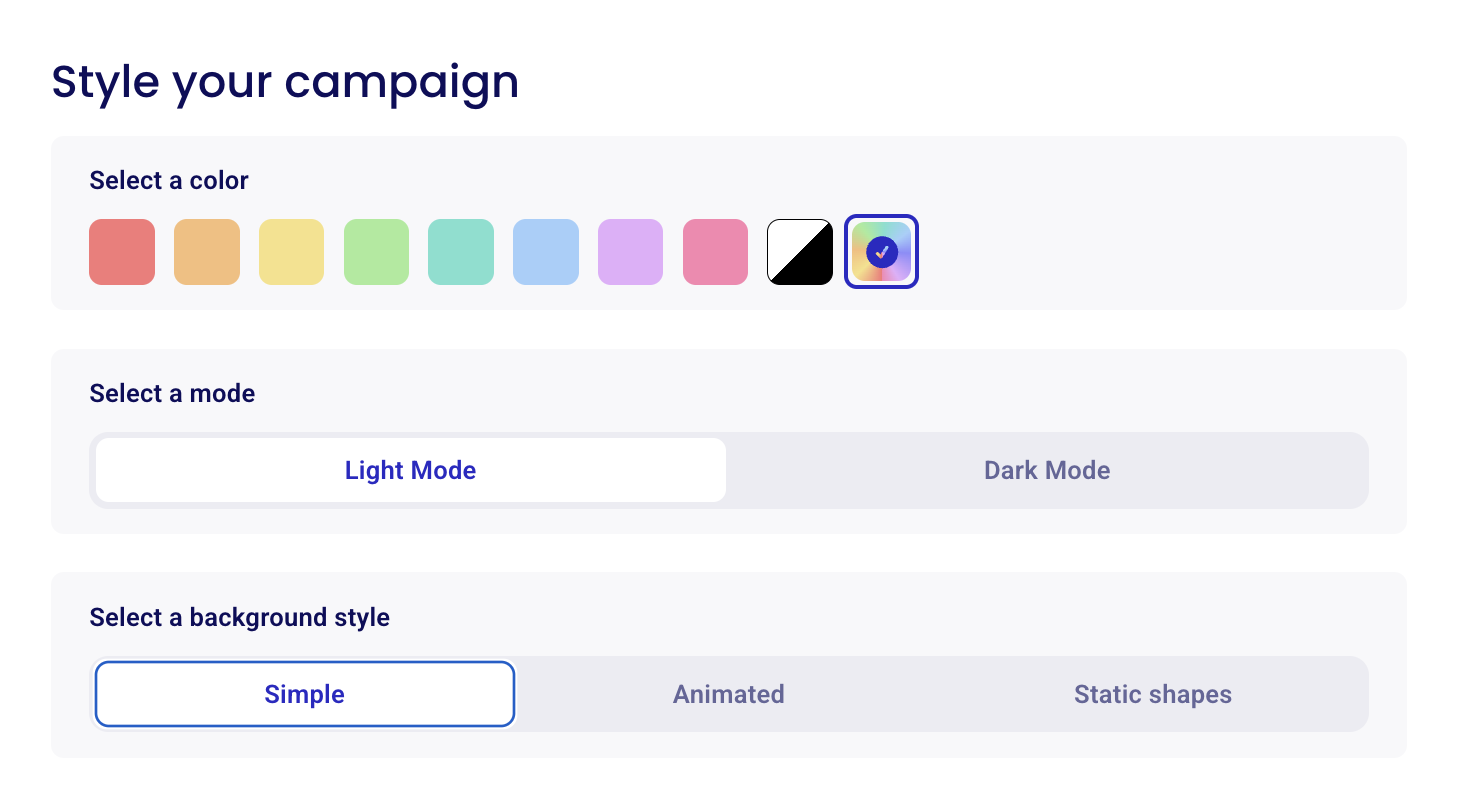
Select a color
Click a color swatch to set your form's color. The row ends with a black-and-white swatch and a multicolor swatch. A checkmark shows which swatch is selected.
You can also enter a custom color hex code.
Why isn't my exact hex code applied?
Select a mode
Choose "Light Mode" or "Dark Mode" for your form.
Select a background style
Choose "Simple", "Animated", or "Static shapes".
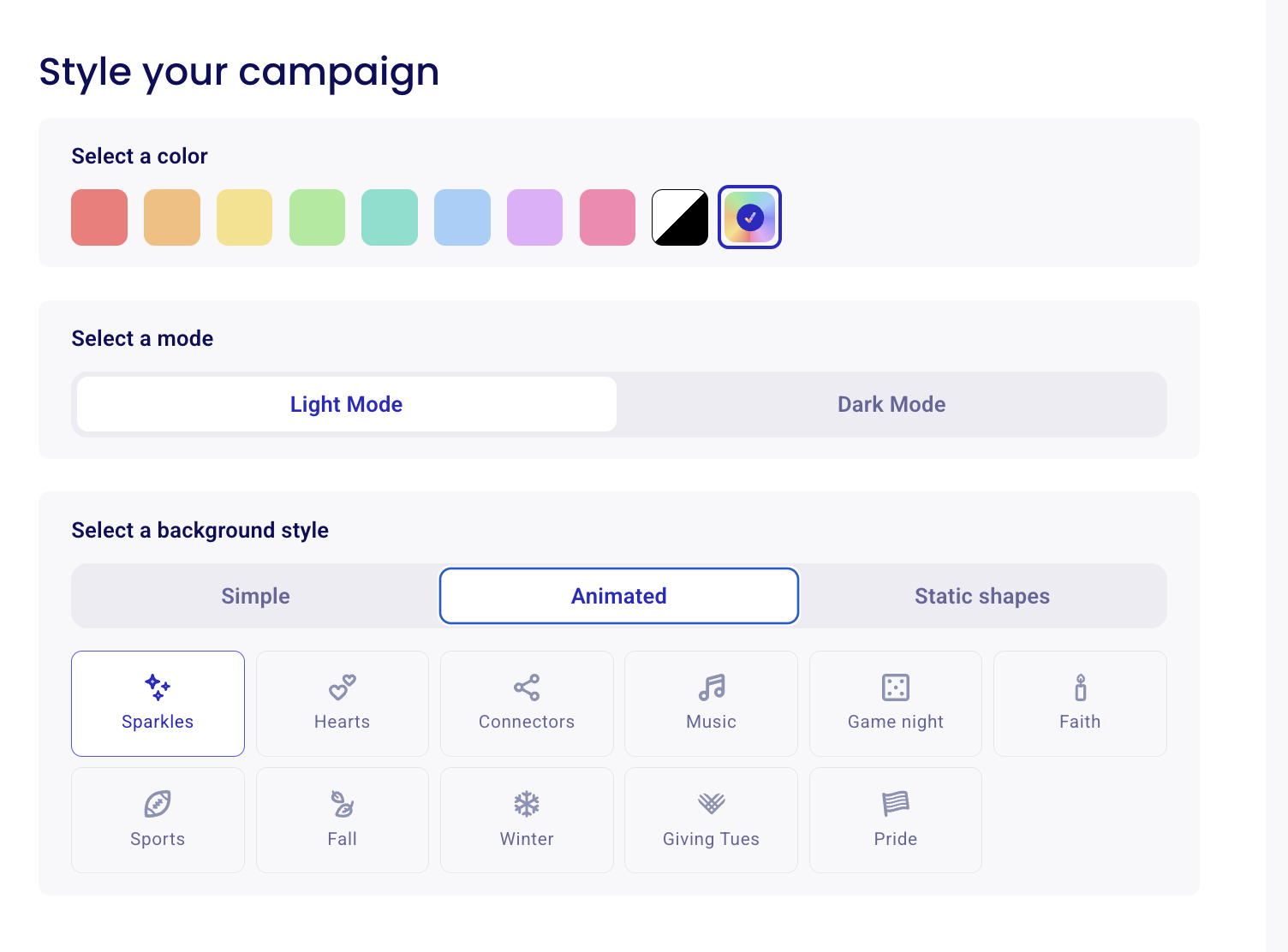
Animated
Pick a themed animation for your form's background:
Sparkles
Hearts
Connectors
Music
Game night
Faith
Sports
Fall
Winter
Giving Tues
Pride
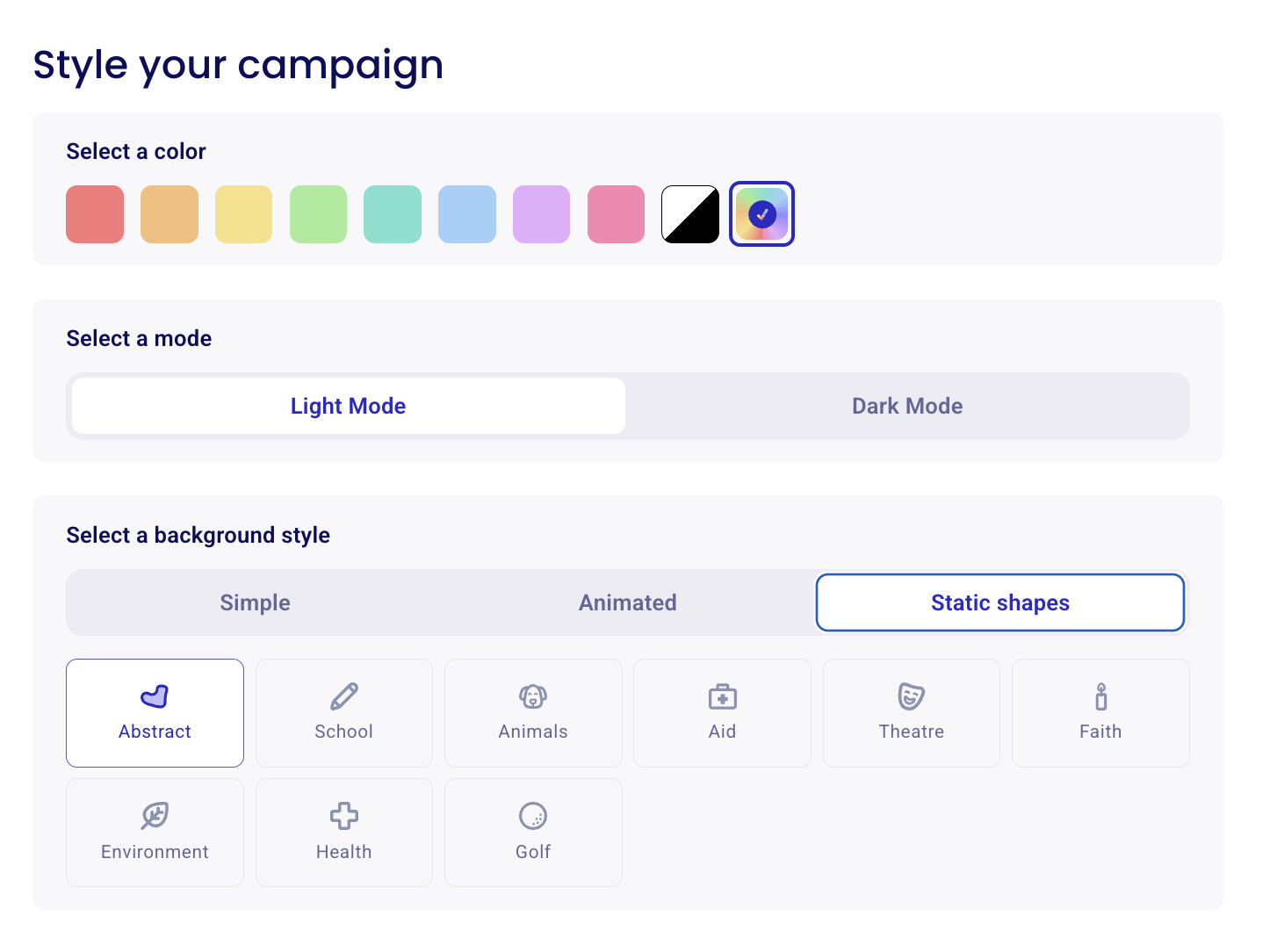
Static shapes
Pick a category of shapes for your form's background:
Abstract
School
Animals
Aid
Theatre
Faith
Environment
Health
Golf
Tips for color customization:
Choose a color that matches your organization's branding
Ensure the color provides good contrast for readability
Preview your form to see how the color looks before finalizing
⚠️ Remember to click "Save" after making your changes to ensure your customization is preserved. If you don't save your changes, your edits will be lost.
Was this helpful?
Was this helpful?