
Generate a tax receipt for an in kind donation
Watch the tutorial or scroll down for the steps to follow
Note that this video was recorded on a previous version of the platform, so the tabs may look a bit different. Refer to the written instructions below for which tabs to navigate to in your account.
How to log the payment
In your Zeffy dashboard, go to the "Payments" tab from the left side menu.
Click "Add a payment" in the top right corner.
Select "Log a payment".
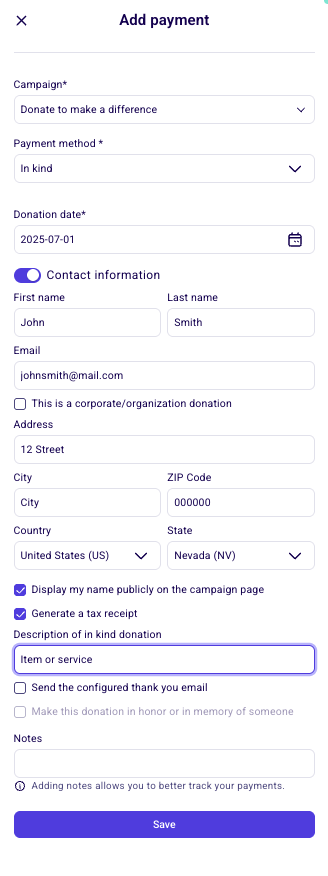
Select the campaign, then select "In kind donation" as the payment method and proceed.
In the "Fair market value" field, enter the value of the donation. US organizations can leave it blank if the fair market value is unknown.
In the "Donation date" field, enter the date on which the gift was received.
Click "Generate a tax receipt" to generate a tax receipt for the donor
A tax receipt for a non-cash gift is required to include a brief description of the gift received by the charity. Use the "Tax Receipt Description" field to manually add the item description.
Click "Send the configured thank you email to send the donor the thank you email and their corresponding tax receipt.
Hit "Save" and click "View transaction details" to view the tax receipt that was created.
If the donor does not have an existing contact page
1. Go to the "Payments" tab under ''Fundraising''
2. Click "Add Payment" in the top right hand corner
3. Repeat the steps listed above and enter the donor's contact information. To send the configured thank you email, you must enter an email address. In Canada, to issue a tax receipt, you must enter the donor's full address.
Entering the value of the in-kind donation
The "Fair market value" field is optional for US organizations and mandatory for organizations in other countries. How the value is handled depends on whether you log the in-kind payment as a donation or a purchase.
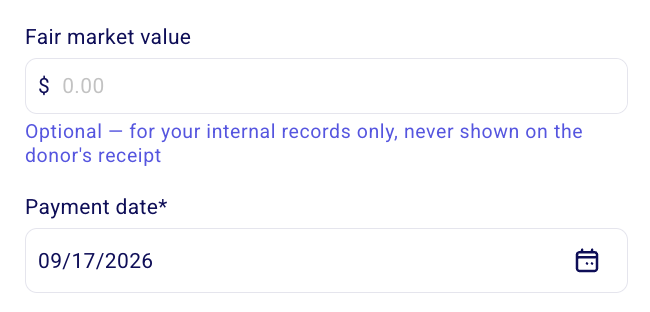
US organizations, donation: The amount field is optional. You can leave it blank if you do not know the fair market value of the donation. Any amount you enter is for your internal records only and is never shown on the donor's receipt. Entering a value can be useful if you want the in-kind contribution included in a campaign total, but it is not required. Per IRS guidance, the receipt should not assign a value to the donated goods or services.
US organizations, purchase: The value is registered in Zeffy at the amount you enter. For example, if you select a ticket at 100$, it is counted as a 100$ purchase toward your campaign total, but the amount is not shown on the donor's receipt.
Other countries, donation: The amount is mandatory to log the in-kind payment. It is recorded in Zeffy and appears on the donor's receipt.
Other countries, purchase: The amount is recorded in Zeffy and appears on the donor's receipt.
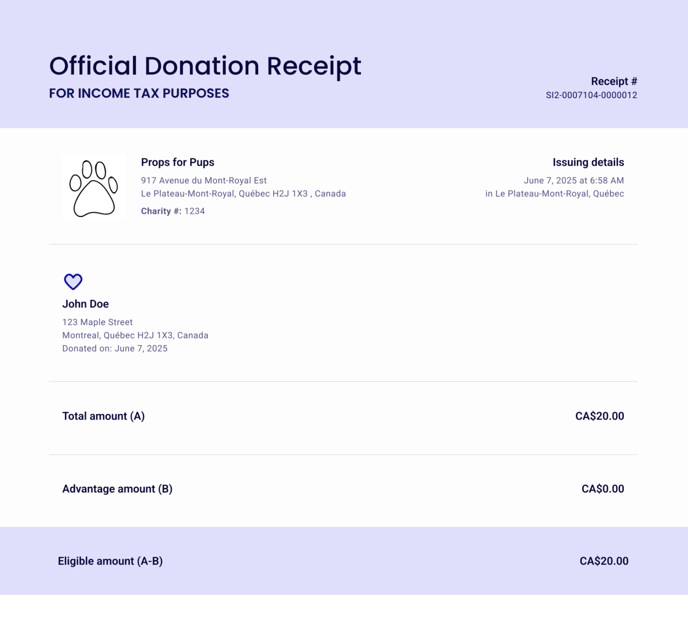
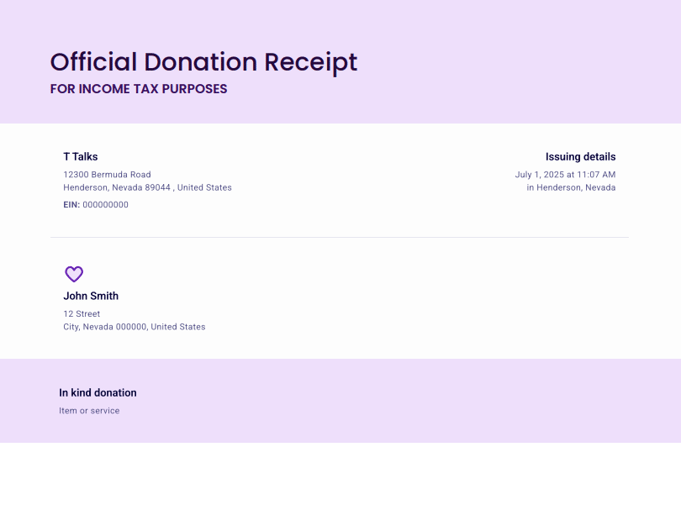
Here is an example of a non-cash charitable tax receipt.
Canadian Tax Receipt :
American Tax Receipt :
Find out more information about government guidelines on tax receipting for in-kind and non-cash donations : Canadian Guidelines and American Guidelines.
Australian organizations: In-kind donations are not currently supported or available for Australian users on Zeffy.