
Edit or cancel a tax receipt
To cancel a tax receipt :
Head to finances > tax receipts and use the search bar to locate the receipt in question.
Click on the cancel icon "🚫" to the right of the receipt you wish to cancel.

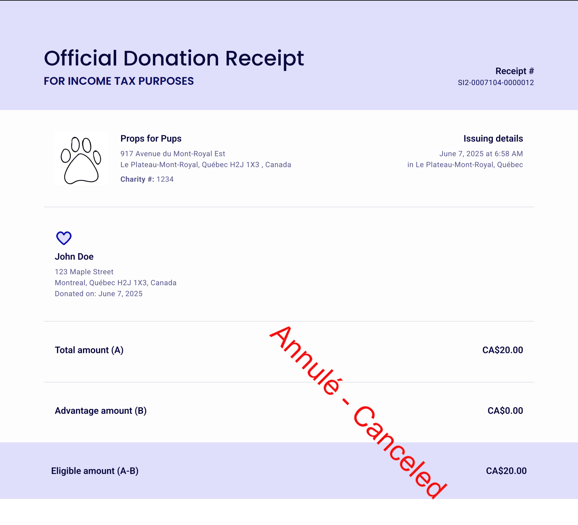
Once a tax receipt is canceled, a "Cancelled" mention will appear on the receipt. Your donor will also receive a notification by email that their tax receipt has been cancelled.
Additionally, if your donor clicks the link in their original confirmation email to download their receipt, the "Cancelled" mention will automatically appear in real-time.
To generate a new replacement tax receipt :
Stay on the donor's profile, and click the "Actions" button at the top right on the page. Select "Generate receipt"

A window will open, allowing you to create a new tax receipt. Fill in the donation amount, donation date, and donor information.
You can add a note to the tax receipt that mentions "This receipt cancels and replaces receipt XXXXXXXXXXXX".
Click "Generate" to add the receipt to the donor profile.
❗ Once a new receipt is generated manually, you must download the new tax receipt in a PDF format to send it to your donor by email, as it will not be sent automatically.