
How can I generate a manual tax receipt?
Use these steps to generate a manual tax receipt for an existing contact or retroactively generate one for an existing payment.
Retroactively generate a receipt for an existing payment
Go to "Payments" on your left-hand side.
Click on the transaction in question, and a window will open on the right.
Click on "Actions" in the top right, and from the drop-down menu, select "Generate a tax Receipt". This will allow you to generate a receipt for the payment in question.
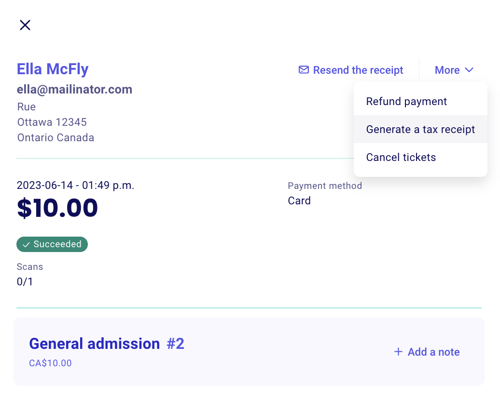
A pop-up will open asking you to confirm the generation of this tax receipt. I you check the box "send receipt," the tax receipt will automatically be sent to the donor.
If the option to generate the receipt doesn't show under "Actions," this indicates it is not possible to generate a receipt directly from this payment. This is either due to 1) missing required capabilities in your account settings (e.g. signature in Canada) or 2) missing required information from the donor (full address in Canada and Australia, or full name)
Generate a receipt for an existing contact
Go to "Contacts" and click on the contact for whom you would like to generate a receipt.
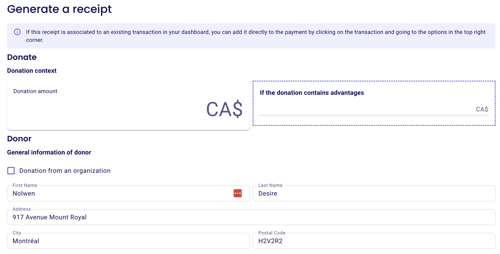
On their contact page, click on "Actions" and "Generate Receipt". Their information will be pre-filled, all you have to do is enter the donation amount.

💡 If a contact does not exist yet, you can add one in the "Contacts" section.
From the contact page, all the information about this contact will already be entered.
Some useful tips:
If this donation was made on behalf of an organization, check "Donation from an Organization". The name of the organization you indicate here will appear on the tax receipt.
If it is an in-kind donation, you can use the "Message to add if this receipt ..." as a note box. The text here will be displayed as a note on the receipt.

⚠️ You can also generate a tax receipt when manually adding a payment to your dashboard. To learn how to do this, take a look at the instructions here.
Donor information requirements: In Canada and Australia, donor name and address are required fields for valid tax receipts. Ensure your contact records include complete address information before generating receipts.