
Customizing your organization page
Customize the look and feel of your Organization Page from the page editor. You can change your logo, colors, banner, and choose which campaigns and information to display.
Open the Organization Page editor
Access the editor through your Campaigns dashboard to make any branding or content changes.
Go to Campaigns in your dashboard.
Click Org page in the top right.
On your Organization Page, click the banner at the top that says Edit organization page. This banner only appears when you are logged in.
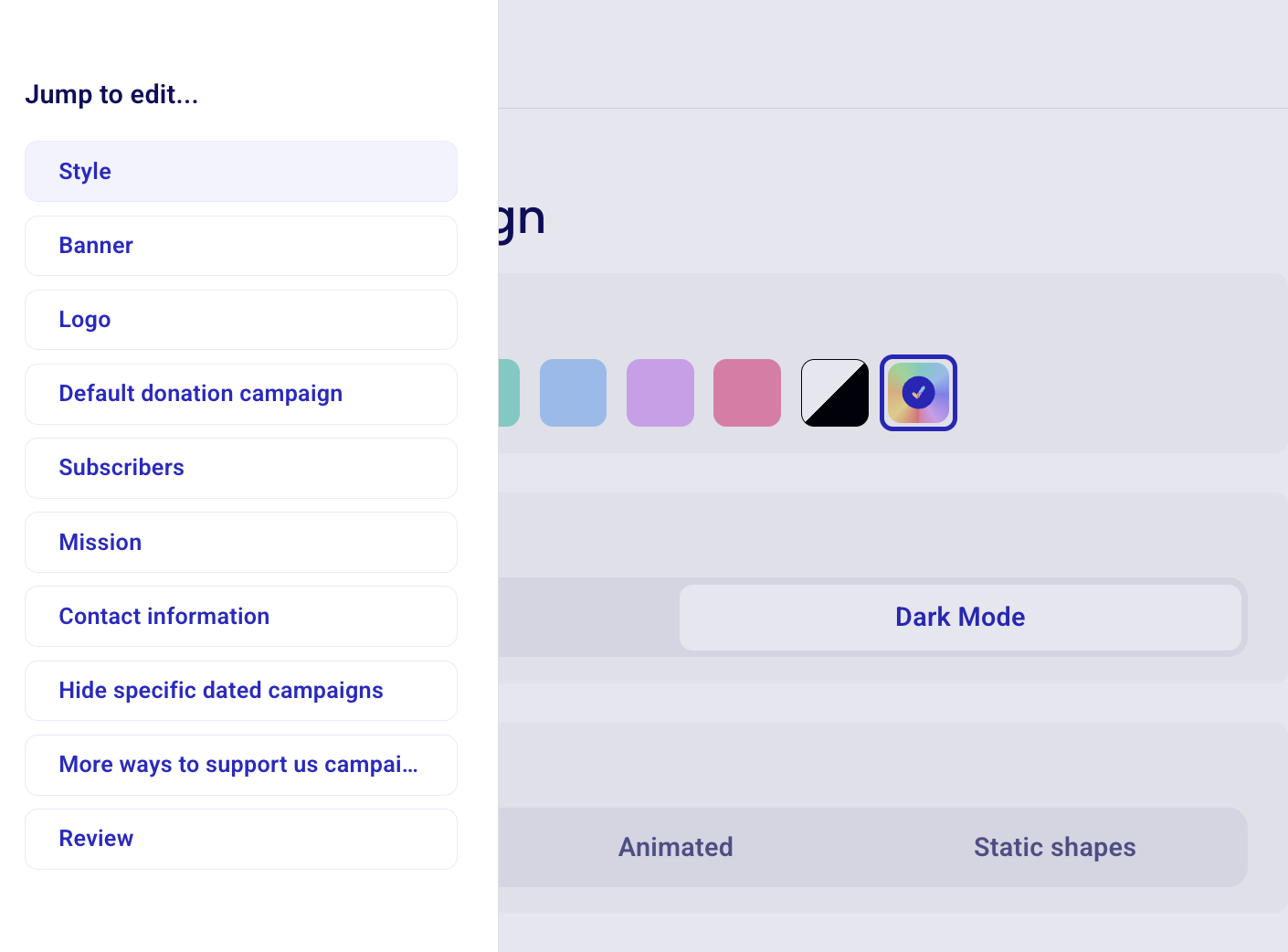
Update your page style
Choose a color theme, toggle dark mode, and set animation preferences from the Style section.
Select Style from the Jump to edit… menu.
Pick a color swatch, turn Dark Mode on or off, and choose between Animated or Static shapes.
Change your banner or logo
Replace the logo or banner image that appears on your Organization Page from the editor menu.
In the editor, select Logo or Banner from the Jump to edit… menu on the left.
Upload or change your image.
For the banner, we recommend an image size of 1440 × 354 pixels (approximately a 4:1 aspect ratio). For best results, use a wide banner image with similar proportions. Images with a different aspect ratio may be cropped or resized.
Other customization options
Default donation campaign - The campaign linked to the Donate button at the top of the page.
Subscribers - Connects a newsletter sign-up form to your page so supporters can subscribe.
Mission - Your organization's mission statement.
Contact information - The email shown at the bottom of the page.
Hide specific dated campaigns - By default, the page shows all event campaigns with future dates. Use this option to hide specific events from the page.
More ways to support us campaigns - Feature other non-event campaigns, such as peer-to-peer fundraisers, online stores, or custom sales forms.
Review and publish
When you are finished, select Review from the menu to check your changes before making the page public. You can publish or un-publish the Organization Page anytime from your settings.