Managing Email Subscriptions and Unsubscriptions in Zeffy
Transaction confirmation emails will still be sent.
Your contacts can unsubscribe from the marketing and CRM emails you send them, whether sent manually (for example from the "Contacts", "Transactions" and "Visitors" tabs) or through automated workflows, and they can choose which categories to stop (campaigns, one-to-one emails, newsletters). A contact that unsubscribes from those emails will still receive all of Zeffy's transactional emails, such as ticket purchase confirmations and donation confirmation emails, as well as their tax receipt reminder email sent at the end of each year.
Unsubscribes on Zeffy can be managed in two ways: by the recipient or by the organization.
In all cases, contacts who unsubscribe will continue to receive transactional emails such as donation confirmations, ticket purchase confirmations, and tax receipt reminders.
Self-unsubscribe by recipients
All emails sent manually from Zeffy's emailing tool will include a footer, which has an "Unsubscribe" button. When they click the button, they are directed to a confirmation page.

Manual unsubscribe or re-subscribe by an organization member
If a contact asks to change their subscription status but cannot find the option themselves, you can also unsubscribe or re-subscribe them manually.
Go to Contacts
Click on the contact you'd like to unsubscribe/re-subscribe
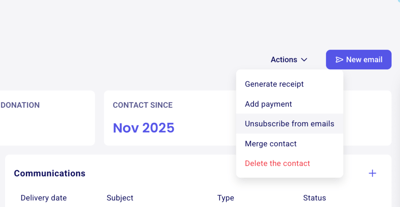
On their contact page, click Actions in the top-right corner
Select Unsubscribe
What happens when a contact is unsubscribed
They will be automatically excluded from any bulk email you're sending. You don't have to unselect them manually.
On their contact page, the Communication preferences field in the Contact details card shows "Unsubscribed", and the Actions menu offers Re-subscribe instead of Unsubscribe.
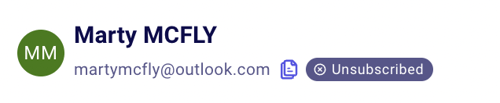
Their email address appears greyed out in your contacts list, with a tooltip saying they unsubscribed.
The email button is still shown on their contact page.
What if a contact wants to re-subscribe?
If a contact would like to be re-subscribed,
Go to Contacts
Click on the contact you'd like to unsubscribe
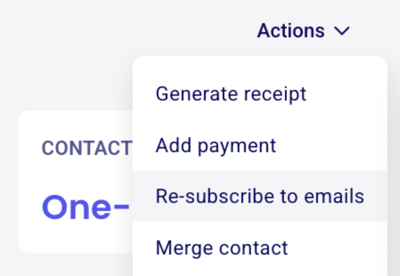
On their contact page, click Actions in the top-right corner
Select re-subscribe to emails
How to clear or reactivate a bounced email address
A bounce is a delivery result, not an unsubscribe status: the email could not reach the contact's inbox. To fix it, check the address itself first, then have the contact unblock Zeffy on their side. You can see the delivery status for each email you send in Tracking email performance.
Double-check the contact's email address for a typo. If the address is misspelled, update it on the contact's page. See Managing and editing contacts.
If the address is correct, ask the contact to check with their email provider for causes of the bounce, such as a full inbox or a blocked sender.
Ask the contact to:
Search their inbox for
[email protected]and[email protected], the email addresses Zeffy's notifications are sent from.Check other folders, including Promotions, Junk, and Spam, in case the notifications were filtered there.
Add
[email protected]and[email protected]to their safe sender list to help ensure future notifications reach their inbox.Contact their IT team or email administrator if they use a work or organization email address, as they may be able to check whether Zeffy's emails are being filtered or quarantined.