
Tracking email performance
Use email results in Zeffy to understand what happened after a message was sent.
Open the email dashboard
Go to Communications.
Use the Designed, Simple, or Automated tab to narrow the list by email type.
Select the three-dot menu next to the email and choose to either Edit, Edit schedule, Duplicate, or Delete an email. For sent and active emails, simply choose Results to open its performance dashboard directly.
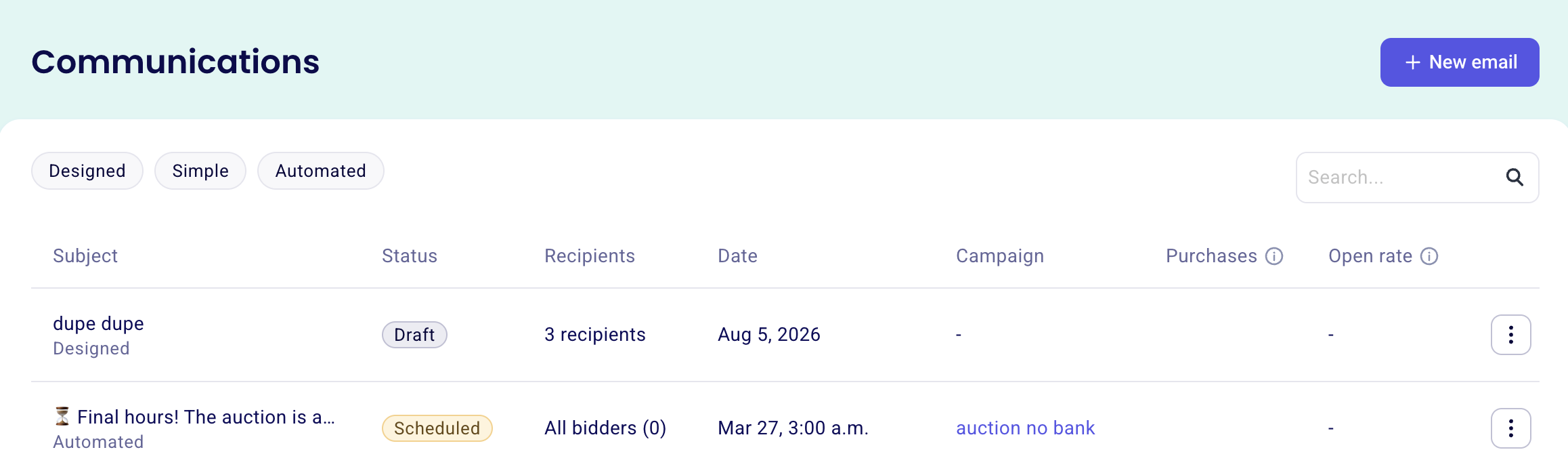
The same Designed, Simple, and Automated tabs appear in the Communications section of a campaign page, so you can filter a single campaign’s emails the same way. When you click on a sent email, you'll see a detailed performance dashboard showing:
The date and time the email was sent
The number of recipients
The campaign this email is associated with (purple label under the email title)
General performance metrics (in percentages)
Individual recipient statuses
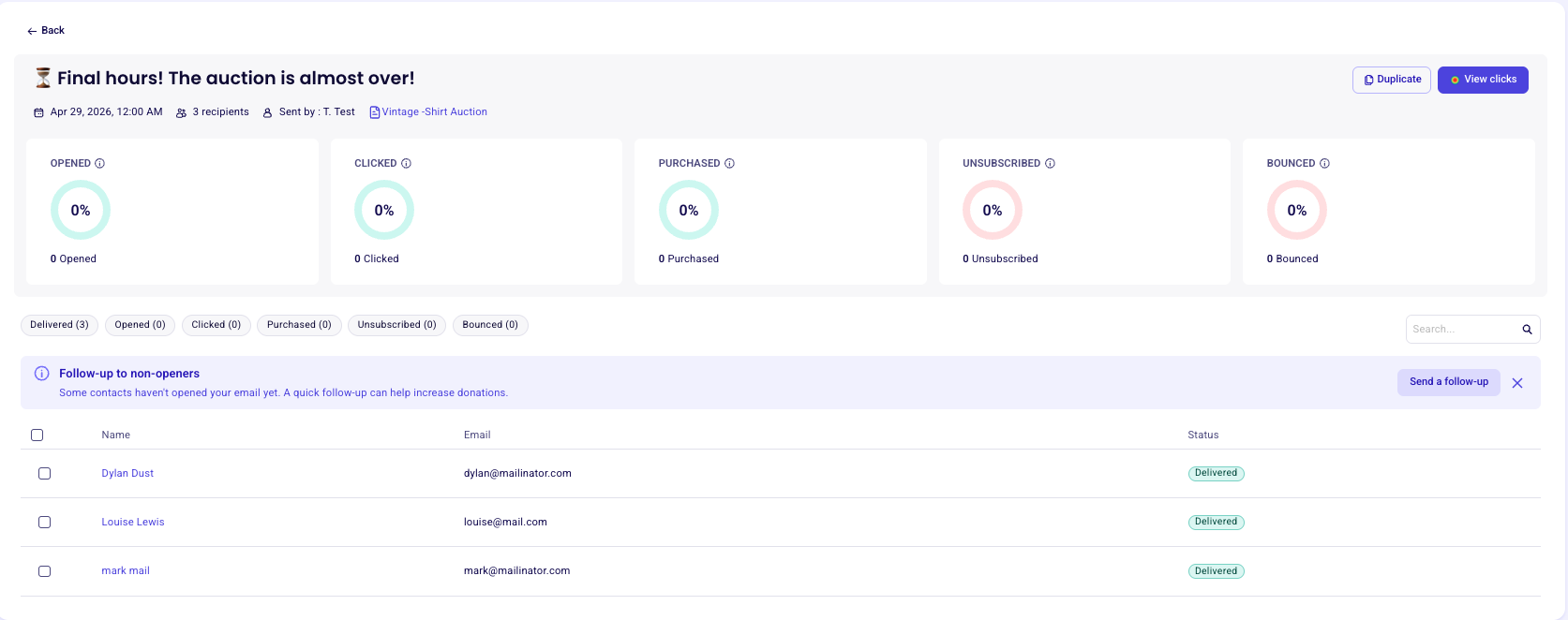
The email dashboard shows summary cards at the top and a recipient-level status table below.
Understand email statuses
Each email in the Communications list has a status that shows where it is in its lifecycle. These are email-level statuses, separate from the recipient statuses described later in this article.
Draft — the email is saved but has not been sent.
Scheduled — the email is set to send at a future time.
Sending — the email is currently being delivered.
Sent — the email has been delivered to its recipients.
Active — the email is an automated email that is currently running.
Understand summary metrics
The summary cards show percentages and total counts for key results like opens, clicks, and purchases.
Use these totals to compare campaign performance over time.
Review recipient statuses
The recipient table shows what happened for each contact after the email was sent. You can also filter the table by status to review one result type at a time.
Delivered
The email reached the recipient's inbox but has not been opened or clicked yet.
Pending
The email is still in the delivery process. If the address is valid and there are no inbox issues, this status should later change to Delivered.

Opened
The recipient opened the email. This status is included in the top Open rate metric.
Clicked
The recipient clicked at least one link in the email. This status is included in the top Click rate metric.
Purchased
The recipient completed a transaction after clicking the email. This status is included in the top Purchase rate metric.
Unsubscribed
The recipient used the unsubscribe link after receiving the email and will appear under this status for that send.
Bounced or Failed
The email could not be delivered. Common causes include:
The email address is invalid
The recipient's inbox is full
The recipient's email server rejected the message
Check email results that do not appear in Communications
1-to-1 emails
1-to-1 emails do not appear under Communications > Emails. This section is focused on bulk emails and newsletters sent to multiple recipients.
To review a 1-to-1 email you sent to an individual contact:
Go to Contacts.
Click on the contact's name to open their profile.
Look for emails marked 1-1 and check their delivery status.
Automated confirmation emails
Automated confirmation emails appear under Communications > Emails, marked as Automated. Clicking a Scheduled one opens it in the campaign editor, while clicking an Active one brings you to the results/performance tab.
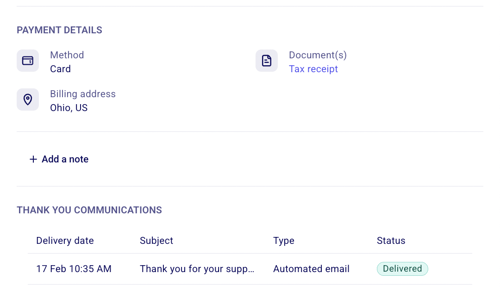
You can also check the delivery status of an automated confirmation email from the payment record:
Go to Payments.
Locate the transaction.
Click on the payment line (not the donor's name).
Scroll to the Thank you communications section to see the status of the automated confirmation email.
Use results to improve future sends
Use campaign results to refine your recipient lists, timing, and message content.
If a send underperforms, adjust your audience in Creating segments and lists or revise the message in Designing emails with Zeffy’s email builder and templates.