
Zeffy payouts: Schedules, amounts, and reports
This article explains how Zeffy payouts work, when funds move to your bank account, how to change your payout schedule, and where to find payout reports.
How often can I receive my payouts?
Funds can be deposited in your account either:
Next day: For eligible organizations, payouts can be deposited to your bank account as soon as the next business day after a payment clears. See "Next-day payouts" section for more information
Weekly: Payouts are sent every Monday (this is the default payout schedule for Zeffy accounts)
Monthly: Payouts are sent on the first Monday of each month
Please note that payouts cannot be triggered manually and cannot be delayed until the end of a campaign.
If you'd like to see more flexibility in your payout schedule, you can vote for this feature request here. Your vote helps us prioritize platform improvements.
How to change your payout schedule
You can change your payout schedule from your account settings or directly from the finances page.
In your settings
Log into your Zeffy account
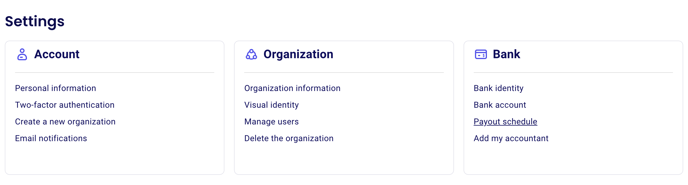
Click your name in the bottom left of the page and then on Settings
Under the Bank section, click Payout schedule
Choose weekly, or monthly
Click Save
From Finances
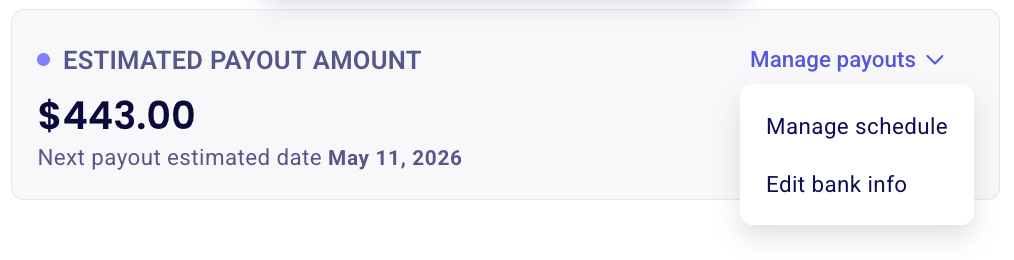
Navigate to Finances in the left-side menu
Click the Manage payouts > manage payouts button next to the payout amount
Select your preferred schedule and save
Next-day payouts
Zeffy offers a Next-day payout option for eligible organizations. Eligibility depends on multiple factors and you can check whether the option is available for your account under to Finances → Payouts, where it will be displayed if you’re eligible.
How are funds sent to my bank account?
When you set up your Zeffy account, you added your bank account information. Funds are deposited automatically by direct deposit to that bank account. Make sure the connected bank account can accept direct deposits.
Your payout is made out to your organization's name, so the connected bank account must be registered under that name - either your legal name or your doing-business-as name.
When can I expect a payment to be included in my payout?
When funds are received in your Zeffy account, two timing factors determine which payout they will be included in:
Security review period: All payments go through a mandatory anti-fraud review before they can be paid out. This processing period typically takes 1–3 business days. During this time, the funds will appear under Finances → Payouts.
Payout initiation timing: Payouts are prepared a few days before they arrive in your bank account. For example, weekly payouts are initiated on Fridays in order to arrive by Monday.
Because of these timelines, some payments may not be processed in time for the next payout.
With weekly payouts, payments received late Thursday, on Friday, or during the weekend may miss the Monday payout.
With monthly payouts, payments received within 3–4 days of the payout date may not be included in time.
Any payments that are not processed in time will automatically be included in the following payout cycle.
Understanding the amounts on the Payouts page
Under Finances → Payouts, you’ll see two amounts:
Estimated next payout: The amount currently expected to be included in your next bank transfer.
Transaction processing: Funds that are still going through the mandatory processing and anti-fraud review period before becoming eligible for payout.
Your total balance is the sum of these two amounts.
Understanding payout statuses
Each payout will also display a status to help you track where the transfer is in the process:
In transit – The payout has been sent and is currently on its way to your bank account.
Succeeded – The payout has successfully reached your bank. Depending on your bank, it may still take 1–2 additional business days before the funds appear in your account balance.
Failed – The payout could not be processed successfully. This is usually caused by incorrect or outdated bank account information.
What to do if a payout fails
A failed payout will not be retried until your bank account information is updated. Once you update the information and the system accepts it, the payout will retry automatically on your next scheduled transfer.
For step-by-step recovery instructions, see Recover a failed payout. You can also change your payout schedule in Settings → Bank → Payout schedule to speed up the reattempt.
Payout reports
For reporting and reconciliation, you can access payout reports under Finances.
Export your payout history
To export a list of all payouts you have ever received in Zeffy, click the Export button to the right of the Payout history section.
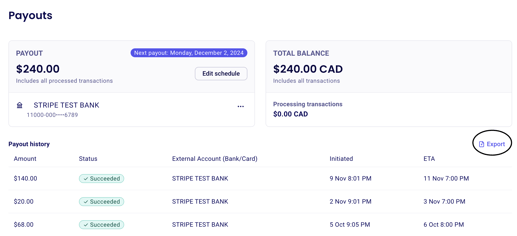
This report includes the payout ID, amount, creation date, arrival date, statement descriptor, status, account holder name, and account name.
Export transactions included in a specific payout
To see which transactions were included in a specific payout:
Go to Finances → Payouts
Click the payout you want to examine
There, you'll see a breakdown of all the payments included in this particular payout
Click the Export button above the transaction list