
How to reconcile discrepancies between different Zeffy reports
You can filter payments directly in Zeffy instead of exporting and filtering a spreadsheet: go to Payments, click Filter, select the applicable filter, and apply it.
Be sure to exclude offline (manual) transactions
If you notice a discrepancy between amounts while doing your accounting and are trying to reconcile your different reports, we advise you to first verify that you are not counting any offline transactions (checks, cash, other), as those will not be included in your payout.
To see if a transaction was made offline, verify the payment method column in the dashboard or in the "Payments" export. If any indicate cash, check, or other, that confirms the transaction was made offline and therefore the amount is not included in the payout.
To omit offline transactions, go to Payments, click Filter, select Payment method, choose Card and PAD/ACH, and apply the filter. The sum of those amounts should add up to what is included in the payout report.
Include only succeeded transactions
Transactions that are pending, failed, or in any non-success status will not be included in your payout, so counting them will cause your totals to be inaccurate.
In Payments, click Filter, select Status, choose Succeeded, and apply the filter. Then sum the amounts for reconciliation.
A weekly/monthly payout does not necessarily include every payment of that week/month
If you are on a weekly payout schedule, you receive your payout every Monday. However, this does not mean that every transaction in that payout occurred in the week before. There may be transactions from that week that are still processing or transactions from the previous week that were included. To filter by the appropriate dates, follow these steps:
Click on the payout you wish to reconcile
Look at the first and last transaction date that is included in the payout.
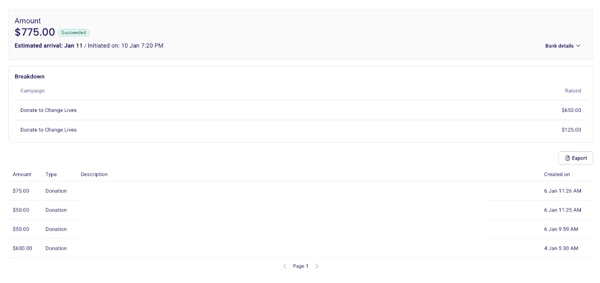
Go to "Payments" and filter for those dates, and export an overview of these dates

Compare your payout and transaction exports
The same goes for monthly payouts! If you receive your payout of the third of every month, your payout export does not necessarily include every single transaction from that month. Some received at the end of the month may be included in next month’s payout. Some transactions from the month prior may be included in that month’s payout. Again, watch for dates in the payout details!
Be sure to exclude refunded or disputed transactions
Refunded and disputed transactions will still appear in the "Itemized Payments" export. To be sure to only consider valid transactions, omit those that were canceled or refunded when viewing the report.
For disputes: In Payments, click Filter, select Status, choose Disputed, and apply the filter to see the disputed transactions. Deduct their amounts from your total. (What is a dispute?)
For refunds: In Payments, click Filter, select Refunded amount, and apply the filter to see the transactions that have been refunded. Deduct the refunded amounts from your total.
Be sure to compare reports in the same time period
Transaction exports are monthly reports, while Payouts exports cover your full payout history or a specific payout. If sales for an event were made over the course of a few months, be sure to export transaction reports for each month sales were made.
Go to the “Finances” tab and under “Transactions” you can select the month you'd like the report for on the far right of your screen next to the "Export" button.
An ACH/PAD payment may still be processing
A payment made using ACH/PAD can take up to 10 days to process. The actual date of the transaction will appear as the date it was issued, not the date that it is done processing. If you are comparing a transaction report to your payout report, be sure to omit ACH/PAD payments that have not finished processing, or were processed too late to be included in the payout.
An additional donation on a sale may be counted twice
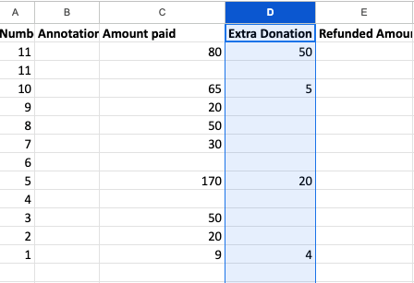
If a participant purchases a ticket and left an additional donation to your organization, it may be counted twice. Note that the amount indicated in the “Amount paid” column already includes the amount of the additional donation. Therefore, do not add the amount in the "Extra Donation" column to calculate the total received.
None of the above
We understand that reconciliation is a very important part of closing a fundraising event, so please don't hesitate should you need any help or if you have any remaining questions or concerns. If none of the above responds accurately to your situation, please contact us at [email protected] and include the following if applicable:
The name associated with the concerned transaction
The amount you are unable to reconcile - please let us know how you achieved this number or where you perceived a discrepancy for us to be able to follow your calculations!
The exports you are referencing (specify if you have any date, form name or other filters applied)
You can use different exports for the different types of reporting you want to do. Please refer to this page of our knowledge base to find out more about what is contained in each export and how you can get them: Reporting on Zeffy