
Manage suggested duplicate contacts
Zeffy shows a banner on the Contacts list when it detects potential duplicate contacts, and lets you review and merge them or mark them as distinct.
When Zeffy finds potential duplicates in your contact database, a banner appears at the top of your Contacts list page.
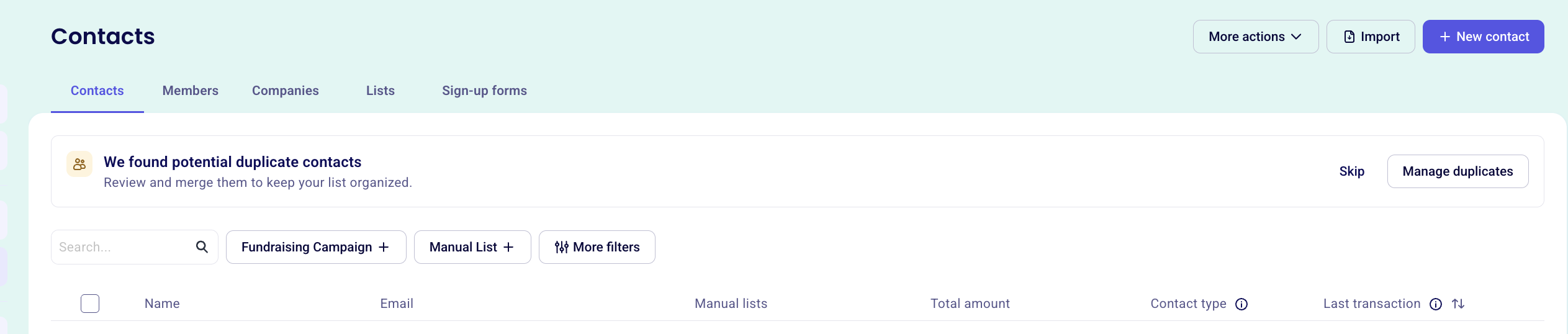
On the banner, click Manage duplicates to open the duplicate-management modal.
To dismiss the banner for 30 days, click Skip. The banner reappears after 30 days if you still have duplicate contacts.
Compare and merge contacts
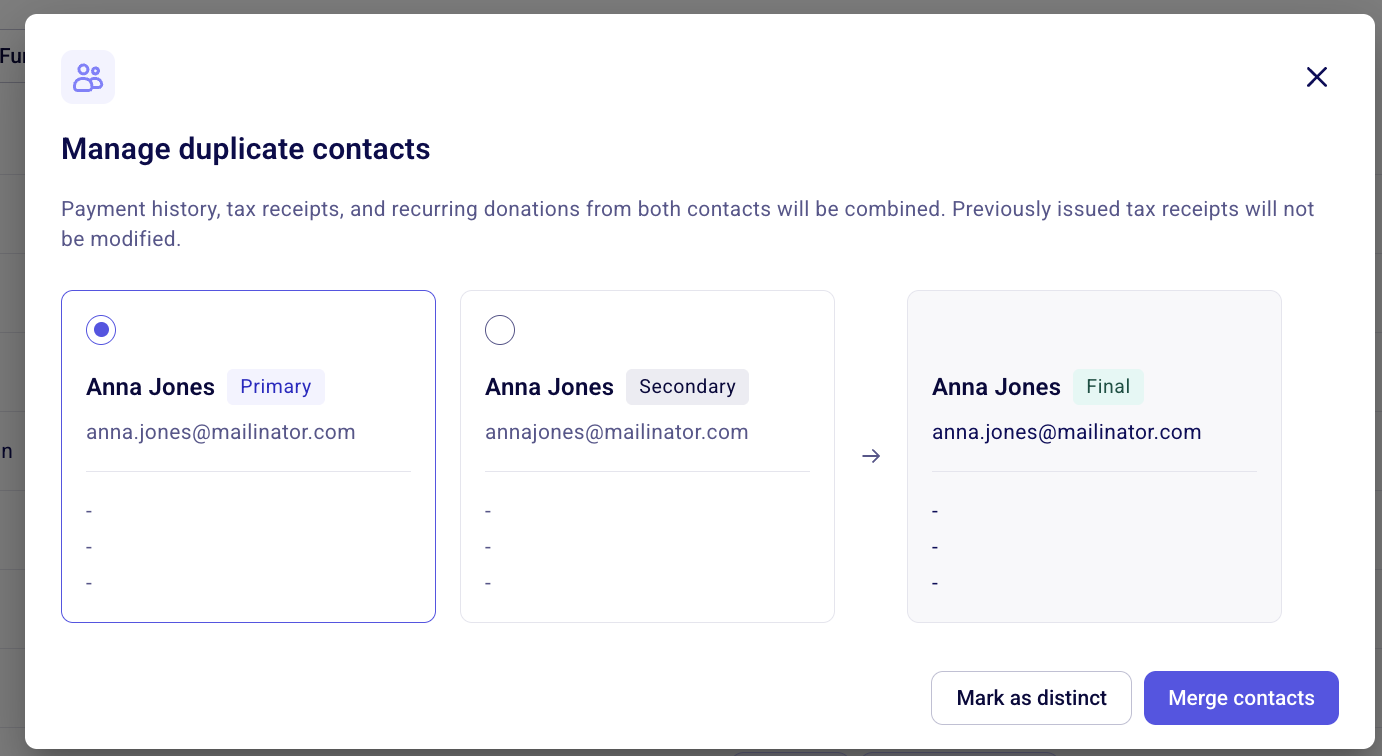
The Manage duplicate contacts modal shows three columns: the primary contact, the secondary (duplicate) contact, and a preview of the merged result.
Review the Primary and Secondary contact cards to confirm whether they are duplicates.
Check the Final column to preview the merged contact. The primary contact keeps all of its existing data. Information from the secondary contact is only added if the corresponding field on the primary contact is empty.
Choose what to do with a suggestion
After reviewing the pair, decide whether they should be merged or kept separate.
If the two contacts are not duplicates, click Mark as distinct. Zeffy will stop suggesting them as duplicates.
If they are duplicates, click Merge contacts. The primary contact (The chosen contact, marked by the purple square) is updated with any new information from the secondary contact, and the duplicate is removed.
Review duplicates from a contact profile
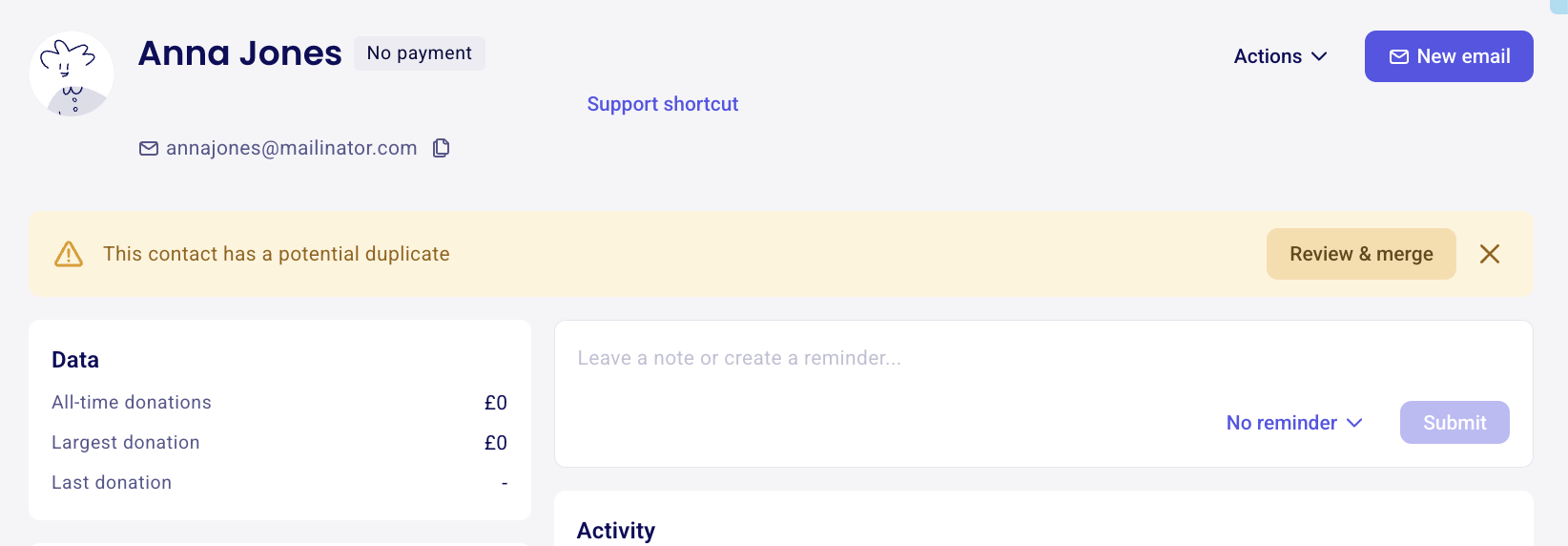
If a specific contact has a potential duplicate, the contact drawer also displays a banner so you can review it directly from that contact's profile.
Open the contact profile.
Click the Review & merge button on the banner.
The same Manage duplicate contacts modal opens. Review the contacts and choose Mark as distinct or Merge contacts.
Related articles
Managing and editing contacts
How contacts are created in Zeffy
Importing contacts into Zeffy