
Organize contacts into companies and households
Group contacts by company or household to see combined donation history, send emails, and keep shared notes in one place. A single contact can belong to both a company and a household at the same time.
Companies
Create a company
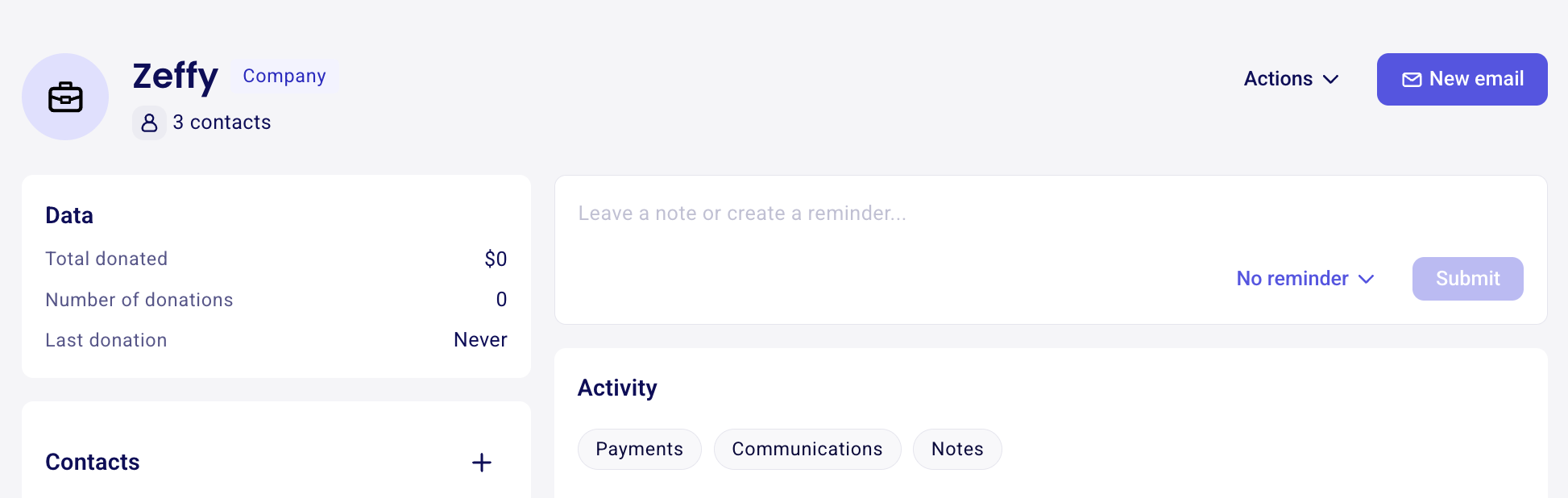
Creating a company allows you to group all contacts from the same organization in one place. You can see their combined donations, manage shared notes, and email any member directly from the company profile.
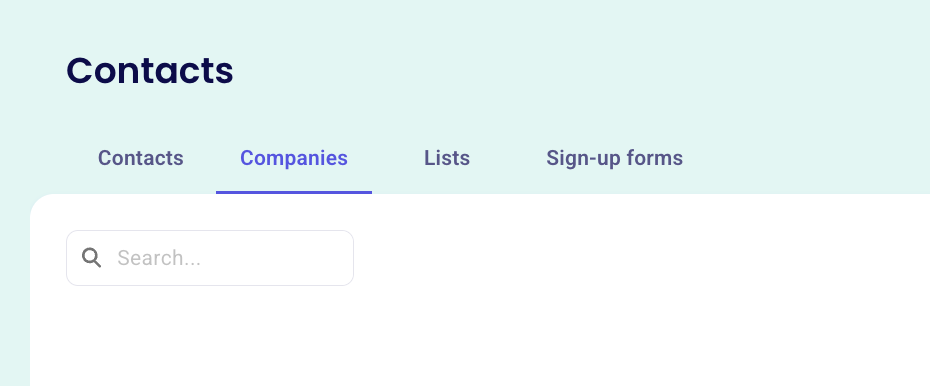
Go to Contacts and click the Companies tab.
Click + New Company.
Enter the company Name (required).
Enter the company Email domain (optional).
Click Create company.
Add contacts to a company
Adding contacts to a company allows you to link all related donors so their payments and activity show up in the combined activity feed. You can add contacts from either the company profile or the contact profile.
From a company profile
Head to Contacts > Companies.
Open the company profile.
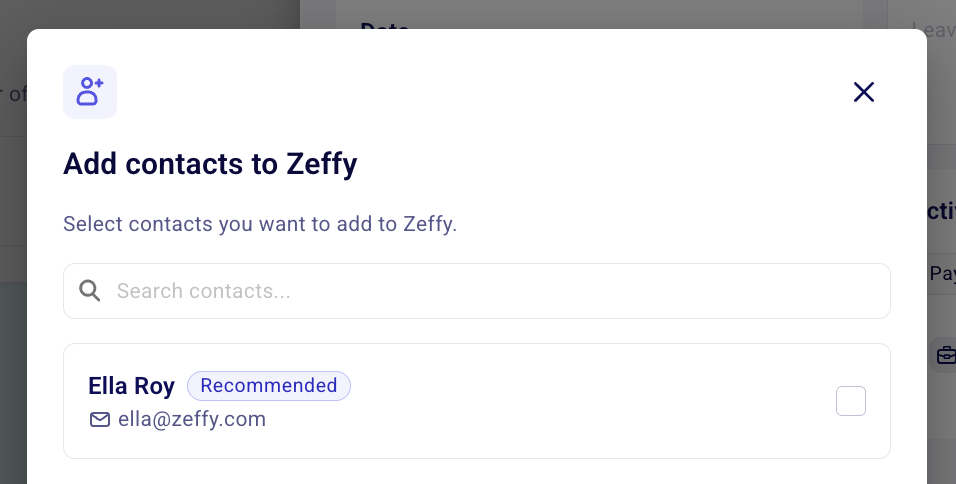
Click the + button at the top of the contacts list, or choose Add contact from the Actions menu.
Search for and select the contact. Click Add.
If the contact's email domain matches the company's domain, they appear at the top of the list labeled Recommended. Contacts already linked to this company are hidden. Generic domains such as gmail, hotmail, yahoo, and outlook are not used for matching.
From a contact profile
Open a contact profile.
In the Company section, click Add to a company.
Select the company and click Add.
The contact profile now shows the company name, and the company profile updates with the new contact and their donation activity.
Working with a company profile
Opening a company profile allows you to see everything related to that organization in one view.
See combined activity – The activity feed shows all payments from every contact in the company, labeled with the contact name (for example, "Ken C. donated $100").
Add notes and reminders – Use the composer in the right column to add notes about the company or set follow-up reminders. These are saved to the company, not to individual contacts, so they stay visible even if contacts change.
Send emails – Click New Email in the top right. This will create an email to all contacts within this company.
Edit or delete – Use the Actions menu to edit the company name, website, or address, or to delete the company if you no longer need it.
Households
Create a household
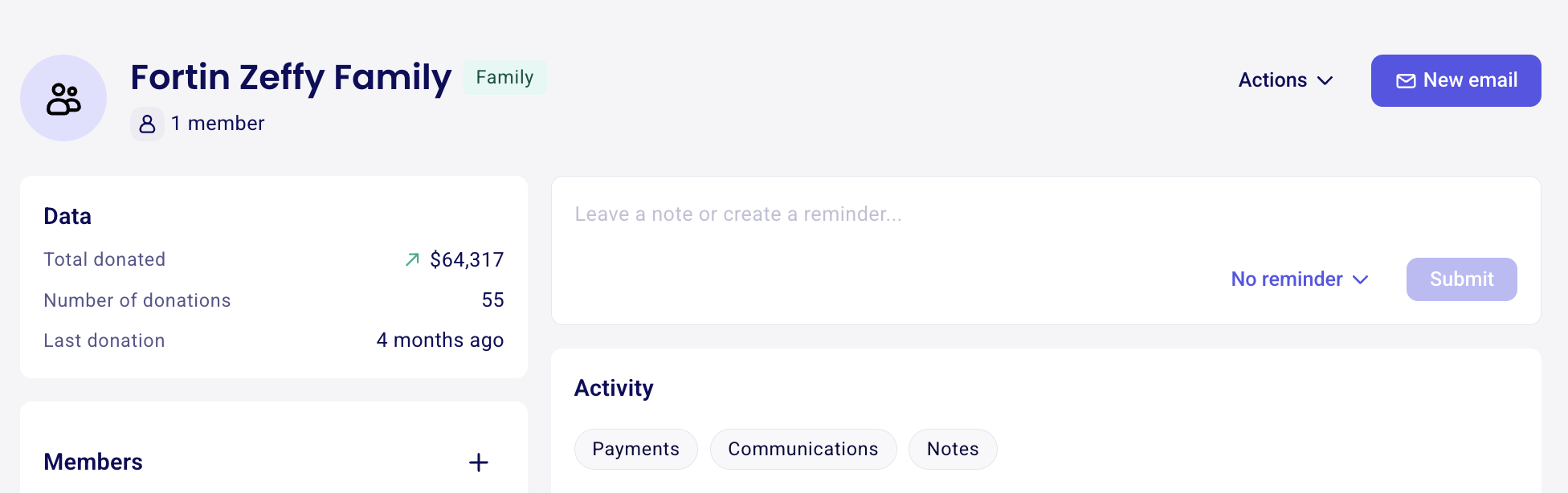
Creating a household allows you to group family members or people who share a residence so you can track their combined giving, view shared activity, and keep household-level notes separate from individual contact records.
Open a contact profile.
In the Family section, click Add to a family.
Click Create new.
Enter a household Name (for example, "The Crombie Family").
Save the household.
Each contact can belong to only one household (but they can belong to both a company and a household).
Work with a household profile
Opening a household profile allows you to see the combined activity of all members or focus on one person at a time.
See combined activity - In the activity feed, you'll be able to view the combined activity of all household members. This includes payment history, notes and the household creation date.
Add notes and reminders - Notes and reminders added here belong to the household, not to individual contacts. They are visible only on the household profile.
What you see on contact profiles
Viewing company and household links on a contact profile allows you to quickly navigate between related records without losing context. When a contact belongs to a company or household, their profile header shows the company name and household name, both clickable to open the respective profiles. Small icon badges also appear in the header for quick identification.
If a contact has no household yet, Zeffy may suggest grouping them with another contact who shares the same last name and state. You can dismiss this suggestion if it is not relevant.
Auto-link companies at checkout
When a donor checks "This is a corporate/organization purchase" at checkout and provides a company name, Zeffy can automatically create or link the payment to a company record if the company name matches an existing one.
These company records can also be selected when manually entering a payment. If you mark the payment as a corporate/organization purchase, you'll be able to choose from existing company records or create a new one, helping keep all payments associated with the same organization grouped together.
What to do next
To manage individual contact details, see Managing and editing contacts.
To learn how to filter and segment by company, see Filtering your contacts.
To add notes and reminders to contacts, see Adding notes and reminders to contacts.