
Change your login email or method
Change your email address
To change the main email address associated with your account:
Log into your Zeffy account with your current email address.
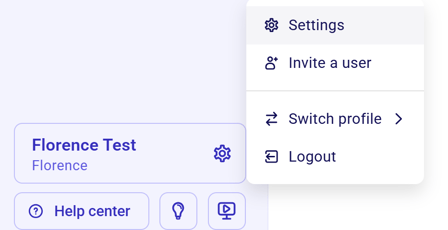
Click on your name in the bottom left corner and select "Settings".
Click on "Personal information".
Change the email address to the new one and save.
If you use Google Sign-In (SSO)
If you log in using Google Single Sign-On, you cannot change your email directly from your settings. Instead, add your new email as a user to the account, then transfer ownership to that email.
Step 1: Add your new email as a user
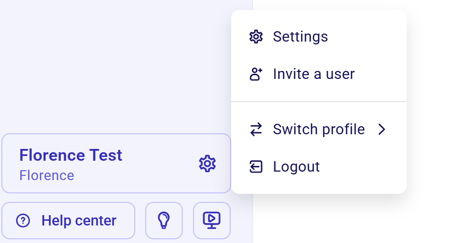
Click on your name in the bottom left corner of the Zeffy dashboard.
Select "Invite a user".
Enter the email address you'd like to use for logging in.
Accept the invitation sent to that email address.
If the invitation email doesn't arrive, resend it from Settings → Manage Users: click the three dots to the right of your new email and select "Resend invitation".
Step 2: Transfer ownership to the new email
Once you've accepted the invitation from your new email:
Go to Settings → Manage users.
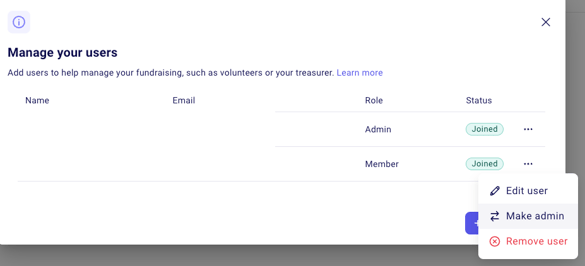
Click the three dots next to your new email.
Select "Make admin" to transfer ownership.
You can now log in using your new email address with full admin access.
Disable Google Sign-In
Switch to logging in with your email and password by removing Google Sign-In from your account settings. You cannot remove it from the login page, so log in with Google one last time first.
Log in to your Zeffy account with Google.
Click on your name in the bottom left corner and select "Settings".
Go to Account and click "Change my password".
Click "Send reset link".
Open the password reset email we send you and set a new password.
Once you have set your password, log in with your email address and password. Google Sign-In is removed only after you complete the password reset from the email, not when the link is sent.
If you can no longer log in with Google, see Troubleshooting login and account access issues.