
Campaign communications: Schedule emails before and after your campaigns
Use campaign communications in Zeffy to schedule outreach before and after a campaign, event, raffle, auction, membership, or other sales form. Draft and schedule emails from the Communications tab, and manage automated thank-you and reminder emails under Automated communications.
Types of campaign communications
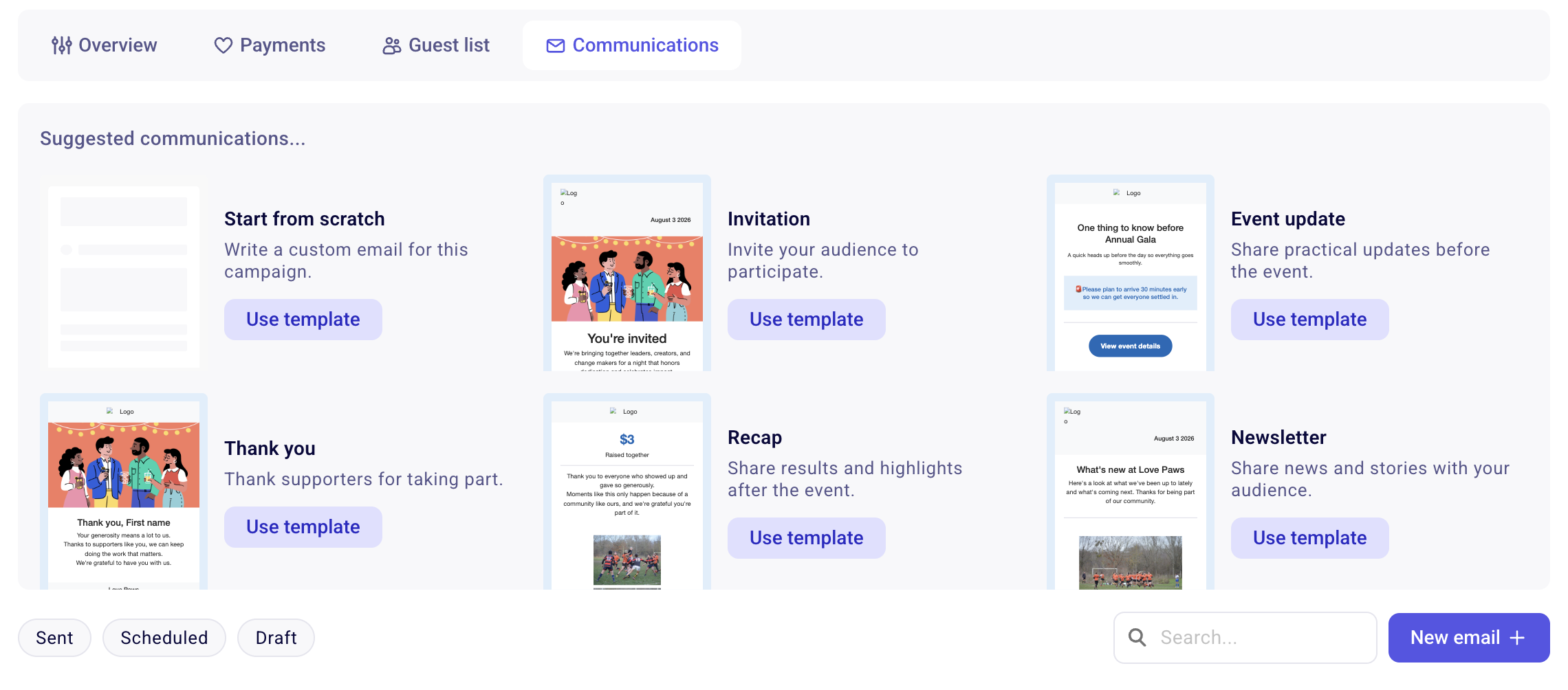
Open a campaign and go to its Communications tab, where you'll see Suggested communications. Choose one to draft from, or start from scratch.
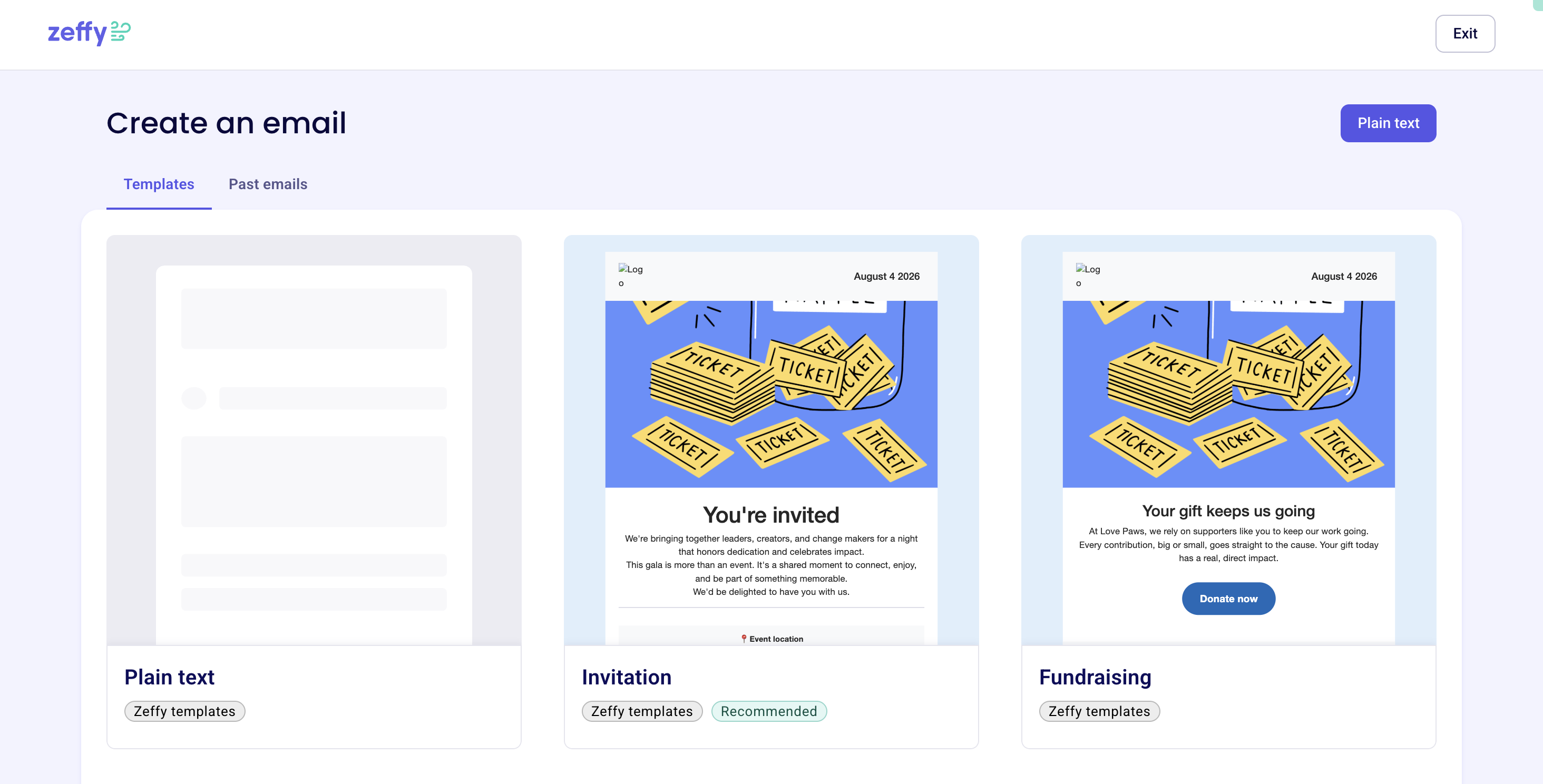
Click New email to open the full template library. The Templates tab includes:
Plain text
Invitation
Fundraising
Newsletter
Thank you
Reminder
Event recap
Progress update
Event update
General update
The Past emails tab lists emails you've already sent. Select any template to draft from it, or choose Plain text to build a fully custom email.
Save any email you draft as a template to reuse it in future campaigns — see Designing emails with Zeffy's email builder and templates.
Automated communications
Automated emails are sent automatically when supporters act on your campaign, and reminders go out automatically before an event. You can manage them in the campaign's form editor, not in the Communications tab: open the campaign, click Edit, and choose Automated communications in the left menu.
The automated thank-you email is required: it includes the transaction receipt and any applicable tickets.
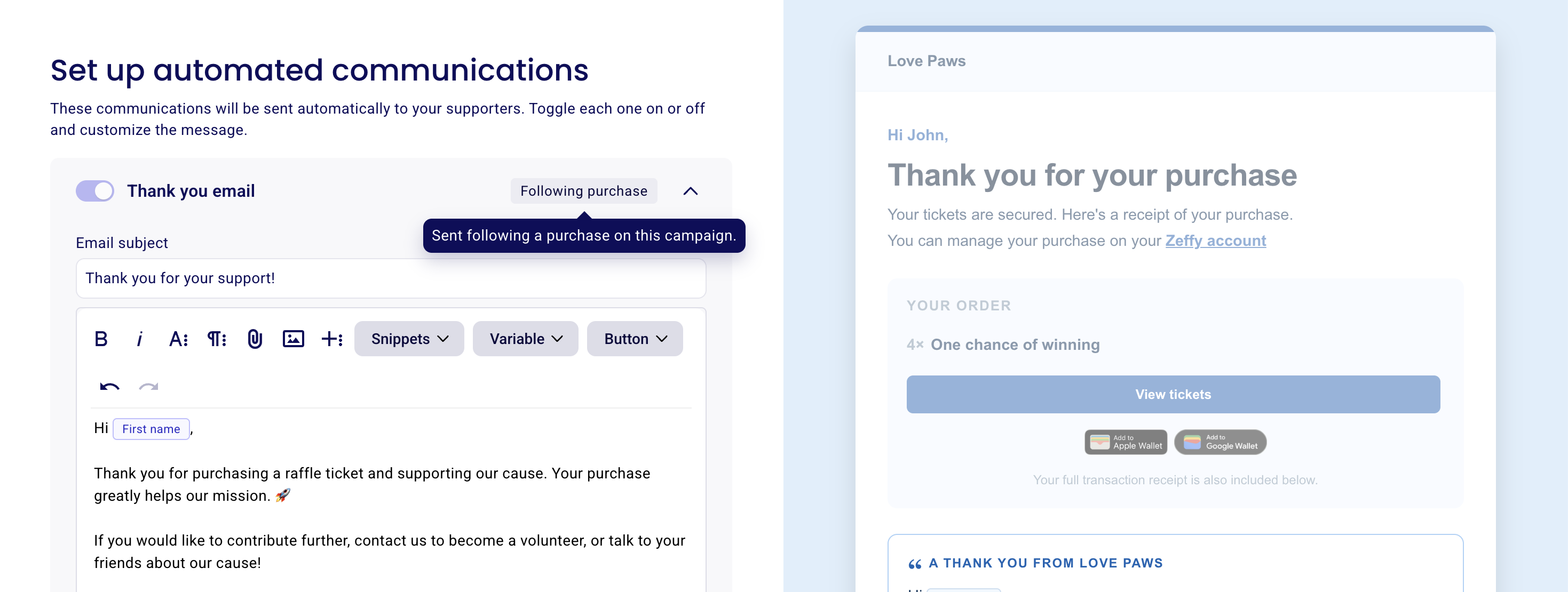
Automated emails have a toggle you can switch on or off, and you can edit its subject and content, send a test email, and save your changes. What you find under Automated communications depends on the campaign type:
Raffle — a thank-you email sent following a purchase
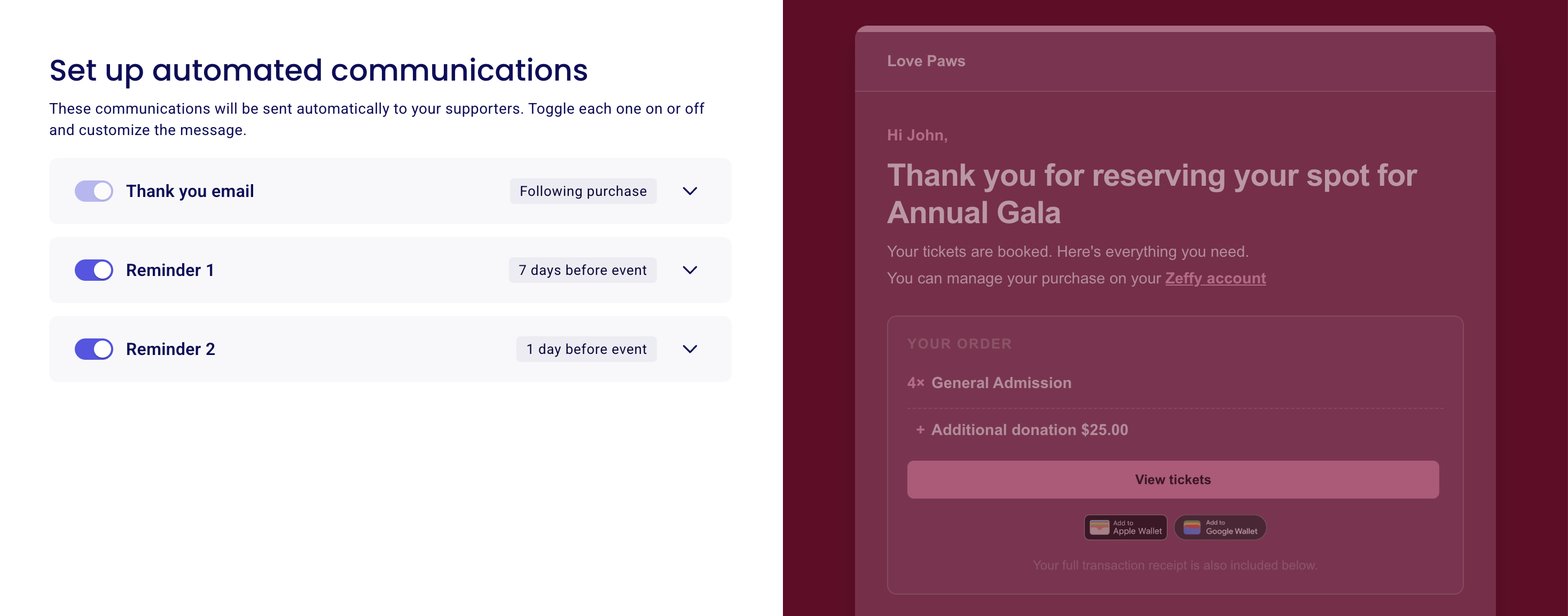
Event — a thank-you email and two reminders
Auction — thank-you emails for winners and non-winners, an outbid notification, and two reminders
Donation — a thank-you email
Peer-to-peer (P2P) — a thank-you email
Membership — a thank-you email and a membership expiration reminder
Shop (online store) — a thank-you email
For campaigns with reminders, they are scheduled automatically: Reminder 1 goes out 7 days before the event and Reminder 2 goes out 1 day before. You can change when each reminder is sent — in days or hours before the event — from the same screen.
Access the campaign communications page
Communications tab
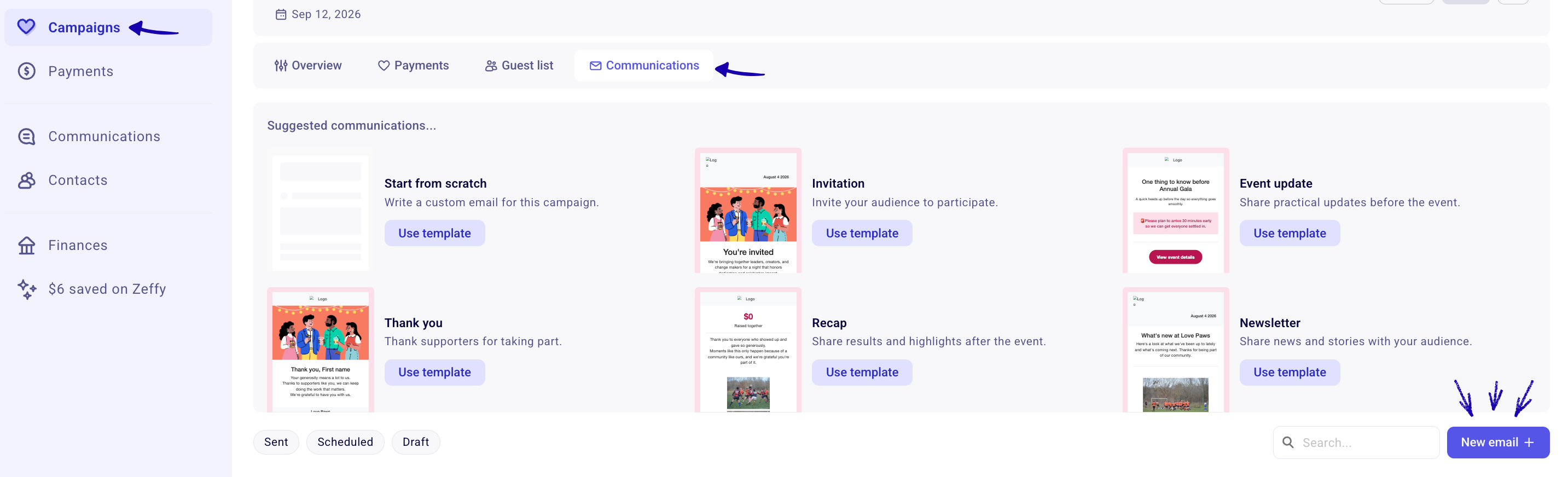
Every campaign has its own Communications tab, so the communications you see there are only for that campaign: suggested communications, emails you've drafted or scheduled, and past emails. Go to the Campaigns tab, select the campaign you want, and open its Communications tab. This is where you draft new emails from a suggested communication or template, send them now or schedule them, and reschedule or edit if needed.
Automated communications
Go to the Campaigns tab, select the campaign you want, and click Edit to open its form editor. In the left menu, choose Automated communications — this is where you manage automated thank-you and reminder emails, including when each reminder is sent.
Edit and schedule an email
In the Communications section of the campaign, click New email.
Select a template and personalize it.
Select your contact or recipients list. You can use contacts from Zeffy or import them from Gmail or Mailchimp, and you can also choose who not to send the email to.
Choose your sending preference: send now or schedule the email for later.
Press Send to send now, Schedule email to schedule it, or Save and Exit to come back later.
The available actions are:
Save and close to save the email without scheduling it
Edit schedule to choose the date and time the email will be sent automatically
Send now to deliver the email right away
Send test email to send a test version to the email address you are logged into Zeffy with
What to do next
If you want to email a saved list or filtered contact group outside a campaign workflow, see Send emails to contacts. To review performance after sending, see Track email performance.