
How to pull a list of current/active members
Use contact lists to create and export a snapshot of your current active members.
Step 1: Create a New List
Log into your Zeffy dashboard on a computer
Click on "Contacts" > "Lists" in the left-hand side menu
Click on "+New List"
Step 2: Filter your Contacts
Look for the filter button at the top of the page
Click on the "Membership" filter and "Is"
Select the types of memberships you would like to create a list from.
These include One Time, Monthly, Yearly Memberships
You can also select all 3 as shown below:
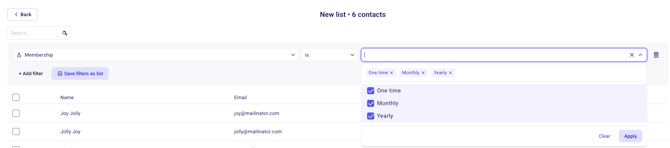
⚠️ Membership Status: The system automatically tracks membership status. The members filtered for here are those whose memberships have not expired and have not been cancelled.
Step 3: Create your List
Click on "Save filters as List"
Choose between:
Automatic List: Updates automatically as membership statuses change
Manual List: Static snapshot of current active members (This is the one you will want to create to export your list of members)
Name your list, for example "All Members August 2025"
Click "Create List"
Congrats! You've now created a list with all of the active members of your organization.
Step 4: Export Your Filtered List
Export Manual List:
Once you've created your list, you can export it to see all the information about your donors
Go to "Contacts"
Filter for "Manual List"
Choose the list you just created
Click the purple check box to highlight all of the members
Click on "Export"
The exported file will include all relevant contact information for your active members
What's Included in the Export
Your exported list will contain:
Name and contact information
Email addresses
Membership details
Transaction history
Any custom tags or notes