
Tracking email performance
Use email results in Zeffy to understand what happened after a message was sent.
Open the email dashboard
Go to Communications.
You'll be taken to the Emails tab.
Select the sent email you want to review.
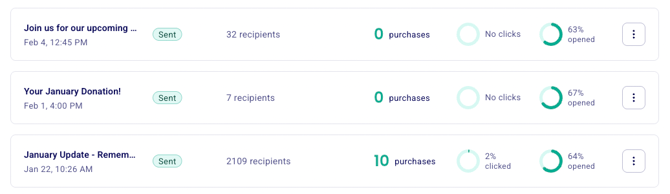
When you click on a sent email, you'll see a detailed performance dashboard showing:
The date and time the email was sent
The number of recipients
The campaign this email is associated with (purple label under the email title)
General performance metrics (in percentages)
Individual recipient statuses
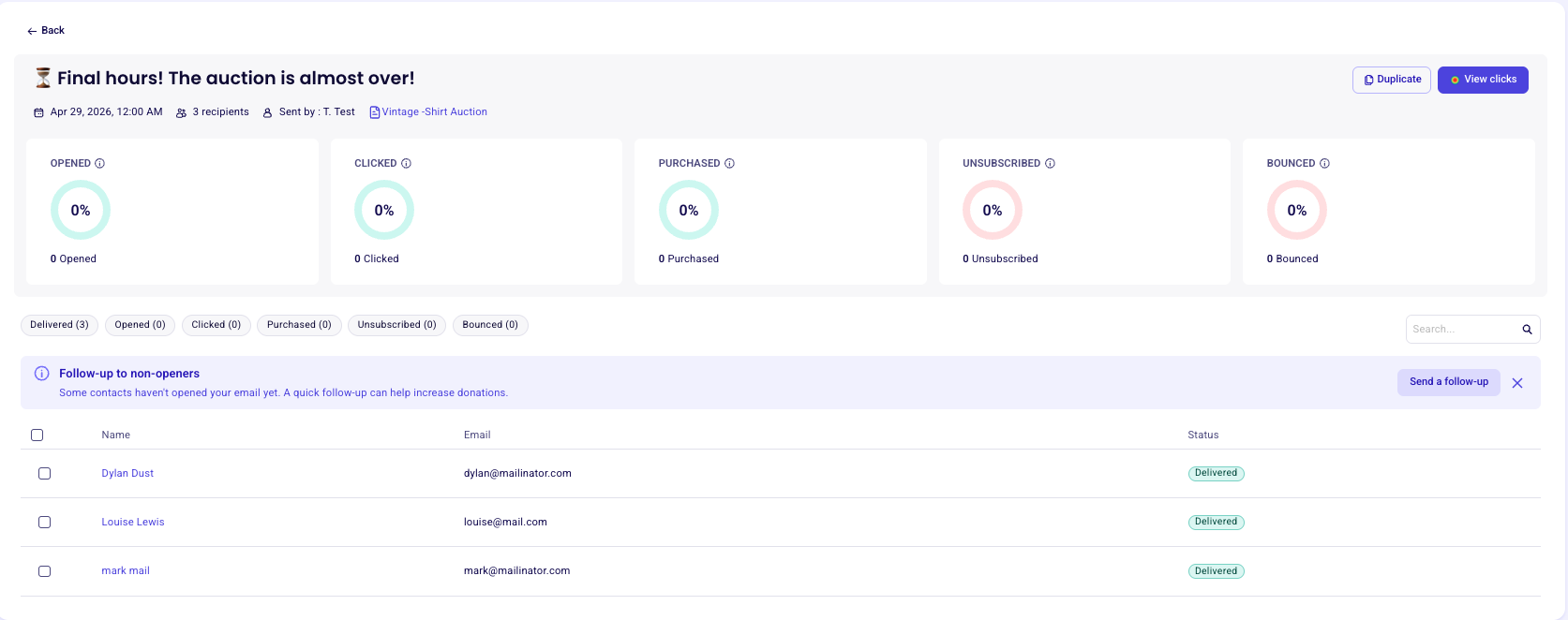
The email dashboard shows summary cards at the top and a recipient-level status table below.
Understand summary metrics
The summary cards show percentages and total counts for key results like opens, clicks, and purchases.
Use these totals to compare campaign performance over time.
Review recipient statuses
The recipient table shows what happened for each contact after the email was sent. You can also filter the table by status to review one result type at a time.
Delivered
The email reached the recipient's inbox but has not been opened or clicked yet.
Pending
The email is still in the delivery process. If the address is valid and there are no inbox issues, this status should later change to Delivered.

Opened
The recipient opened the email. This status is included in the top Open rate metric.
Clicked
The recipient clicked at least one link in the email. This status is included in the top Click rate metric.
Purchased
The recipient completed a transaction after clicking the email. This status is included in the top Purchase rate metric.
Unsubscribed
The recipient used the unsubscribe link after receiving the email and will appear under this status for that send.
Bounced or Failed
The email could not be delivered. Common causes include:
The email address is invalid
The recipient's inbox is full
The recipient's email server rejected the message
Check email results that do not appear in Communications
1-to-1 emails
1-to-1 emails do not appear under Communications > Emails. This section is focused on bulk emails and newsletters sent to multiple recipients.
To review a 1-to-1 email you sent to an individual contact:
Go to Contacts.
Click on the contact's name to open their profile.
Look for emails marked 1-1 and check their delivery status.
Automated confirmation emails
Automated confirmation emails also do not appear under Communications > Emails.
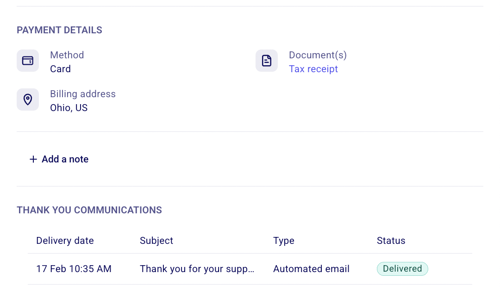
To check the status of Zeffy's automated confirmation emails:
Go to Payments.
Locate the transaction.
Click on the payment line (not the donor's name).
Scroll to the Thank you communications section to see the status of the automated confirmation email.
Use results to improve future sends
Use campaign results to refine your recipient lists, timing, and message content.
If a send underperforms, adjust your audience in Create lists and segments or revise the message in Use the email builder and templates.