
Set up and customize a raffle form
Before you begin, make sure that your raffle draw meets the rules issued by the Gaming Authority of your province, state, or region. In some jurisdictions, you may need to obtain a license for your lottery.
For detailed information on licensing requirements, gaming authority contacts, and answers to common questions about using Zeffy for raffles, see Is Zeffy a licensed Electronic Raffle System?
For more detailed information on the regulations of each province or state, visit their respective websites. Please also see our blog post for how to run a successful raffle.
If you prefer visual guidance, check out our video tutorial on setting up your next raffle on Zeffy. For detailed written instructions, continue reading below.
Step-by-Step Setup Guide
As you build your form, you can preview how it will look to your supporters on both mobile and desktop using the preview panel on the right side of the screen
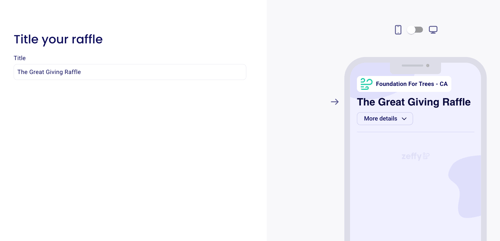
1) Raffle Title
Enter your raffle title
2) Set Event Dates and Times
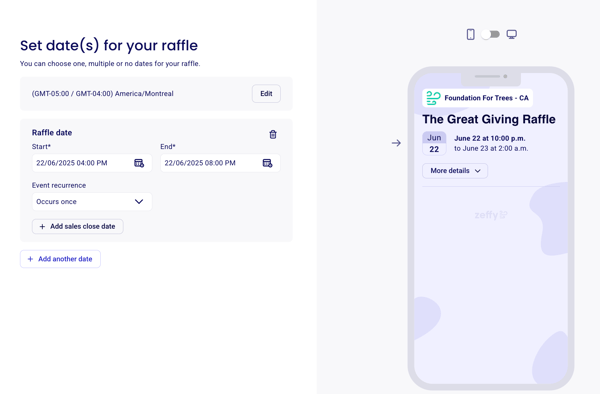
Add your event date (optional) and set a start and end time
You can choose one, multiple or no dates for your raffle. If you do not want to add a date, click on next at the bottom of the page without adding one
Set a "sales close date" if you wish to close sales before your raffle start date. If you do not set a sales close date, sales will be closed automatically when your raffle starts
3) Customize Form Description
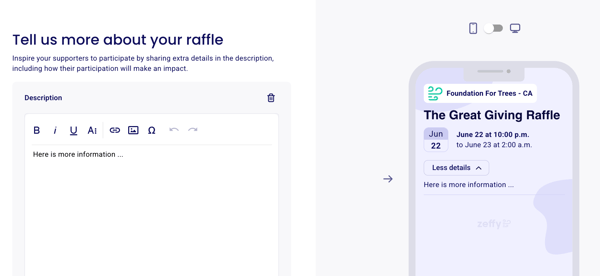
Add a detailed description of your raffle
Include important event details and what participants can expect
4) Form Design
In the color, banner and logo sections, you'll be able to customize the look of your form.
The color section will allow you to customize the color scheme of your Zeffy form - the color selected will also be the color your e-tickets are generated in
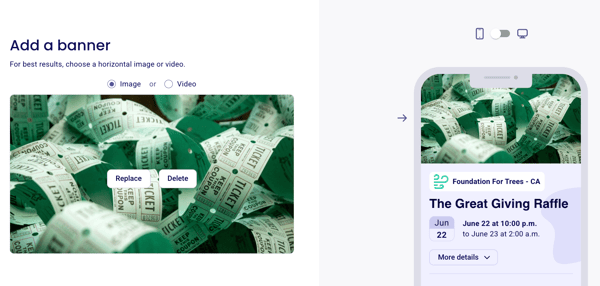
Upload your nonprofit's logo (it will appear in top left corner, next to your organization name) and then your banner (the main image of your form).
5) Configure Tickets
Set the total number of available tickets for your raffle (Optional. To learn more about ticket limits, please click here)
Add different ticket types:
Indicate the ticket name in the Title section (e.g. General admission, day pass, family pass, etc.)
Set a price for each ticket type
Add descriptions for what each ticket includes
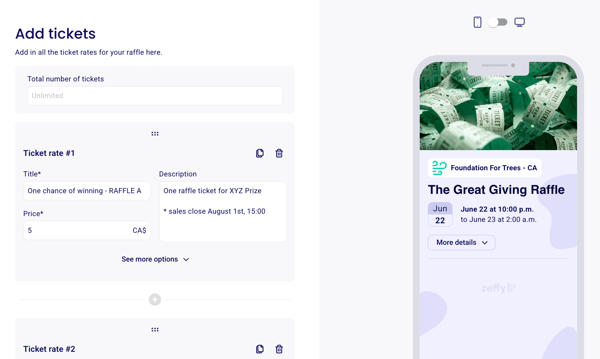
⚠️ More options: Click "See more options" below each item for more options:
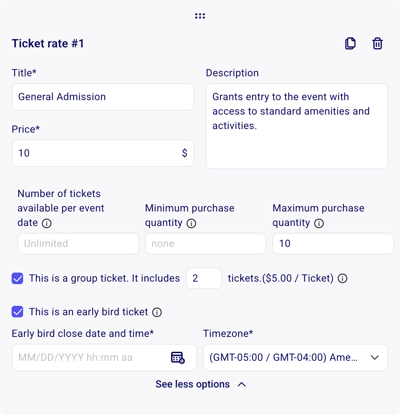
Set a total availability: if you have limited quantities of this ticket type, you can set an upper limit for that ticket type.
Generate Tax receipts: if part of the ticket price is eligible for a tax receipt, you can check the option to generate a tax receipt and set the desired amount.
Create a group ticket: this will generate multiple tickets in one purchase. This is a great option for selling tables or offering discounted rates when more than one ticket is purchased by a buyer.
Early bird purchases: if you want to sell some of your tickets at early bird pricing, you can set a date on which this rate will no longer be available for sale.
6) Collect additional Information
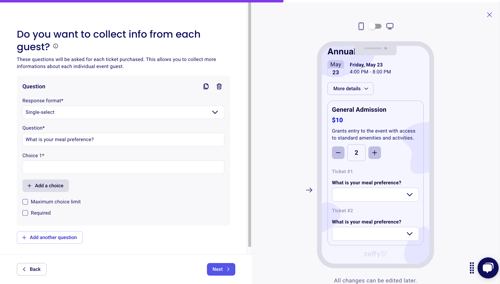
In the 'Questions per ticket' section, you can collect information for each individual ticket purchased. Any questions added here will be asked once for every ticket bought—so if someone purchases 10 tickets, they'll need to answer these questions 10 times.
Choose response formats (single select, multiple choice, checkbox, etc.)
💡To collect guest names, select the "Name" response format. The response entered in those fields will populate on e-tickets and on your guest list for easier reporting and attendance tracking.
Set whether questions apply to all ticket types or specific ones
Make questions required if needed
Set maximum choice limits. Setting a maximum choice limit will limit the number of times this answer can be selected. The option will be greyed out when the limit is reached.
Question limits for multiple-choice questions
For multiple-choice questions, you can set a limit on how many times each answer option can be selected. You can use this feature to indicate how many meal options, clothing sizes, or spots in activities are available, for example!
To do this, choose multi-select or single-select as the question type. Then, click on "maximum choice limit" below the question.
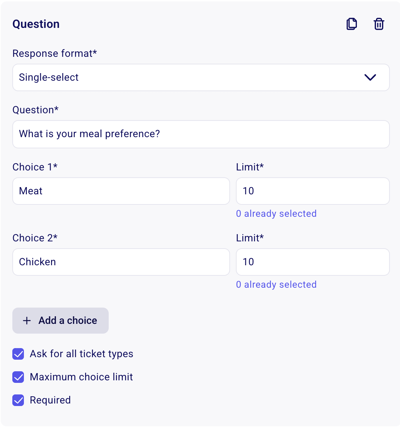
You can then enter the limit that corresponds to each multiple-choice answer in the field to the right. On the form, your buyers will be able to see how many of each selection are still available.
Questions only for specific tickets
You can click on "Ask for all ticket types" if you would like to ask the question for each ticket type. You can also specify which ticket rates you want this question to be asked for.

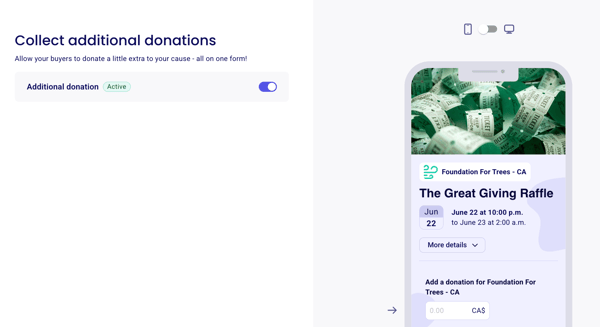
7) Collect Additional Donations
You can activate the option for buyers to add a donation to your organization and to generate a receipt for the additional donation if your account is configured to do so.
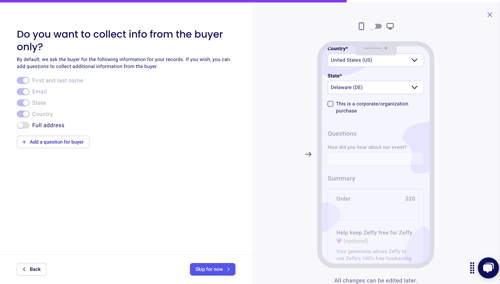
8) Collect Buyer Information
Ask your buyers custom questions: These questions will be asked once per purchase. By default, the buyer will be asked for first and last name, Email, State/Province, and Country.
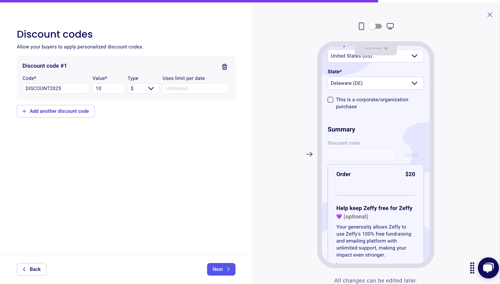
9) Add Discount Codes
Add discount codes with specific values and usage limits.
"Uses limit per date": If you are hosting an event with multiple dates and times, the code can be used the number of times indicated for each event occurrence. If you are hosting a single date event, the "per date" specification does not apply.
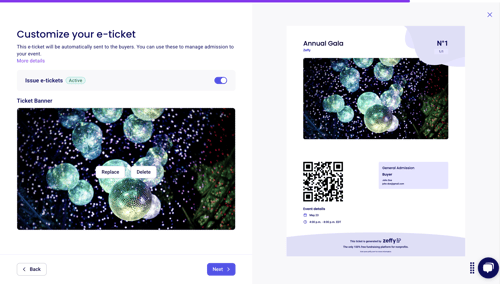
10) Customize your E-ticket
Customize your raffle tickets by adding a ticket banner
11) Customize your Thank You Email
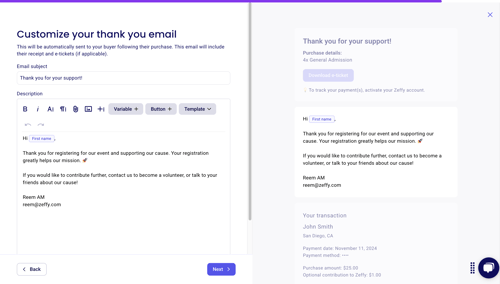
When a buyer completes their purchase, they are sent a confirmation email with their e-ticket(s), transaction receipt and a thank you message which you can customize in your form editor.
Configure thank you emails with:
Custom subject line and content
Variables for personalization
Buttons linking to other forms/campaigns
Image attachments
12) Advanced Settings
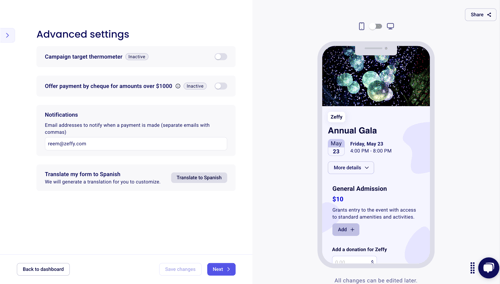
Add a campaign target thermometer to share your progress of your raffle sales
Enable check payments for amounts over $1,000
Set up notification emails for multiple team members
Enable form translation (Spanish for US, French for Canada)
13) Share your raffle
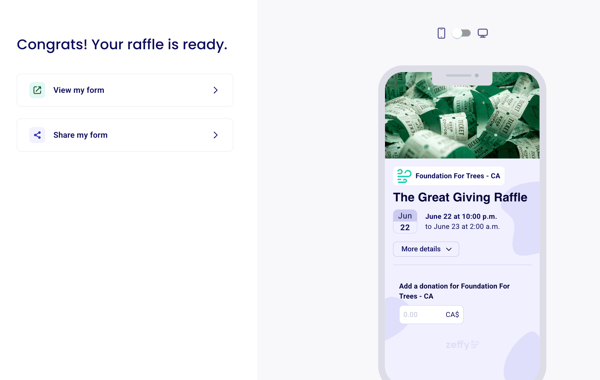
Once your form configuration has been finalized and you're ready for it to be publicized, you'll be able to share it with your community. To learn how to share your form, consult the instructions here: Sharing your Zeffy form.
🏆 Drawing a winner
Due to the raffle rules issued by the Gaming Authorities of each province or state, Zeffy doesn't have an automatic winner drawing tool. You can use the platform to sell tickets, but the draw needs to be done outside of the platform.
A random name picker is a great option if this meets the requirements of your state or province!