Campaign communications: Schedule emails before and after your campaigns
Use campaign communications in Zeffy to schedule outreach before and after a campaign, event, raffle, auction, membership, or other sales form.
Types of campaign communications
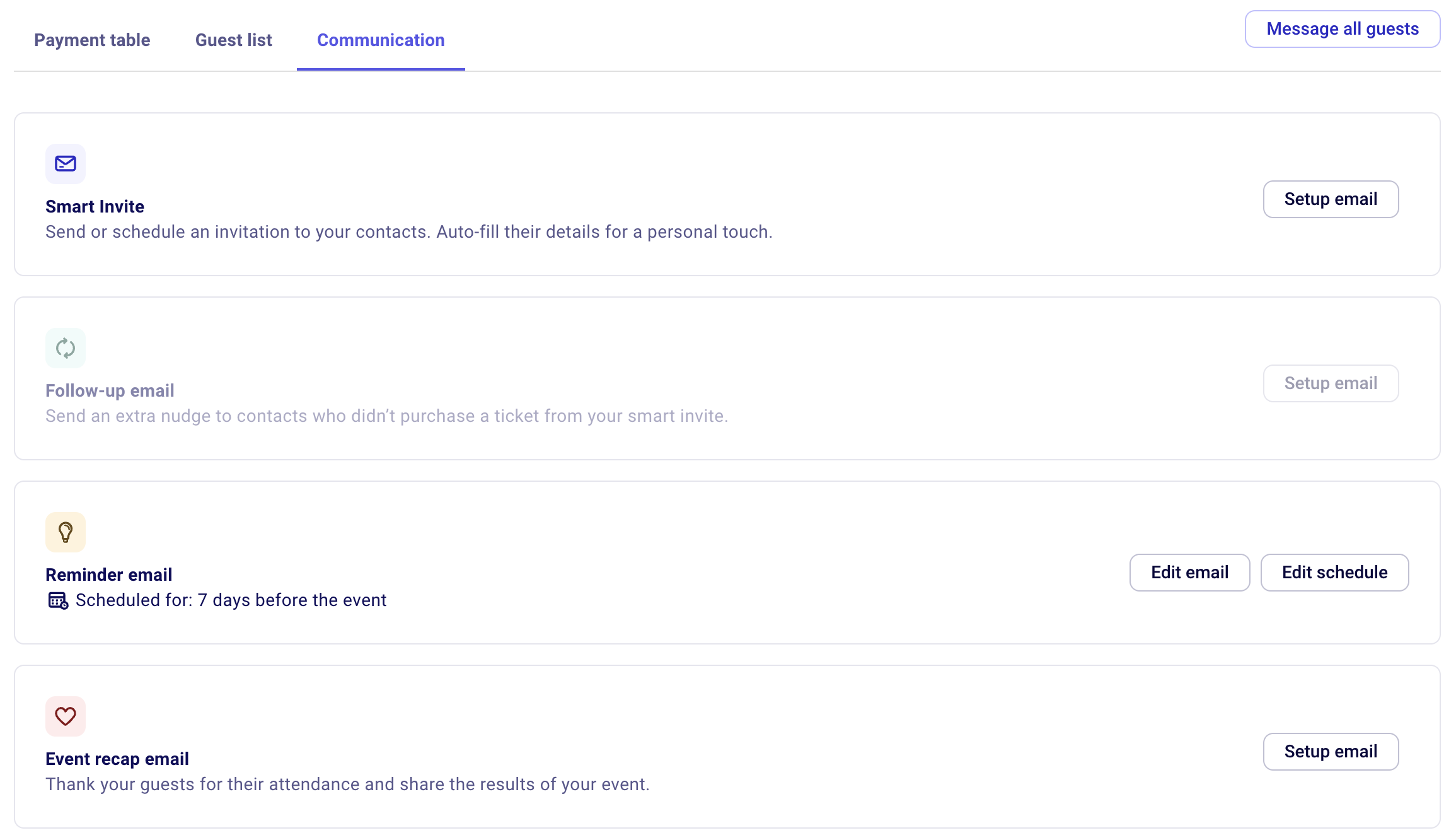
Smart invite
The Smart invite is the first communication sent to supporters.
Use it to invite contacts to buy tickets for an upcoming event or donate to a newly launched campaign.
The Smart invite is available on all form types.
You can send it right away to all or a segment of your contacts, or schedule it for a specific date.
Follow up email
The Follow up email is an extra nudge for people who have not completed a transaction on your form after the Smart invite was sent.
The Follow up email is available on all form types.
Its audience is based on the contact list selected for the Smart invite, but only includes contacts who did not complete the form.
You can send it right away or schedule it for a later date.
Reminder email
The Reminder email is sent to participants who already completed a transaction and need a reminder that the campaign date is approaching.
By default, reminder emails are scheduled 7 days before events, raffles, and other sales forms. For auctions, they are sent 1 day before the end date. For memberships, they are sent 1 month before the membership expiry date.
The Reminder email is available on event, raffle, auction, membership, and other sales forms.
The audience includes everyone who completed a transaction on the form. Contacts with cancelled tickets are not included.
Event recap email
The Event recap email thanks participants after the campaign or event.
It is available on event, raffle, auction, membership, and other sales forms.
The audience includes everyone who completed a transaction on the form. Contacts with cancelled tickets are not included.
Access the campaign communications page
From the campaign management page
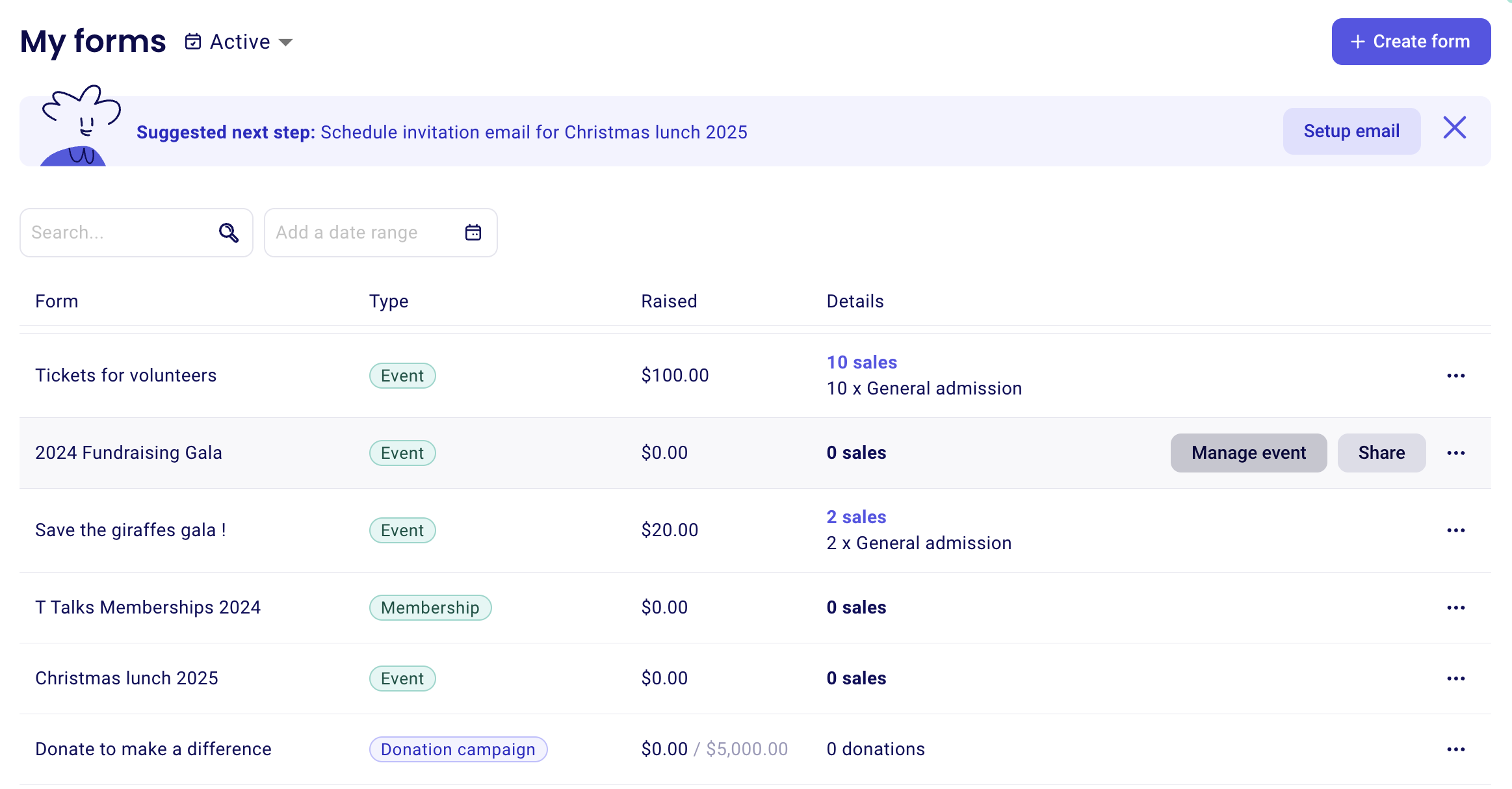
Go to Forms and open the management page for the form you want to work on. The button label changes based on the form type, such as Manage event, View bids, or Manage campaign.
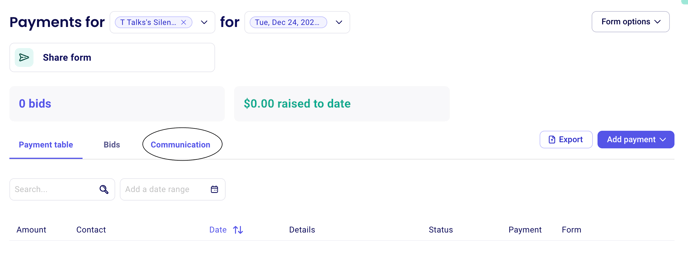
Then open the Communications tab above the payments table.
Edit and schedule an email
In the Communications section, click Resume email setup next to the email you want to create.
Start from the provided template and personalize it.
Select your contact list. You can use contacts from Zeffy or import them from Gmail or Mailchimp.
Compose the email.
Scroll to the bottom to choose what you want to do next.
The available actions are:
Save and close to save the email without scheduling it
Edit schedule to choose the date and time the email will be sent automatically
Send now to deliver the email right away
Send test email to send a test version to the email address you are logged into Zeffy with
What to do next
If you want to email a saved list or filtered contact group outside a campaign workflow, see Send emails to contacts. To review performance after sending, see Track email performance.