
Add a button to a website to share your form
Add a "Donate," "Purchase now," "Register" or any other call to action type button to get your supporters to click the button and be brought straight to your form to make a payment.
Step 1: Retrieve the URL to your Zeffy form
Go to "Campaigns"
Click the three dots next to the campaign you want to share
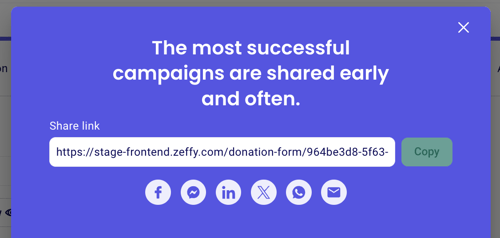
Select the "Share" option
A pop-up will open showing you the different sharing options you have access to.
Click on copy to copy the URL.
Step 2: Add the link to your website button
Watch the tutorial below to learn how to add the link to a button on your website.
To add a button on Squarespace - Watch the tutorial
To add a button on WordPress - Watch the tutorial
Steps to add a button to a website and link your form
You will need access to the backend of your website to add this button.
Go to the page of your website where you want to add a button
Add an element and select "Button"
Customize the look of the button on your website and the call to action wording (e.g. Donate)
To add the link to your Zeffy form to the button, you will have to login to Zeffy
Go to "Forms" and click "Edit" next to the form you want to edit
Go to the "Share" section of the form editor
Copy the "Sharing link" which is the first link on the list
Go back to your web editor and paste the link into the appropriate section of the button creator on your website.